How to install ScheduleLord on your iPhone

ScheduleLord is a web app, not an App Store download — but you can still add it to your iPhone's home screen so it opens and feels just like a native app, with its own icon and no browser bar.
Here's how, in under a minute:
- Open schedulelord.com in Safari (this only works from Safari, not Chrome or another browser on iOS).
- Tap the Share icon at the bottom of the screen (the square with an arrow pointing up).
- Scroll down and tap Add to Home Screen.
- Confirm the name and tap Add in the top-right corner.
That's it — you'll now have a ScheduleLord icon on your home screen that launches straight into the app.
Watch it in action
Why bother?
Adding ScheduleLord to your home screen means one tap to check your schedule, request time off, or see who's covering a shift — no need to dig through Safari tabs or bookmarks. It's the fastest way for you and your team to have ScheduleLord within reach on the go.
Turn on push notifications too
This is actually why you'll want to install ScheduleLord in the first place: iOS only allows push notifications for apps added to your home screen. Once you've added it (steps above) and opened it from there, go to the notifications page and tap Enable push notifications.
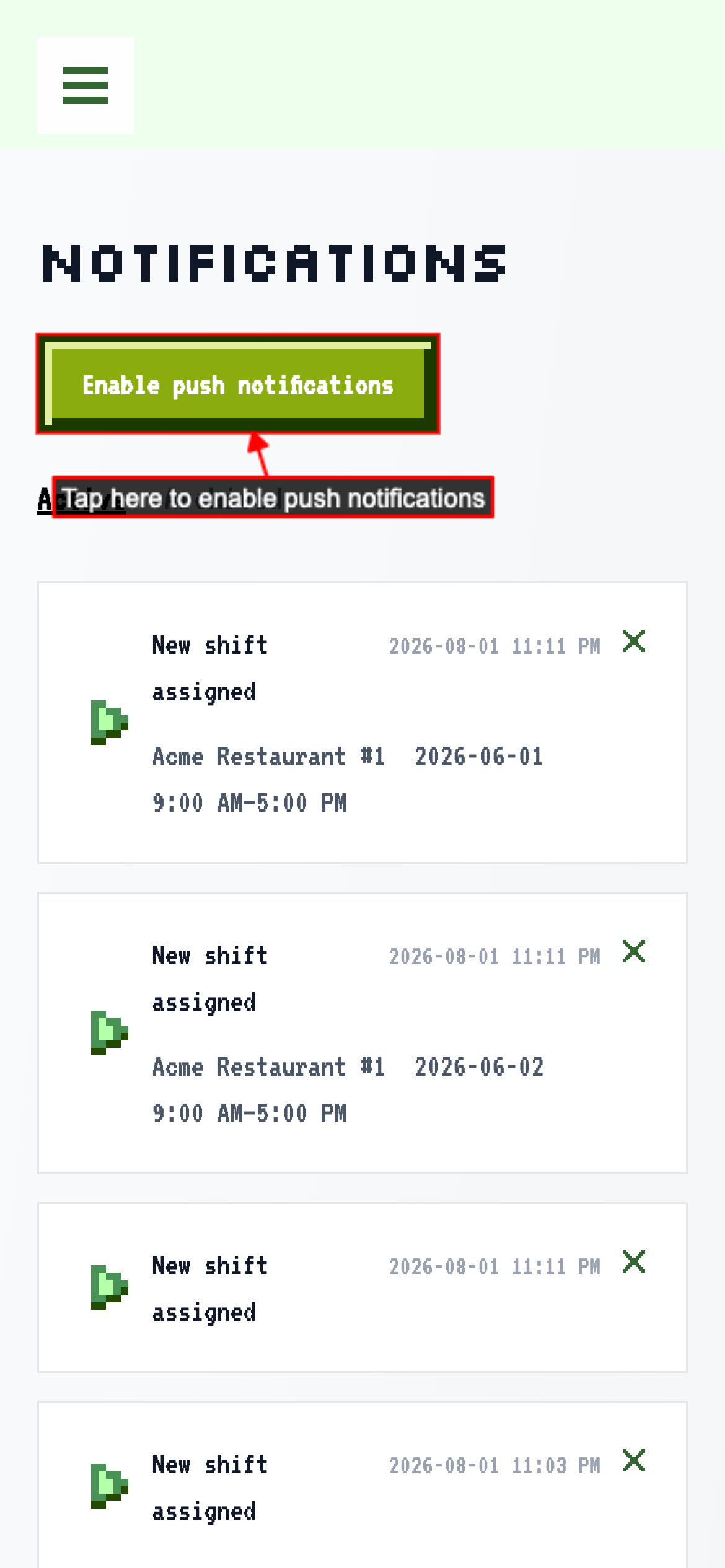
From then on you'll be notified the moment a new shift, swap, or schedule change comes in — no need to have the app open. You can turn notifications back off from the same page at any time.