Organization Invites
How you're told about an invite
Open Notifications in the sidebar. When an organization adds your account to its team, you get a notification naming it, and a push notification too if you've turned those on.
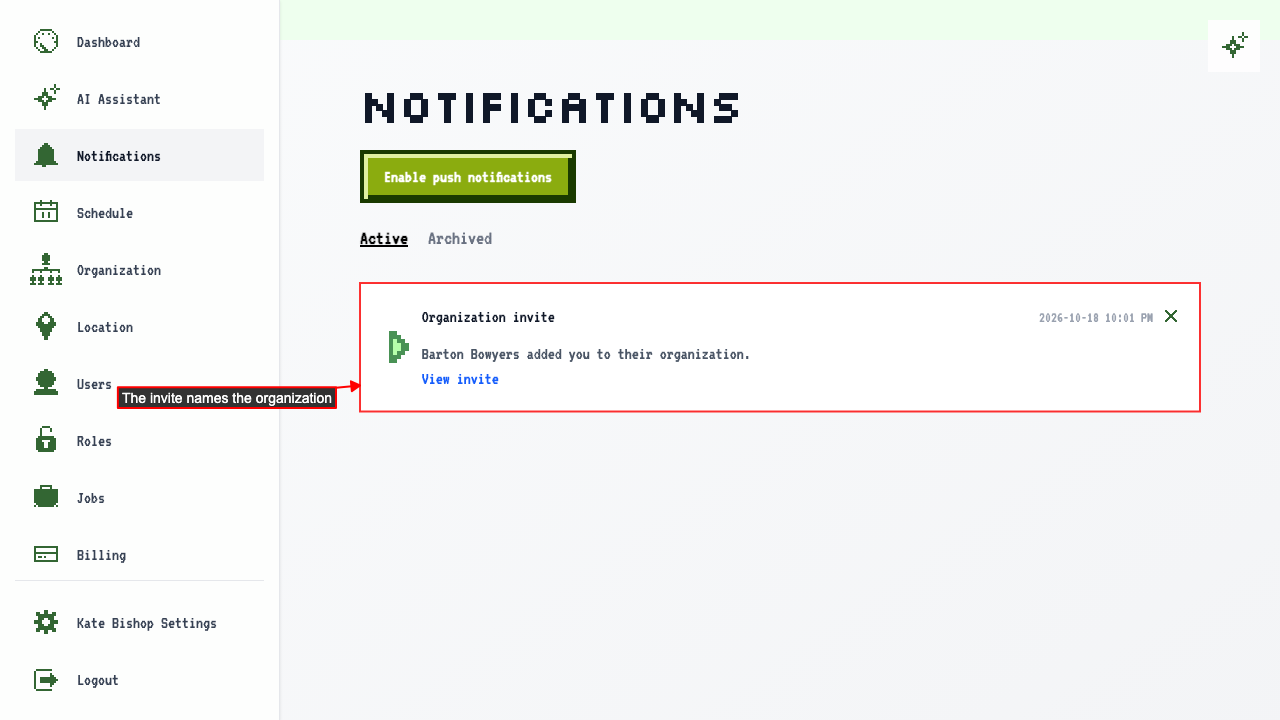 Click View invite to go to the invite on your dashboard.
How to accept an invite
Start on your dashboard. Invites you haven't answered are listed under Organization Invites. You aren't added to an organization right away, and you can take as long as you like to answer.
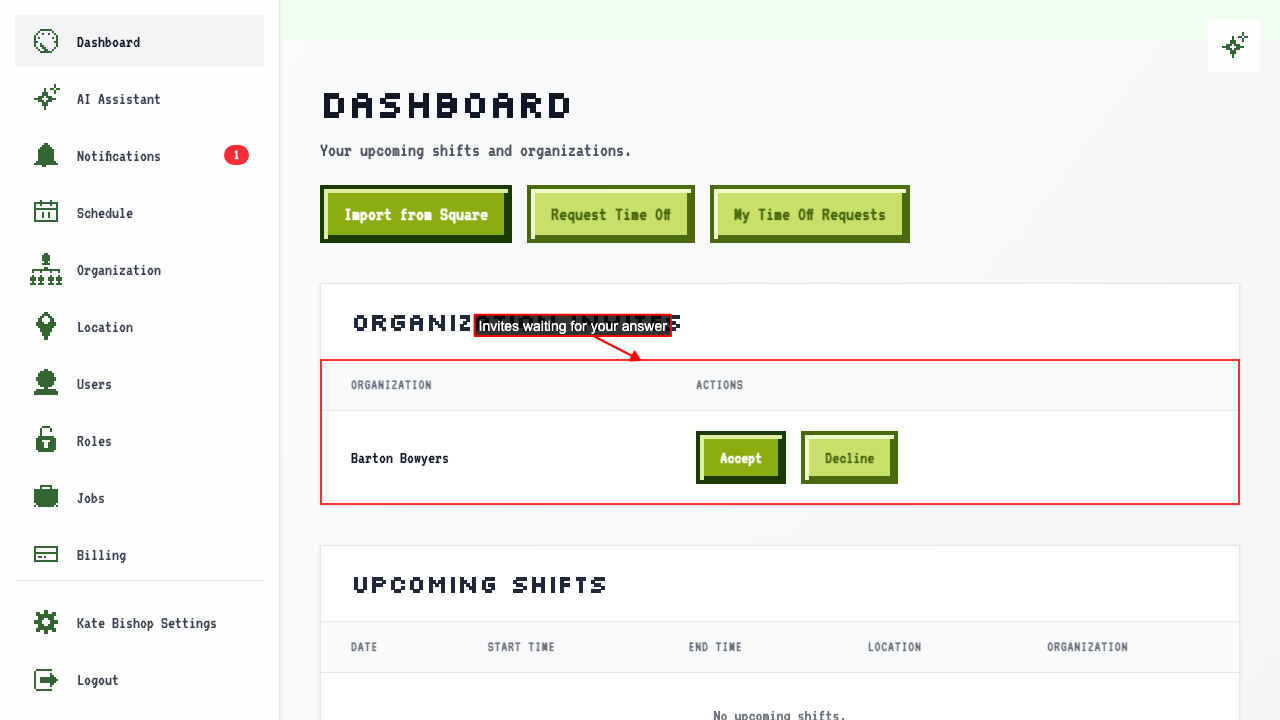 Until you accept, the organization doesn't appear in your list of organizations, and you can't open it.
Click Accept.
Until you accept, the organization doesn't appear in your list of organizations, and you can't open it.
Click Accept.
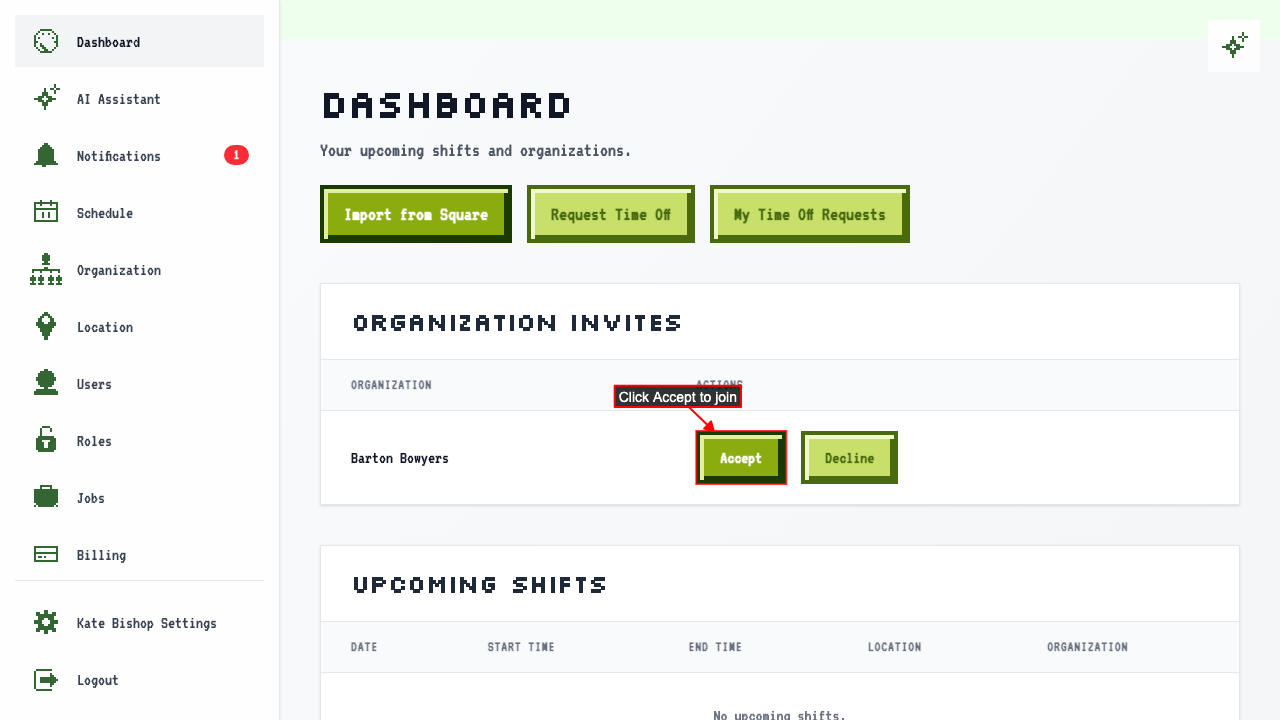 The invite disappears and the organization is added to your account.
How to decline an invite
Start on your dashboard and find the invite under Organization Invites.
Click Decline if you don't want to join.
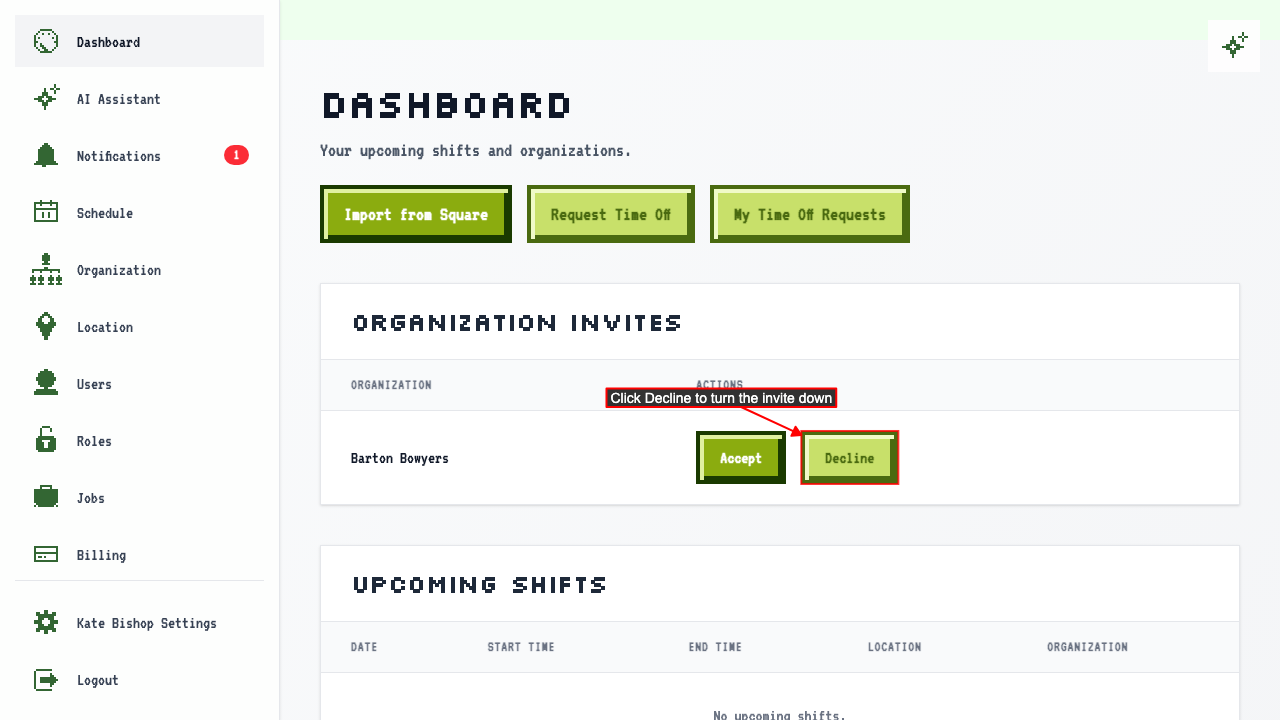 The invite is removed and the organization never joins your account. Any upcoming shifts the organization had given you are unassigned.
What the organization can see before you accept
Until you accept, the organization can see your name and email, and can schedule you for shifts. It can't see the details you set in User Settings: your phone number, date of birth, emergency contact, or preferred name.
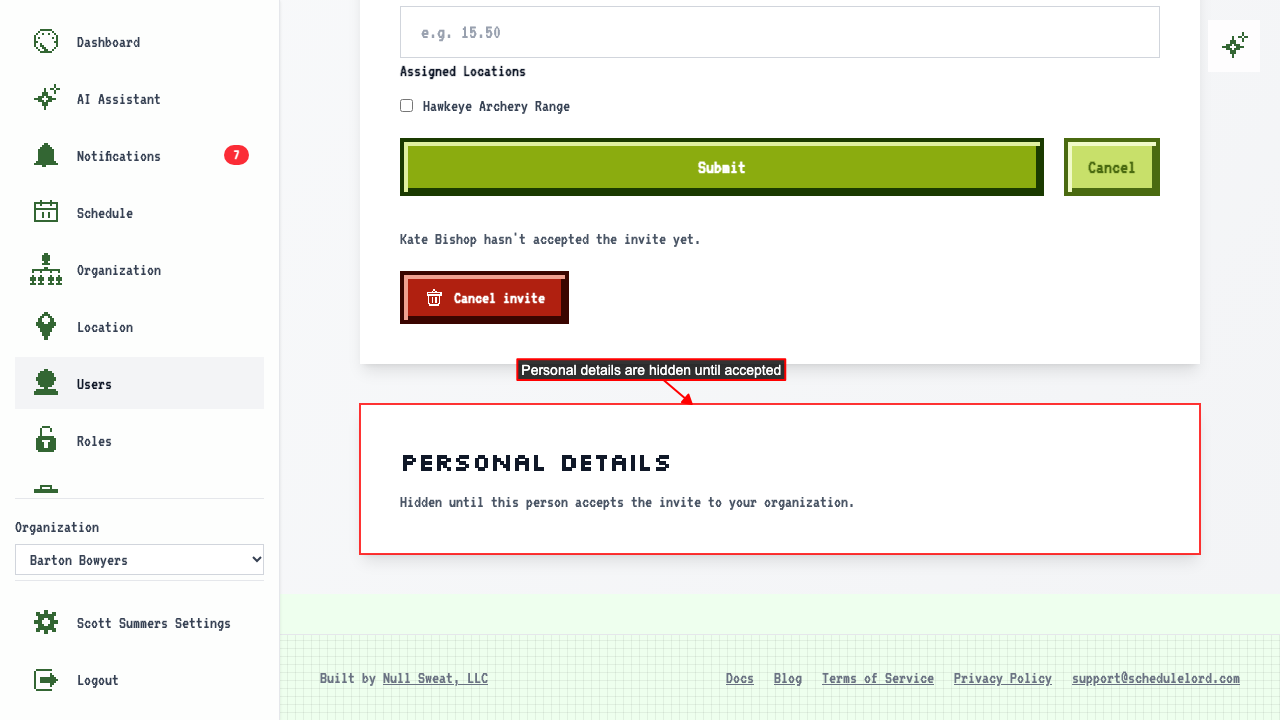 It can't see your time off either.
Once you accept, your personal details and your time off are shared with the organization.
It can't see your time off either.
Once you accept, your personal details and your time off are shared with the organization.