Registration
How to register a new user
Navigate to the login page.
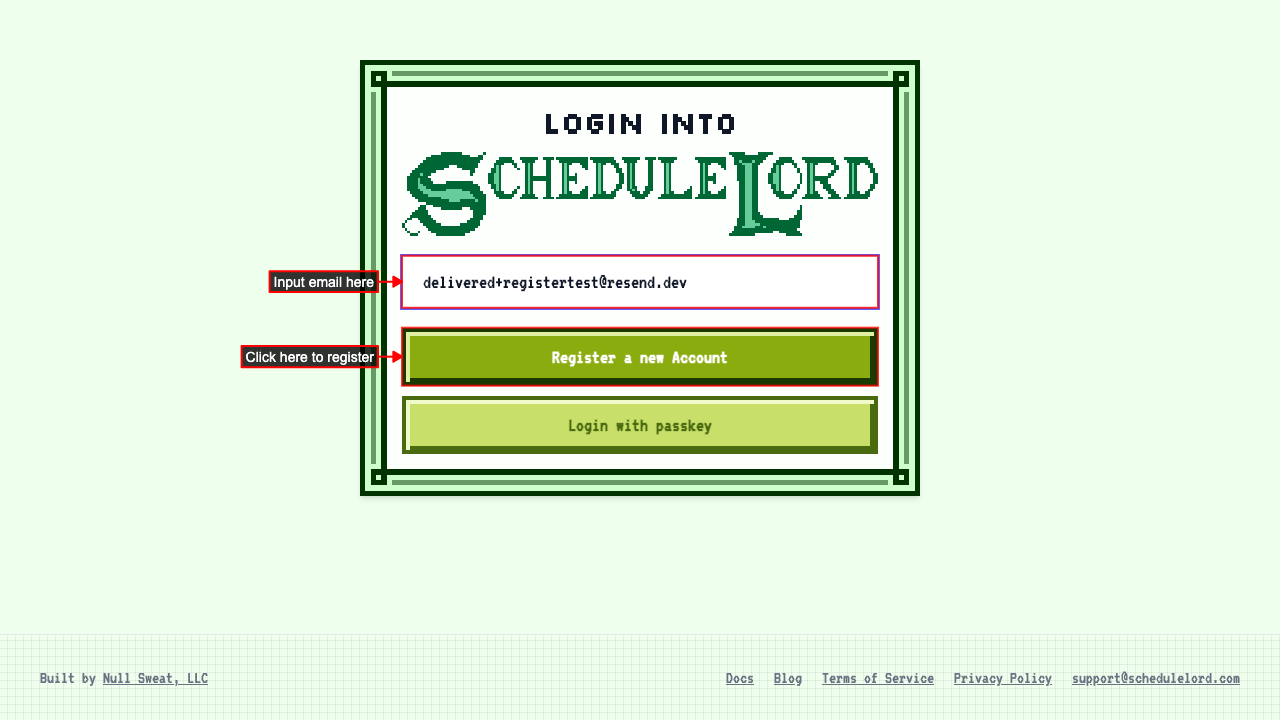
There you will input an email
and click the registration button.
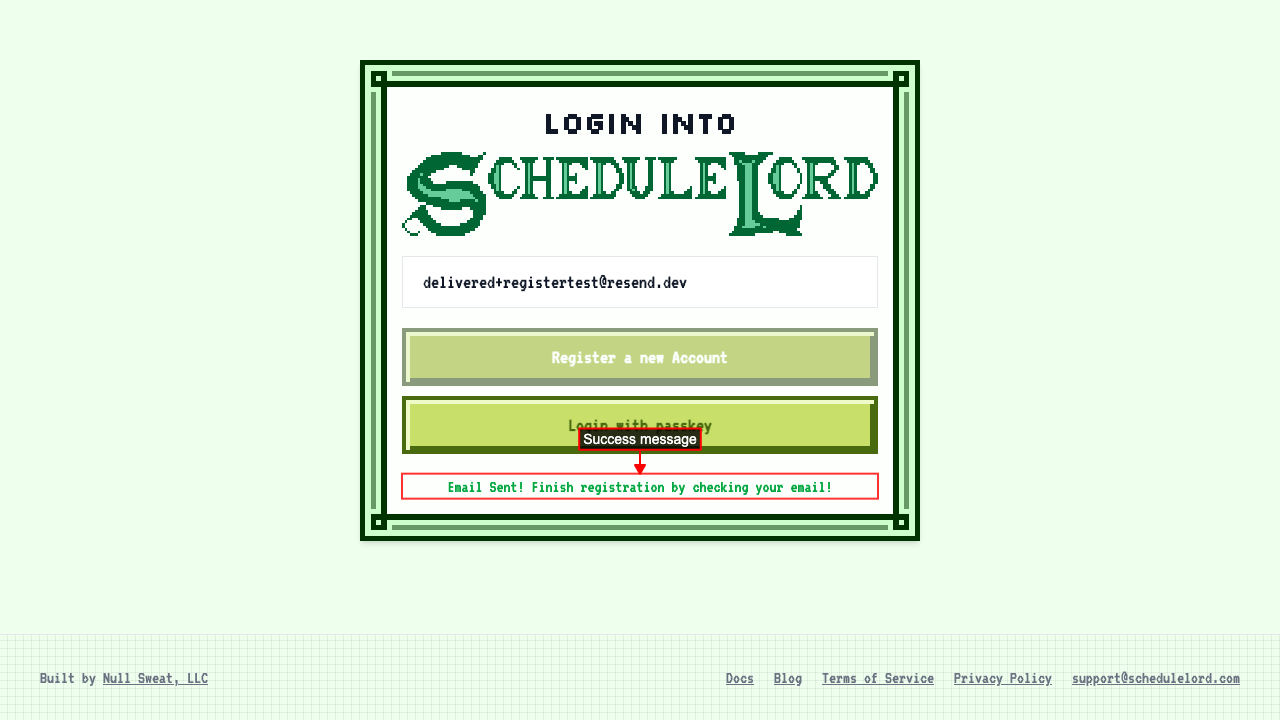
 On successful registration you will see a success message.
 You should receive an email with a registration link. Click the link to complete registration.
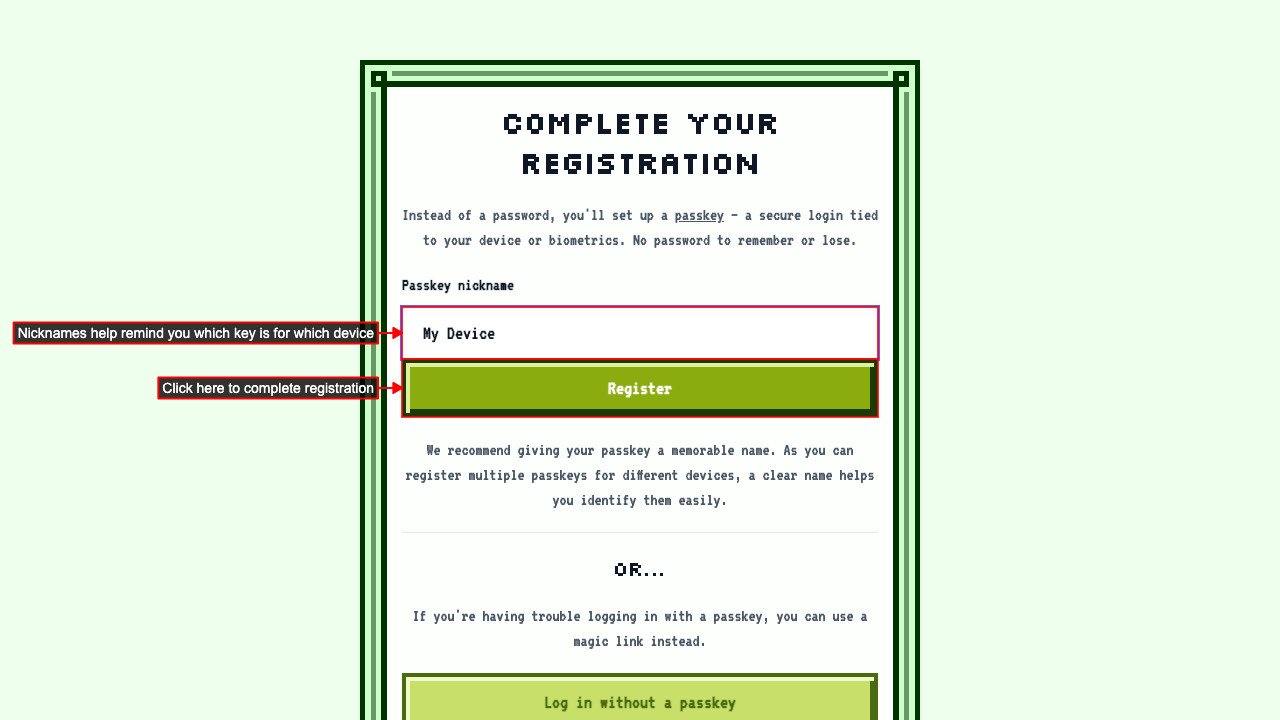
On the Registration page, optionally give your passkey a nickname, then click the registration button to add a passkey and complete registration.
You should receive an email with a registration link. Click the link to complete registration.
On the Registration page, optionally give your passkey a nickname, then click the registration button to add a passkey and complete registration.
To learn more about passkeys click here.
 Once registration completes, you're logged in automatically and taken to the AI Assistant to onboard.
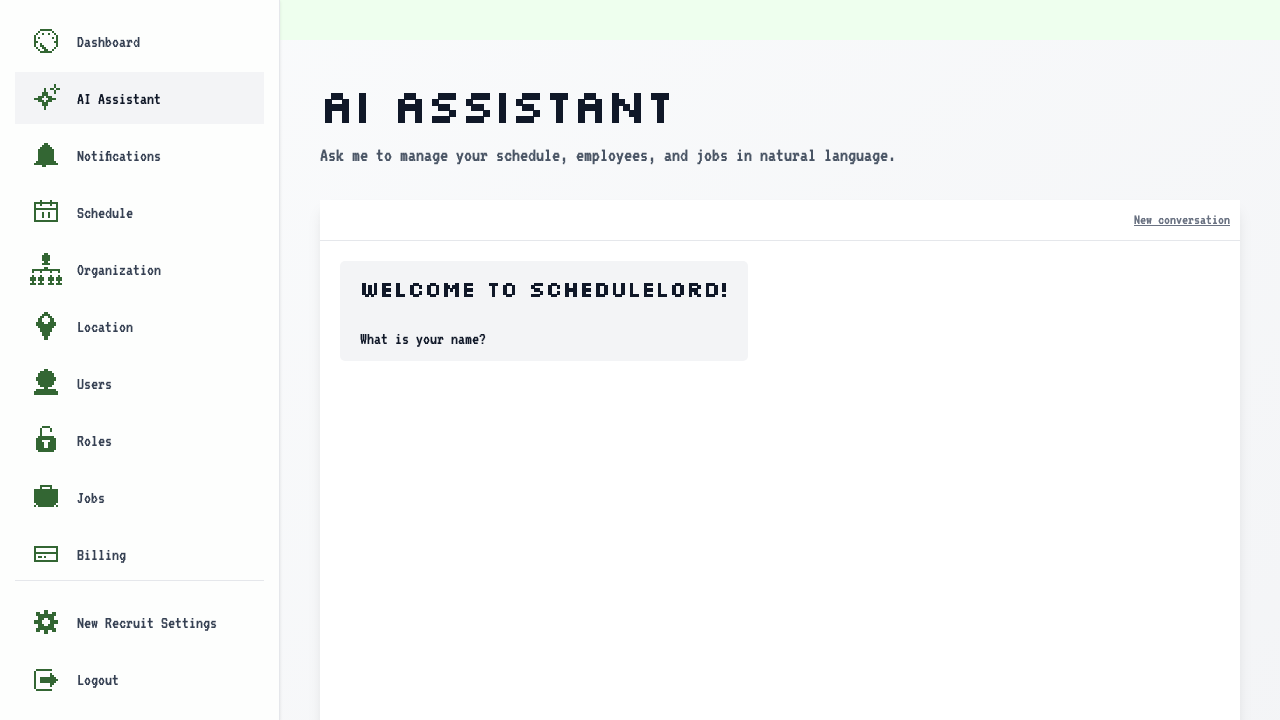
Default Account Values
Registering a new account not associated with an organization creates a few default values for you.
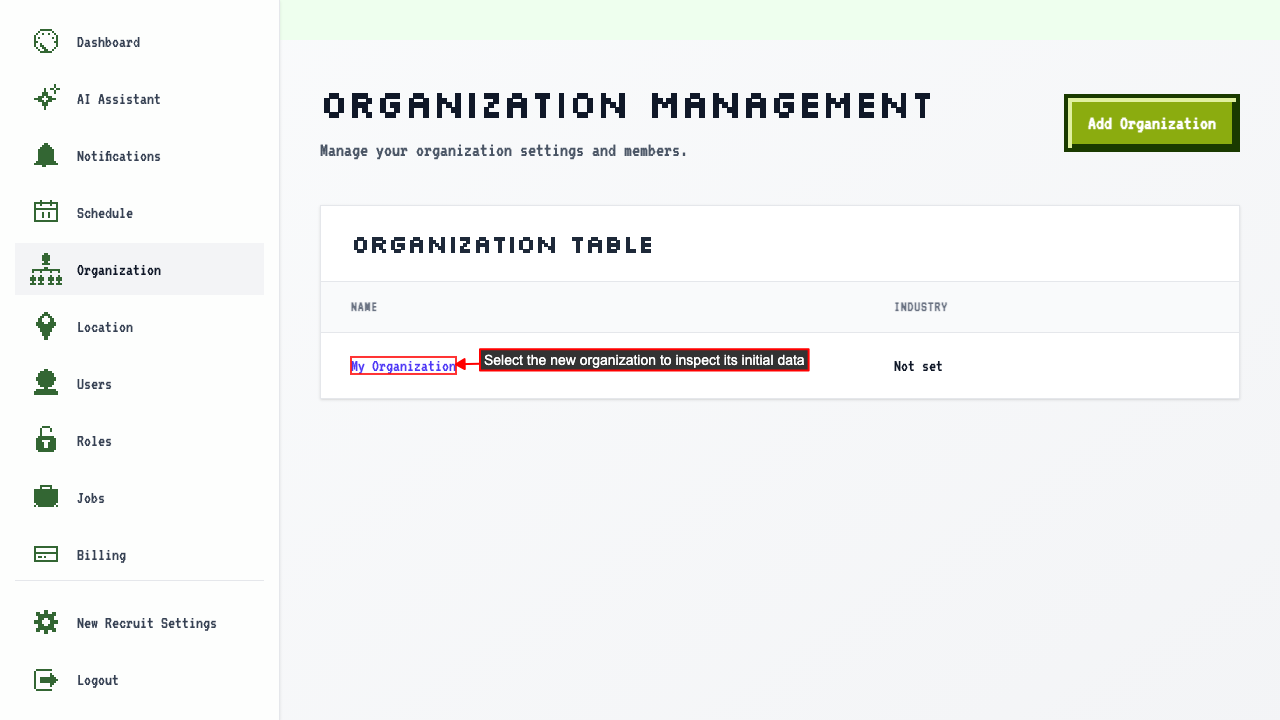
Select the organization to verify the initial data:
- Organization: "My Organization"
- User: "New Recruit"
- Location: "Main Location"
The new organization also starts with the default roles already available.
- Owner
- Manager
- Employee
You'll also have a few jobs already created that you can assign to employees:
- Bartender
- Busser
- Cook
- Dishwasher
- Host
- Manager
- Server
Registering a new user with a pre-created employee
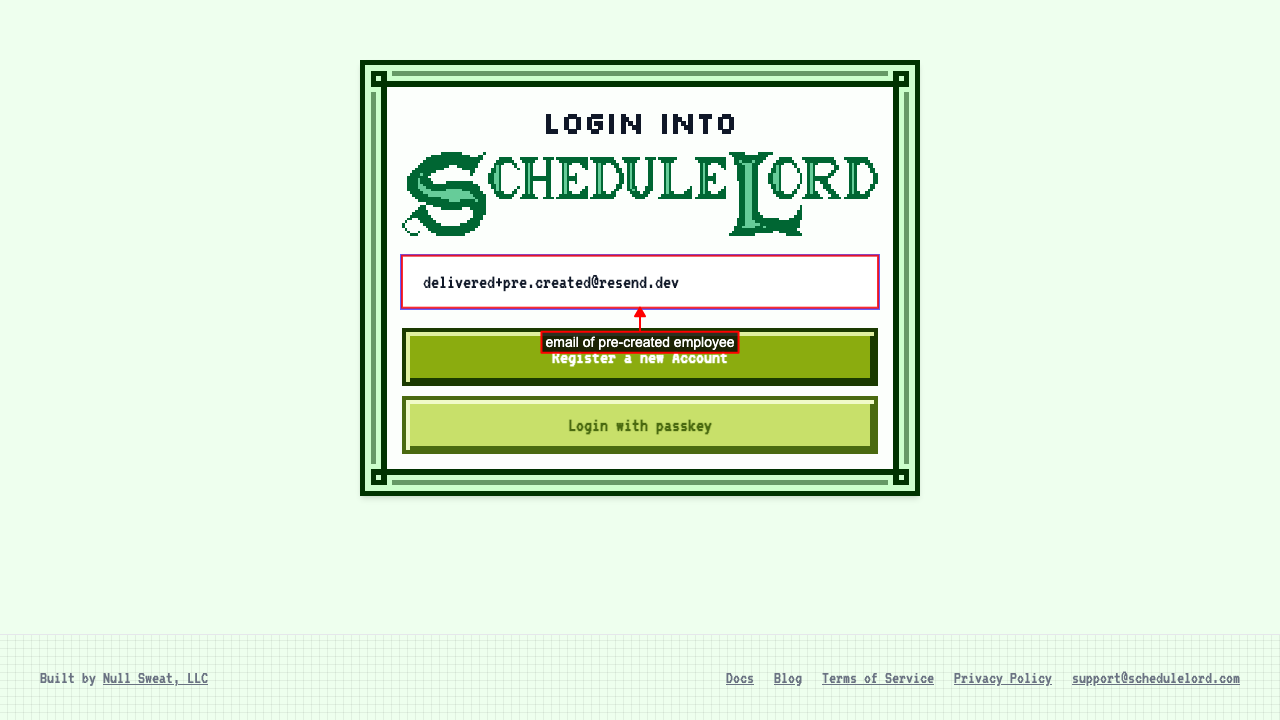
If you try to register with an email that matches an existing employee, the system will link the new passkey to that employee instead of creating a new one.
The user follows the same process as a new registration, but the existing employee's data is preserved.
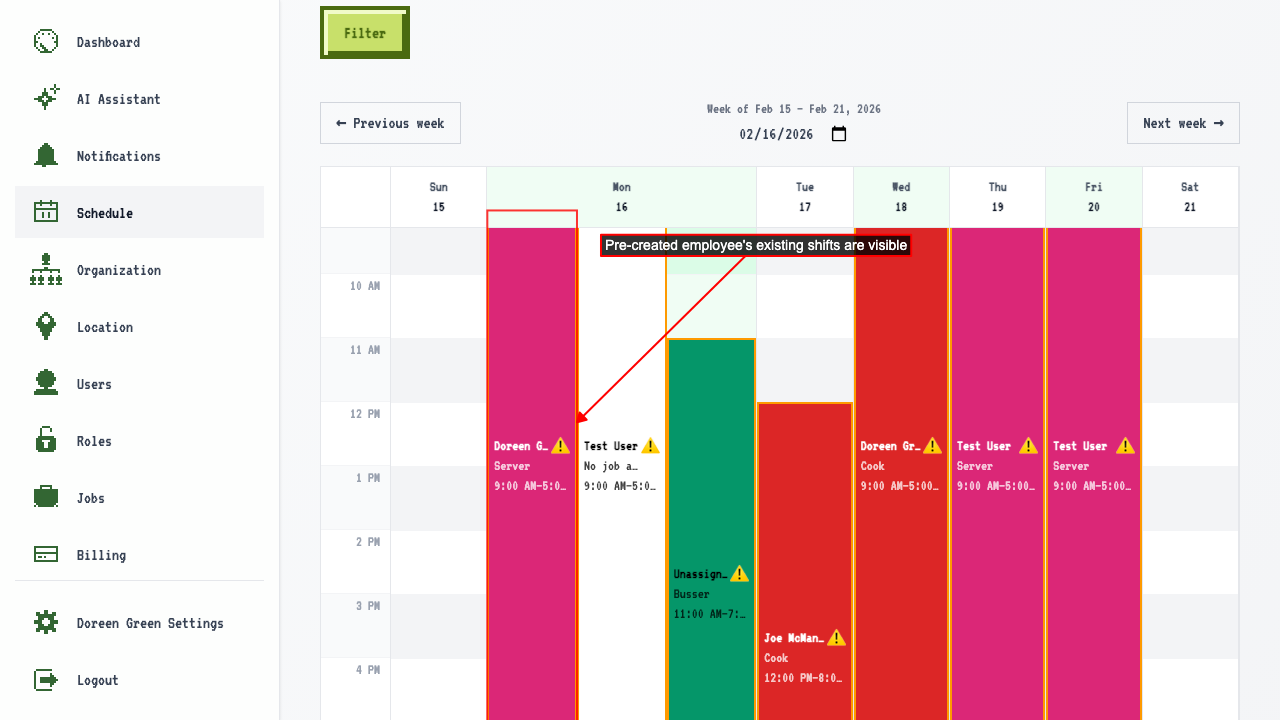
 You can also view any preexisting shifts schedules for this employee.
Errors while registering a new user
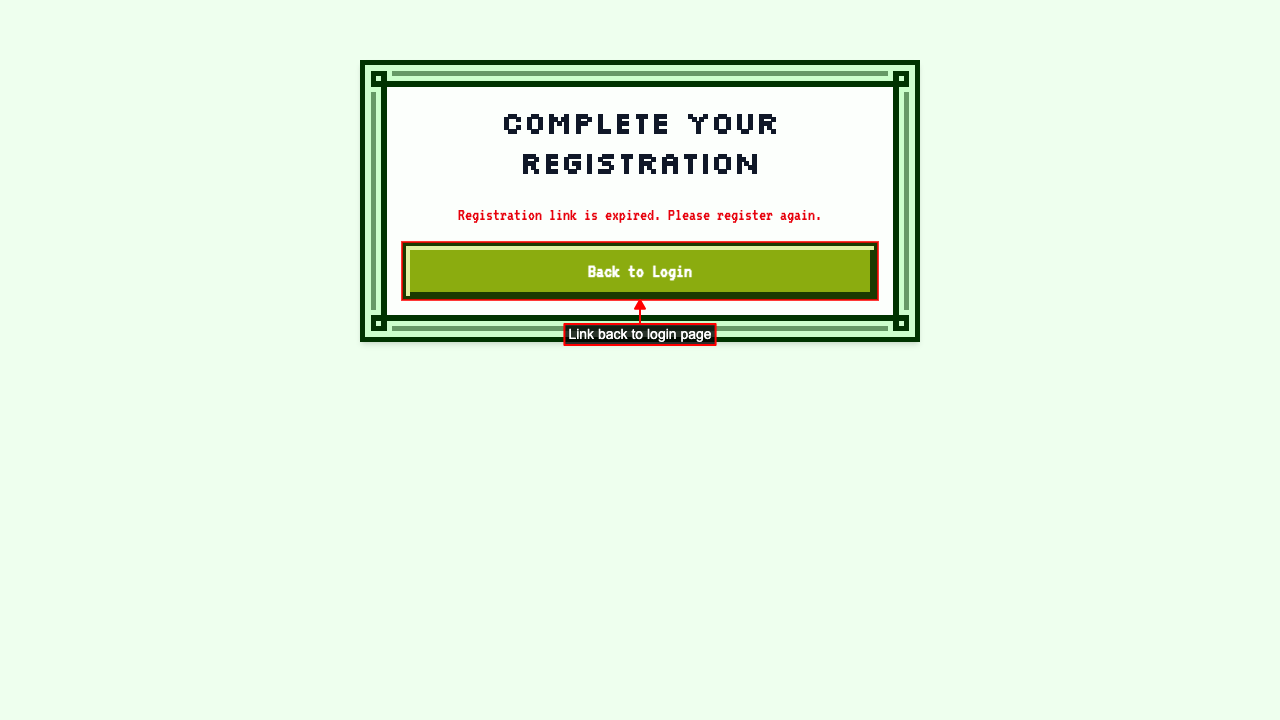
Expired registration link shows an error
Navigating to an expired registration link shows an error
and a link back to the login page.
Requesting a new registration email invalidates previous tokens
Navigate to the login page and enter email.
Clicking Register sends the first registration email.
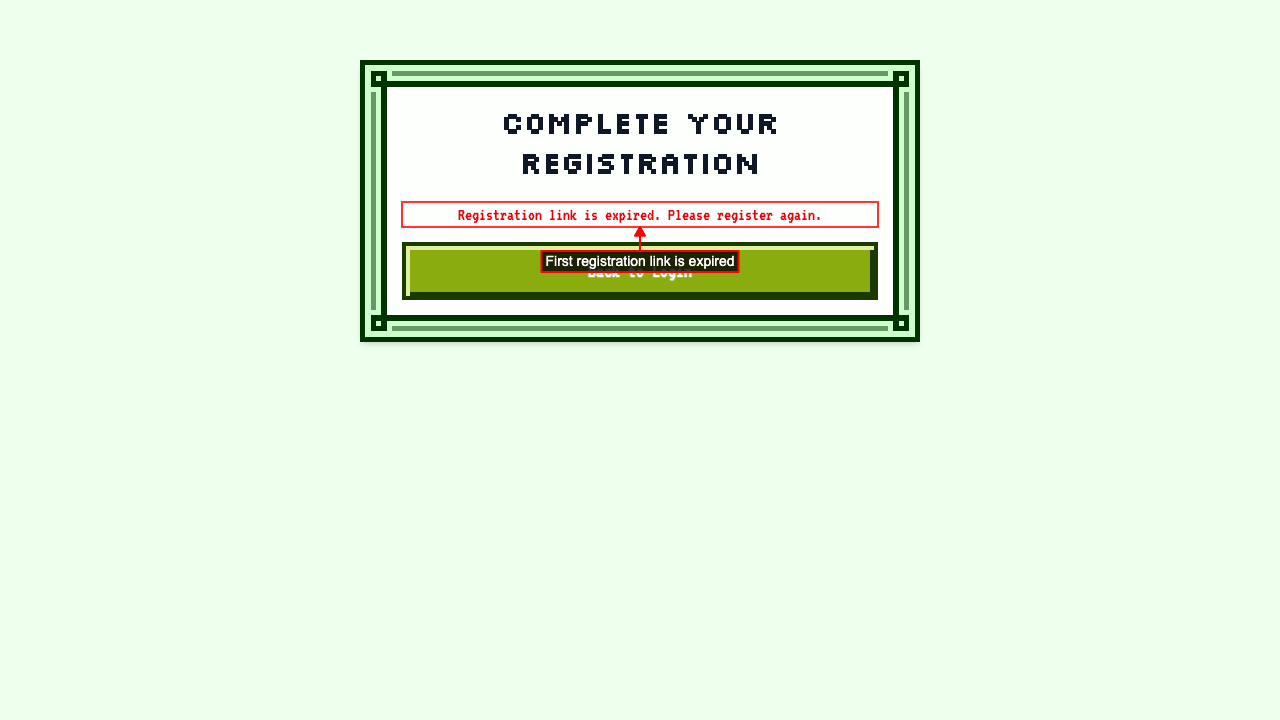
Attempting to Register again sends a second email and invalidates the first token.
So the first registration link is now expired and cannot be used.
 But the second registration link is still valid.
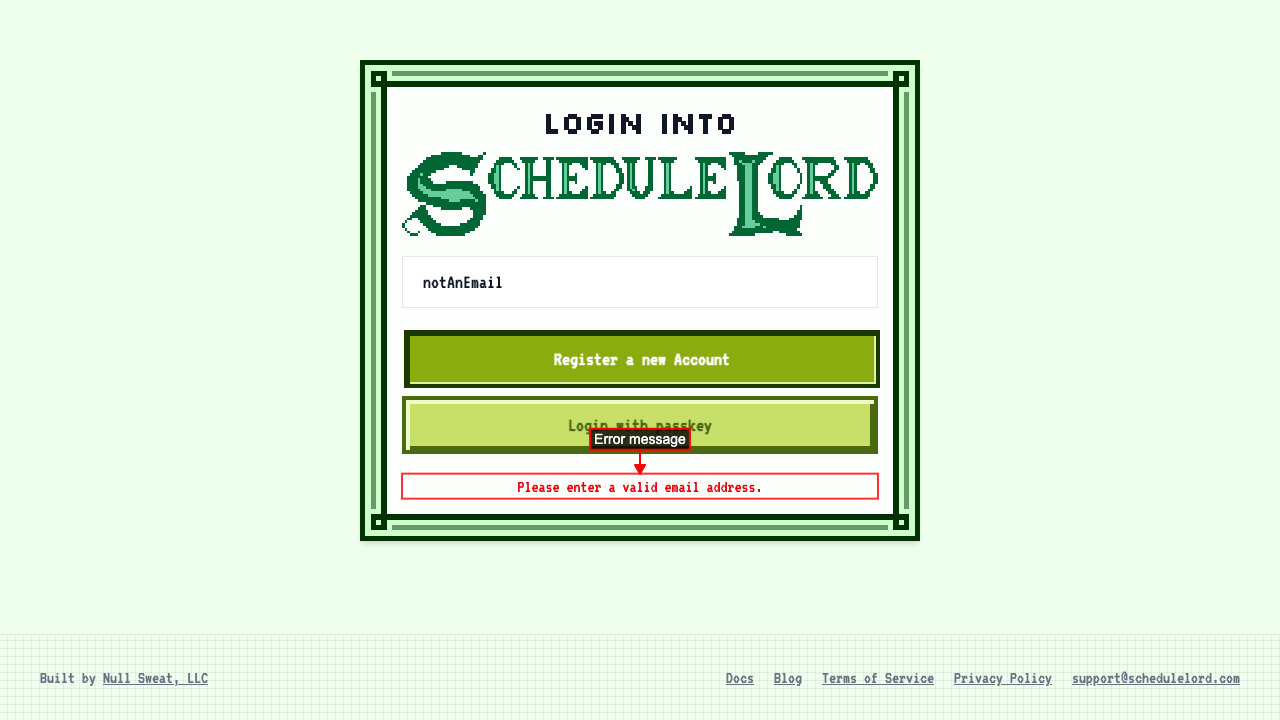
Username needs to be an email
Trying to register with a username that is not an email will show an error message.