Add a Break
How to add a break to a shift
On the schedule page with an existing shift
click a shift button to open its detail popover.
Click the Edit shift link to navigate to the edit page.
The Breaks section shows a button for adding a break, and — with none yet — the paid time matches the full shift.
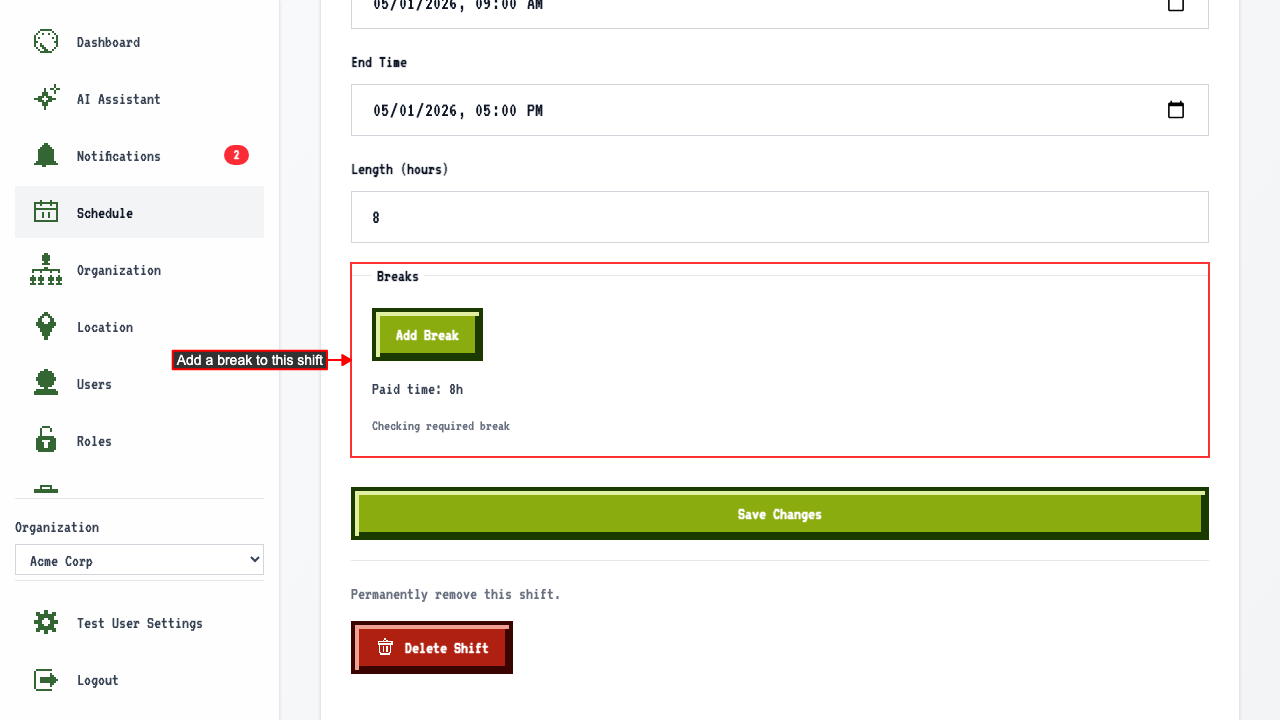 Click Add Break, then fill in a start and end time within the shift.
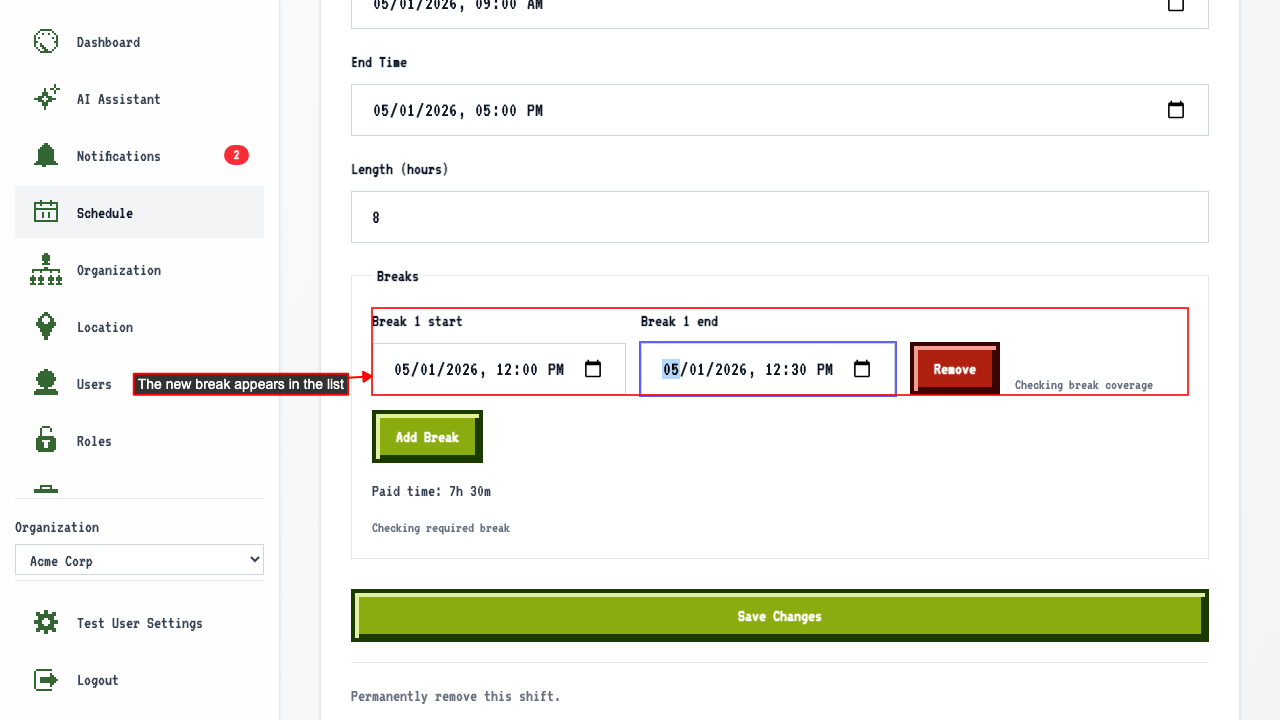 The paid time updates automatically, down by the break's own 30 minutes — no need to save first.
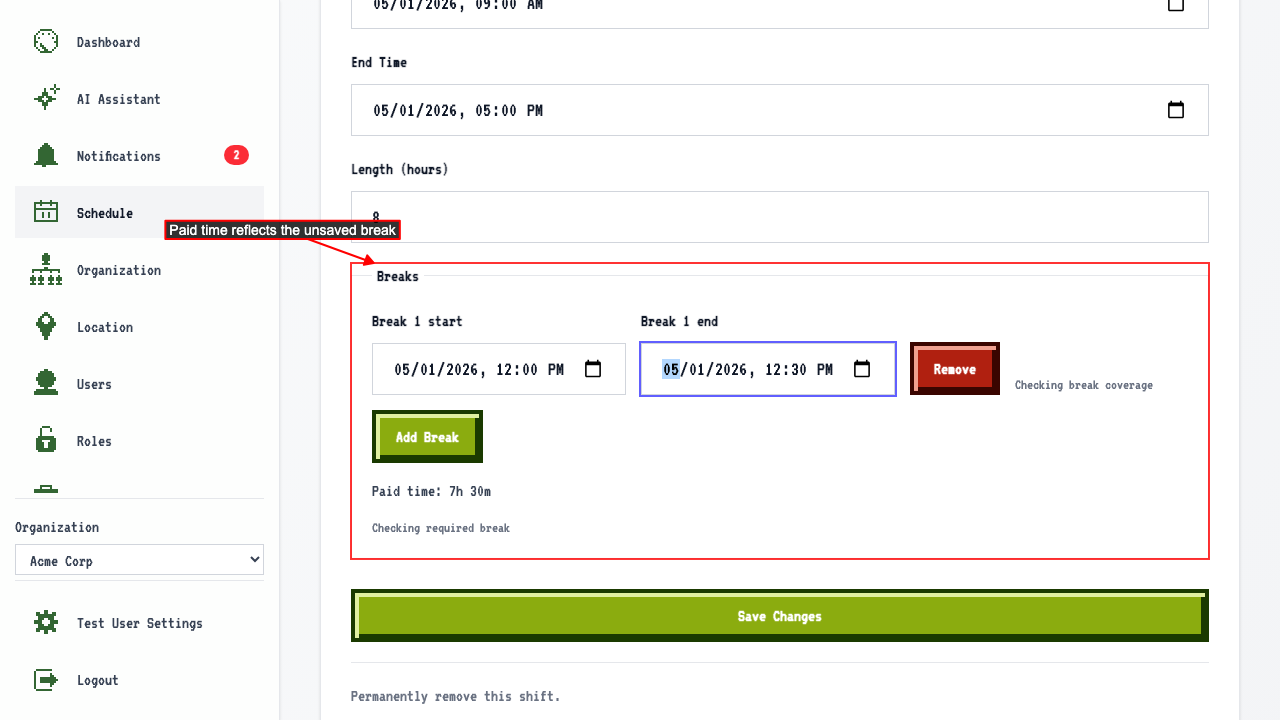 Save the shift to persist the break.