Changing a Request
How to change a request you've already sent
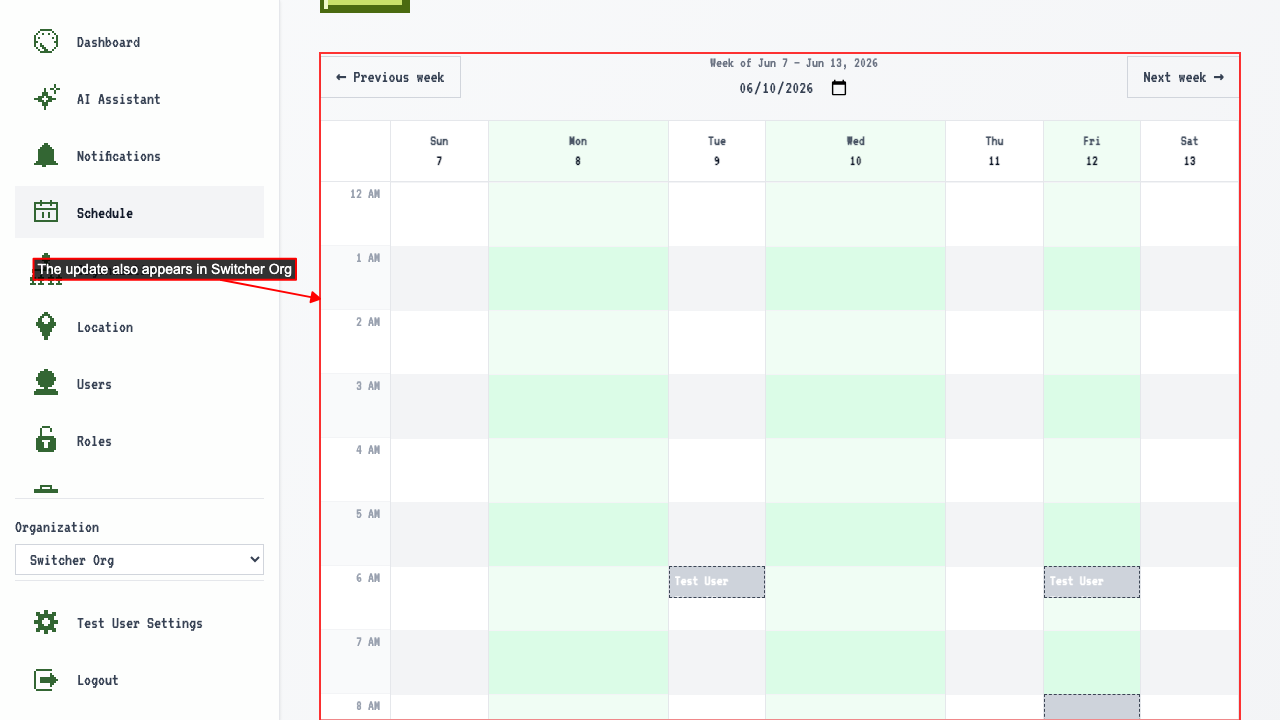
On the schedule page, the existing request appears on the calendar.
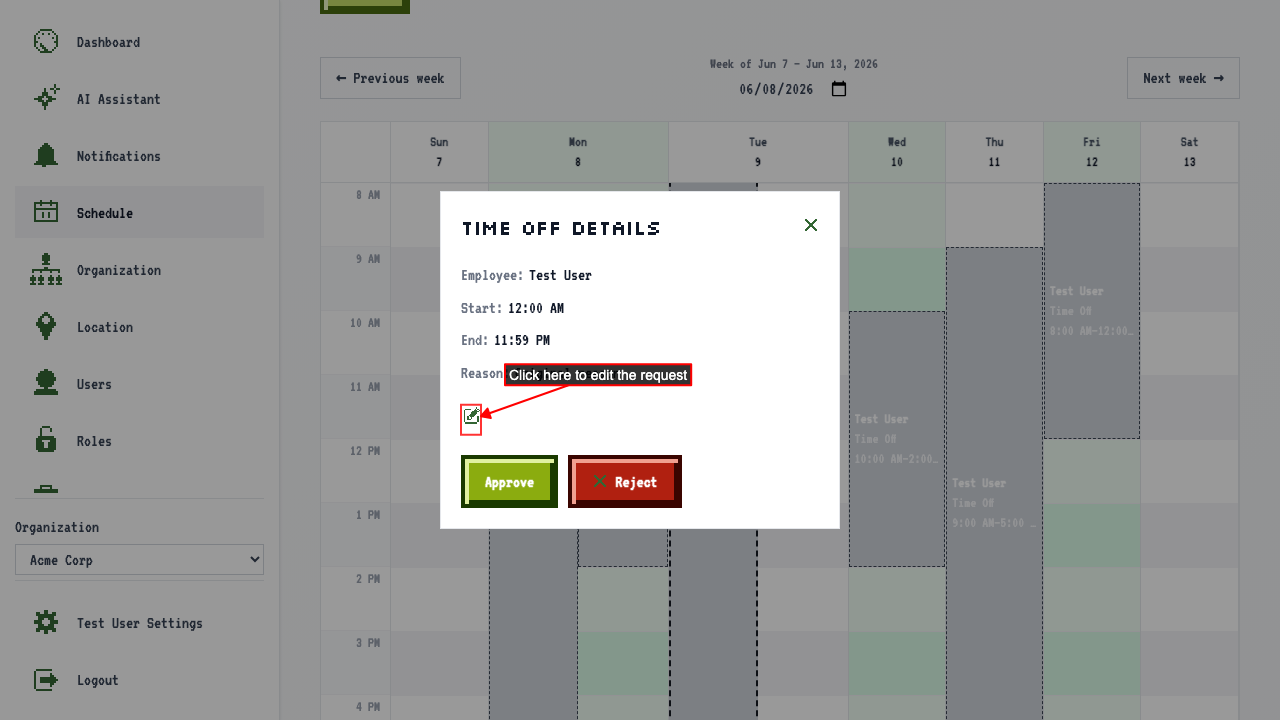
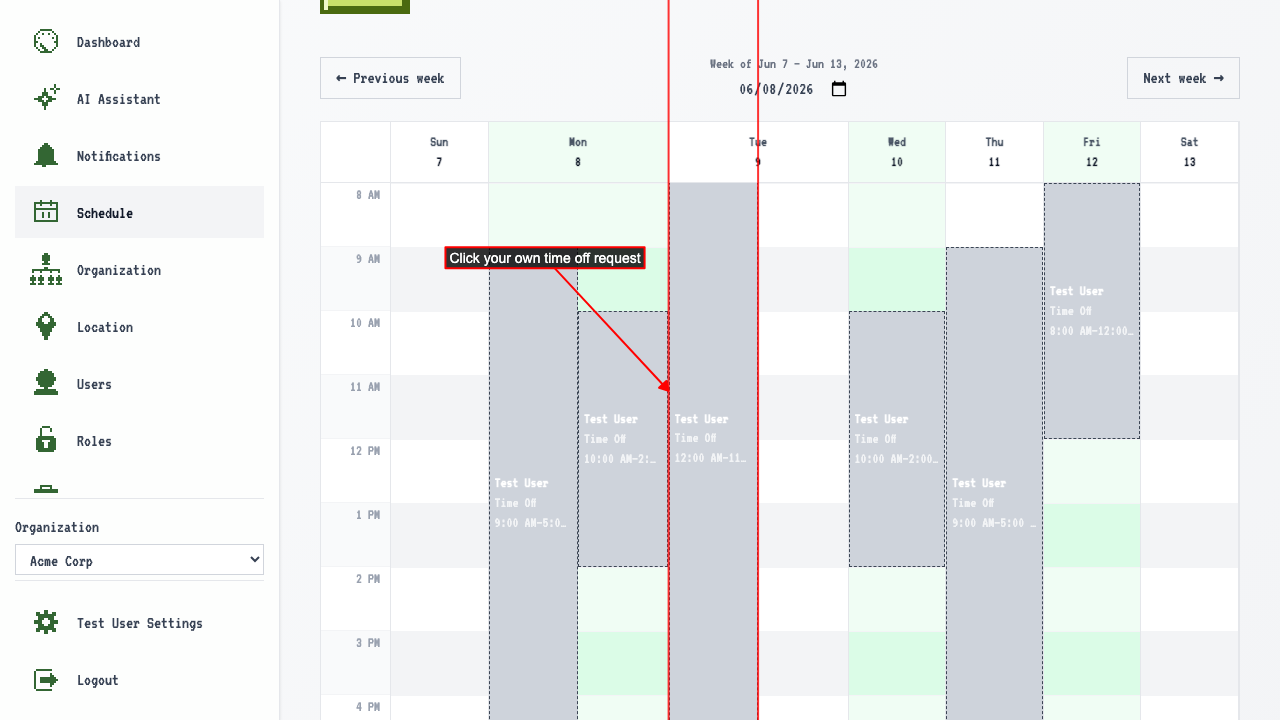 A details popover opens with a link to edit the request.
 The form is pre-filled with the existing request's details. Change the start time, end time, and reason.
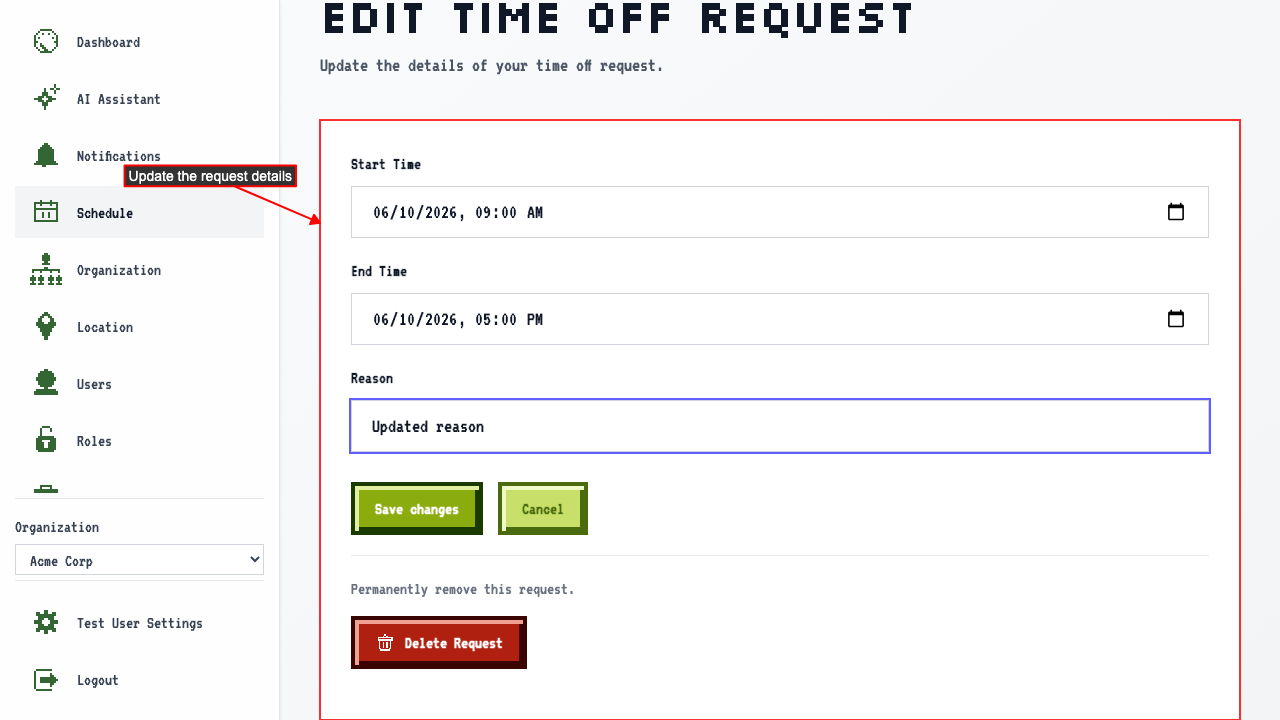 Save the changes.
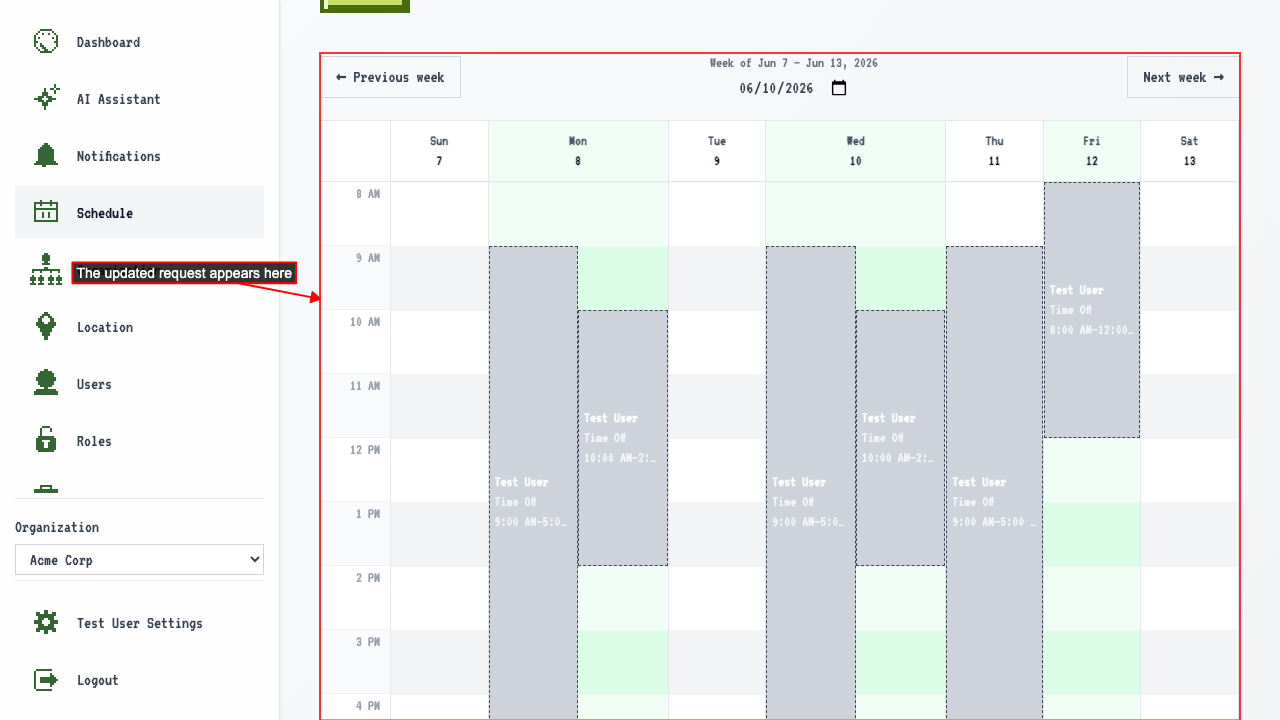
You're redirected back to the schedule, showing the updated request.
Save the changes.
You're redirected back to the schedule, showing the updated request.
 The edit follows the request to every organization you belong to.