Google Sign-In
How to connect your Google account
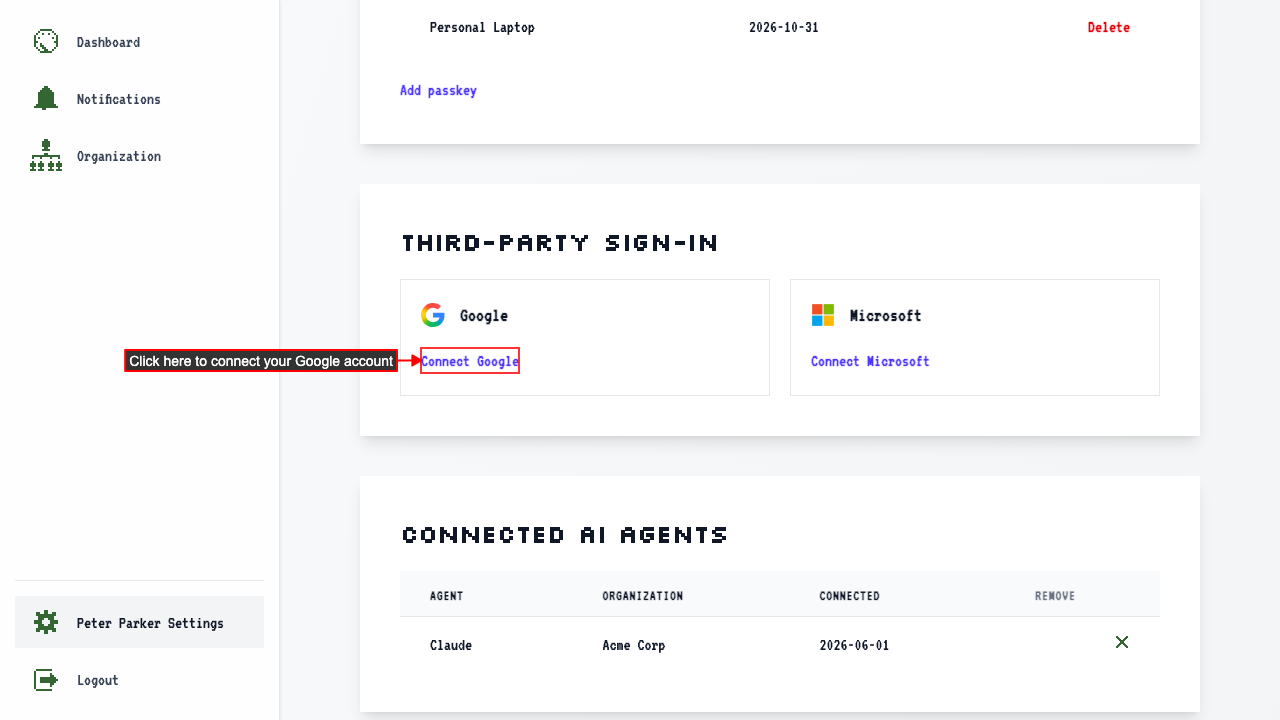
Start on your settings page. In the Third-party sign-in section, click 'Connect Google'. You'll be taken to Google to choose the account you want to connect.
Once you've chosen, you're brought back to this page. From then on, you can sign in with Continue with Google on the login page. Your passkeys keep working too.
The Google account needs a verified email address, and it can't already be connected to another ScheduleLord account.
How to disconnect your Google account
Start on your settings page. In the Third-party sign-in section, click 'Disconnect Google'.
If Google is the only way you sign in, the button is hidden until you add a passkey, so you can't lock yourself out.
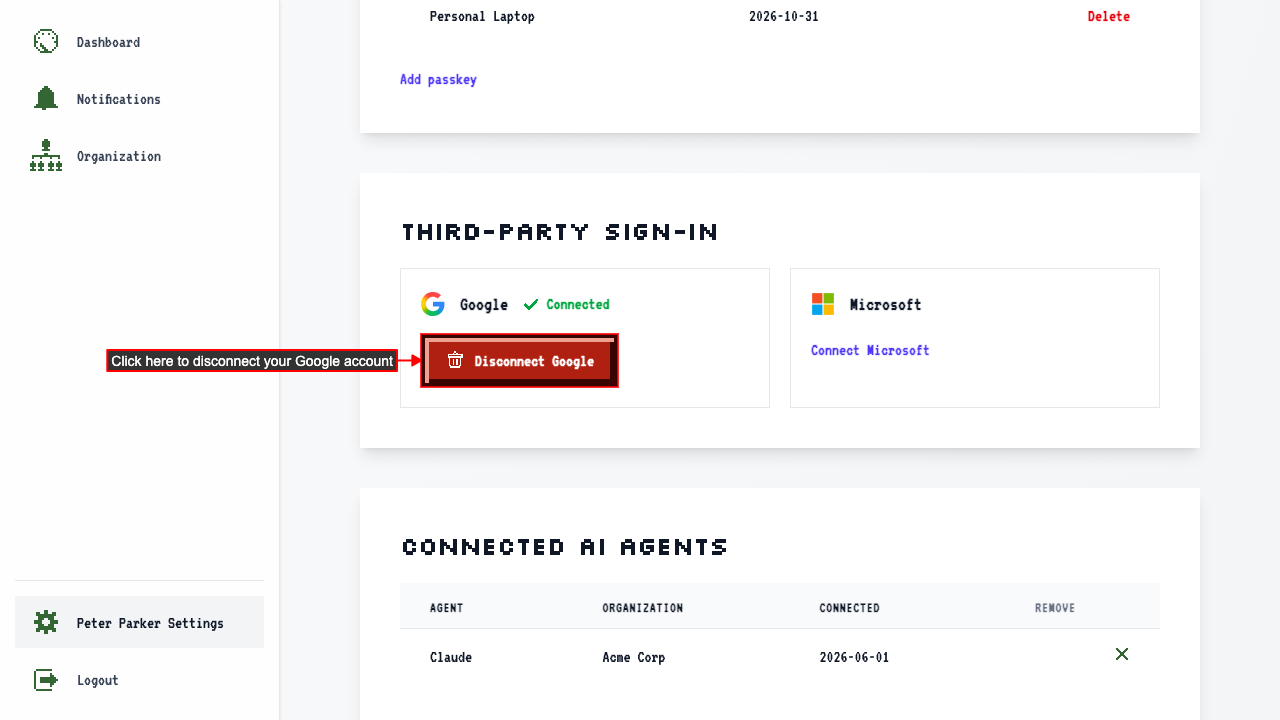 The section offers 'Connect Google' again.