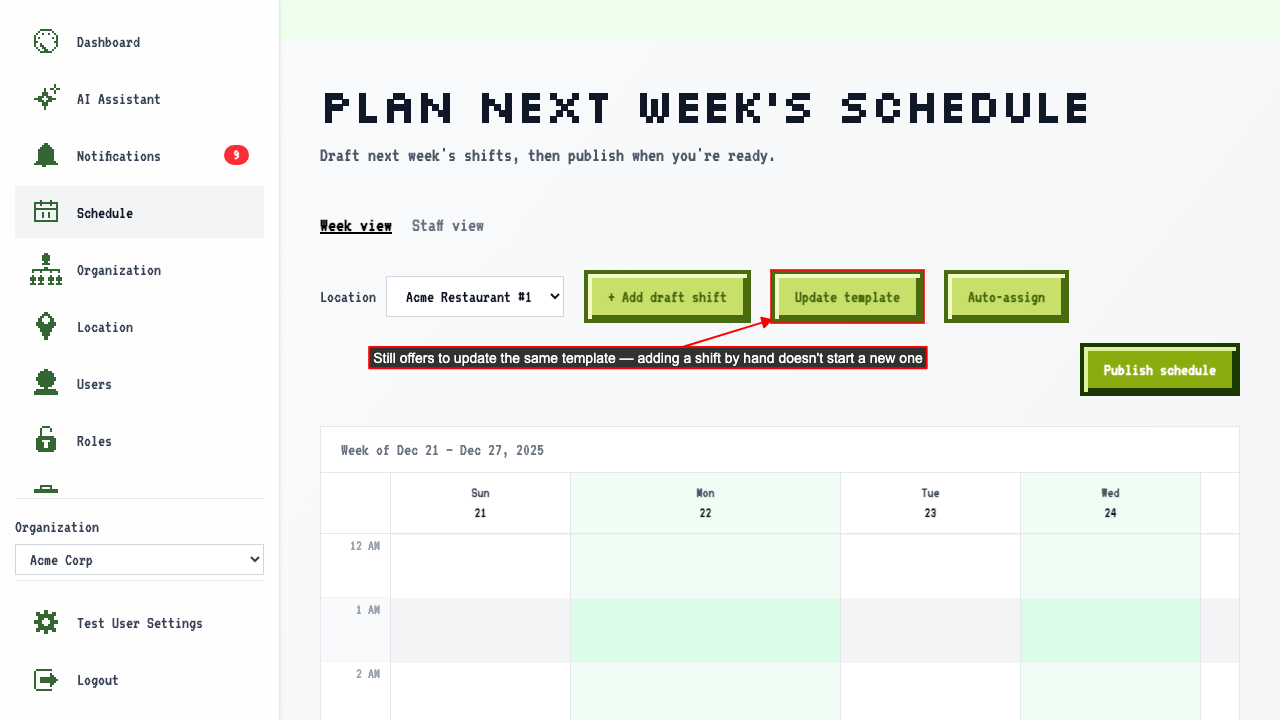
Updating a Template
How to rename a template and change its shifts
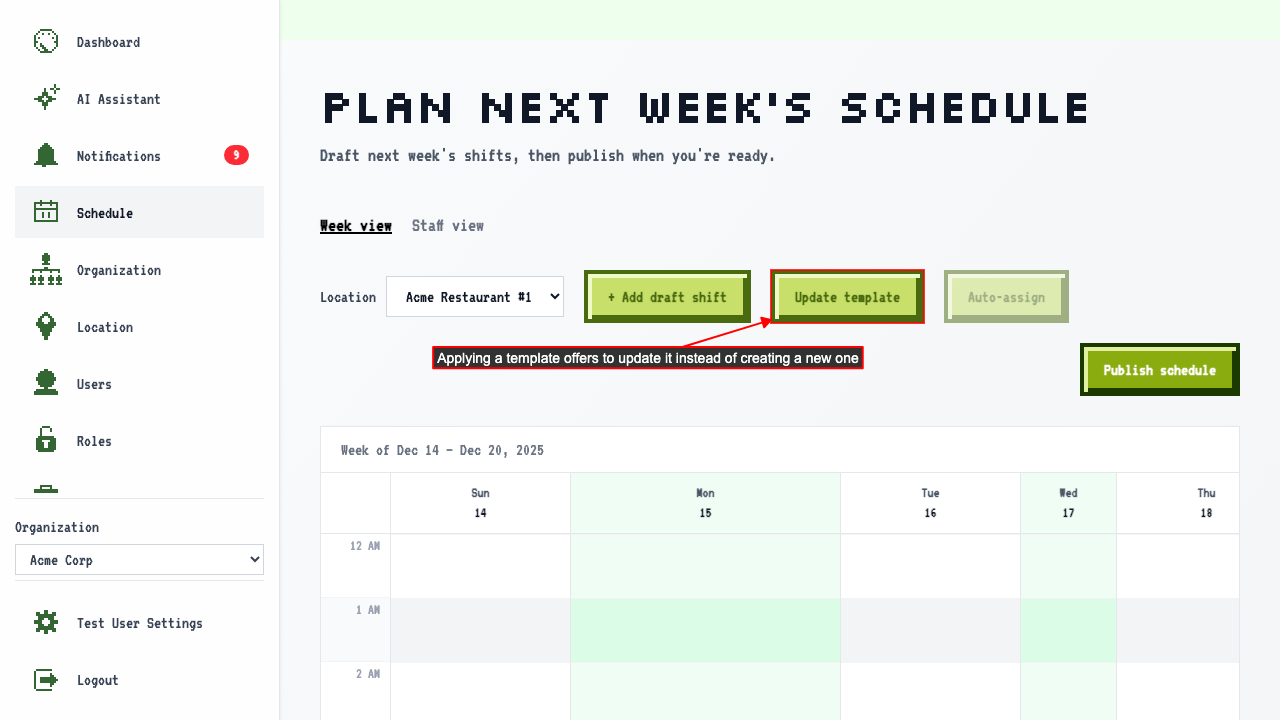
Navigate to another week, select the location, and apply the existing template.
Once a template is applied, 'Create template' becomes 'Update template'.
 Add a second shift to the draft calendar.
Click 'Update template' — the name field is pre-filled with the template's current name.
Add a second shift to the draft calendar.
Click 'Update template' — the name field is pre-filled with the template's current name.
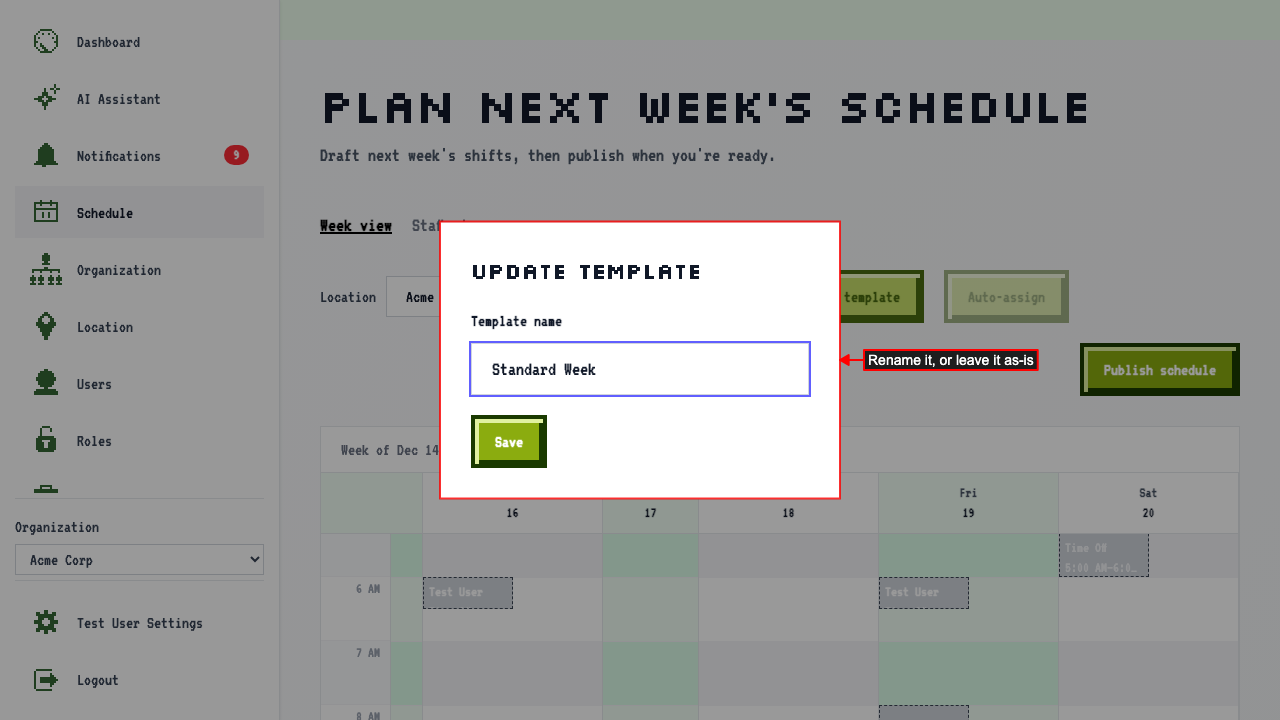 Rename it and save — the shift you just added is kept too.
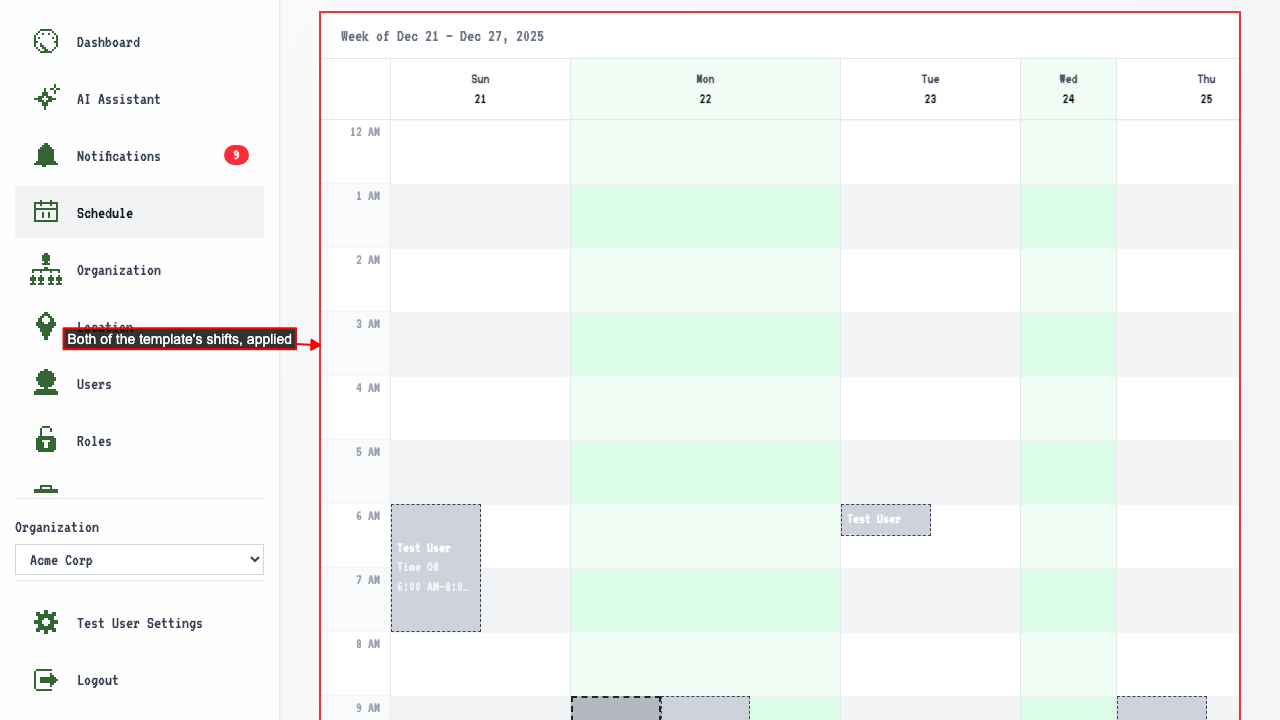
Applying the renamed template to a new week now includes both shifts.
Rename it and save — the shift you just added is kept too.
Applying the renamed template to a new week now includes both shifts.
 Adding another shift by hand still offers to update the same template, not create a new one.