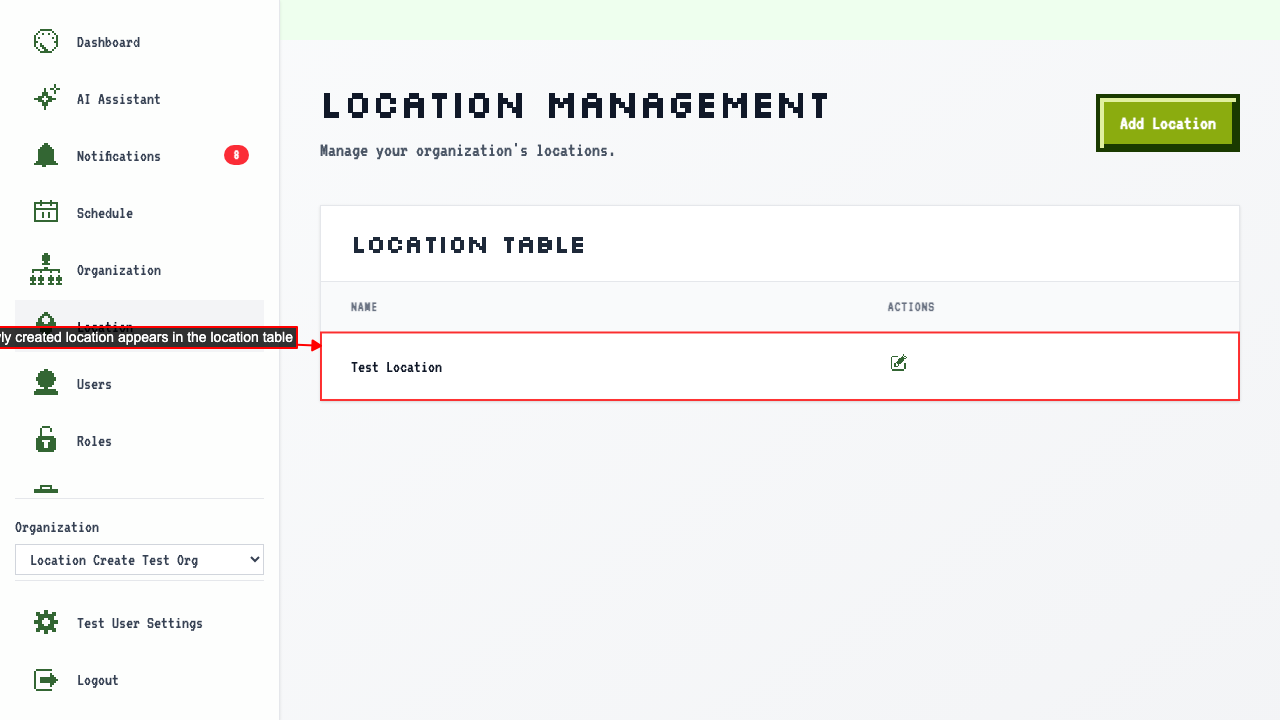
Create Location
How to create a new location
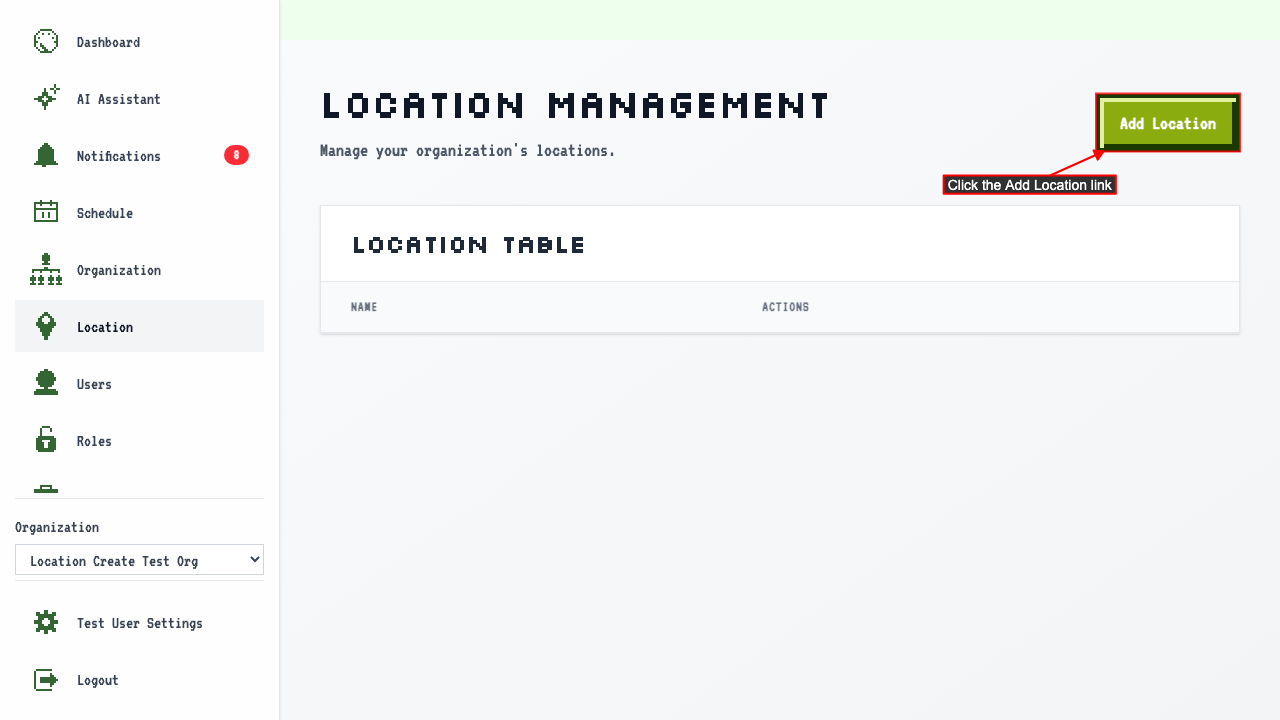
When on the location management page
click the Add Location link to navigate to the new location page.
 There should be a new location form.
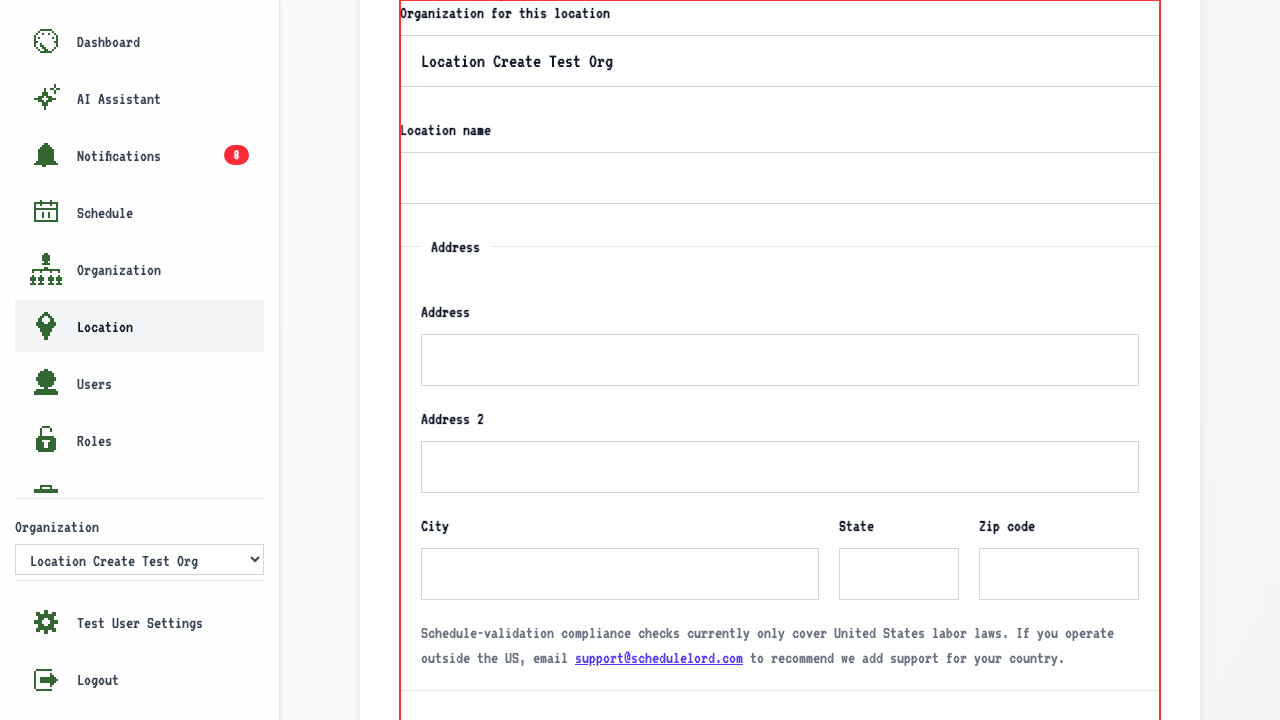 The form will contain fields for:
- Organization for this location.
- Enter the location name.
- The form will also contain optional address fields: Address, Address 2, City, State, and Zip code.
Schedule-validation compliance checks currently only cover United States labor laws. If you operate outside the US, email [email protected] to recommend we add support for your country.
-
An optional Timezone field.
-
Lookup timezone button (will attempt to look up timezone from address).
-
An optional Phone number field.
-
An optional Email field.
-
An optional Website field.
-
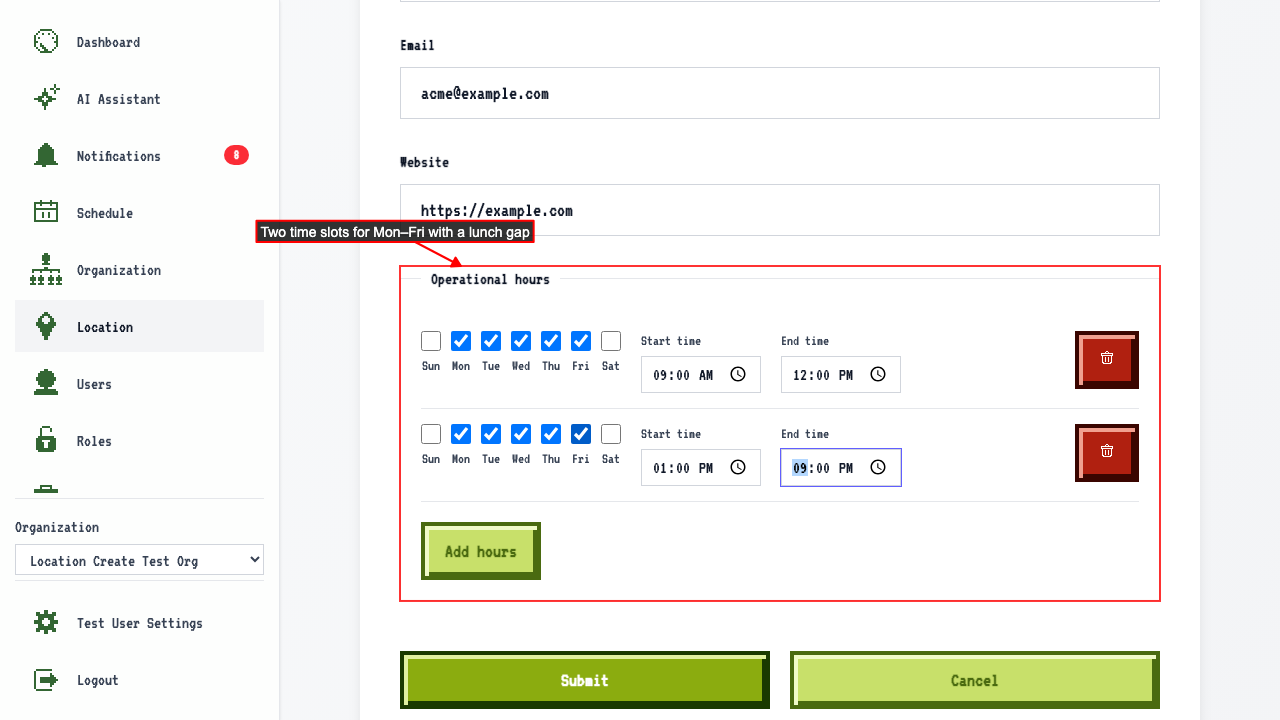
An Operational hours section with an Add hours button.
Adding operational hours
Clicking Add hours adds a row for selecting days and a start and end time.
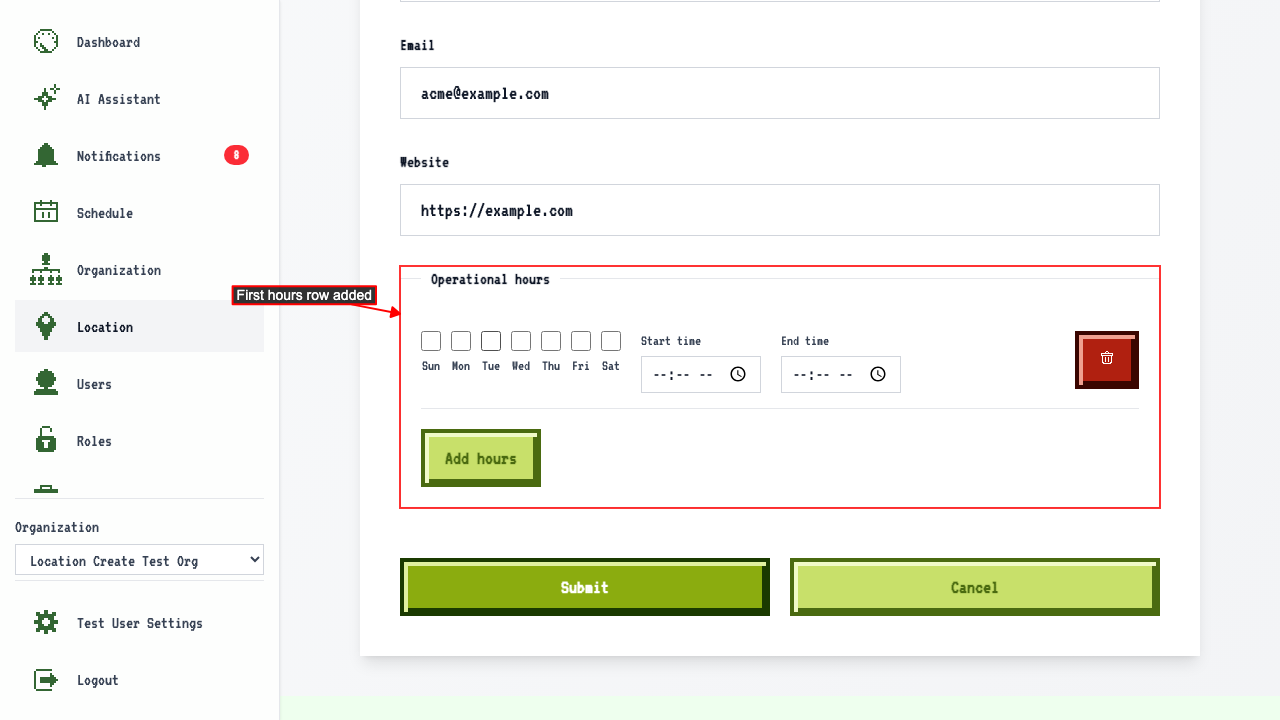 Select days and set start and end time for the first time slot.
Another time slot can be added for the same days to model a pause in service.
Select days and set start and end time for the first time slot.
Another time slot can be added for the same days to model a pause in service.
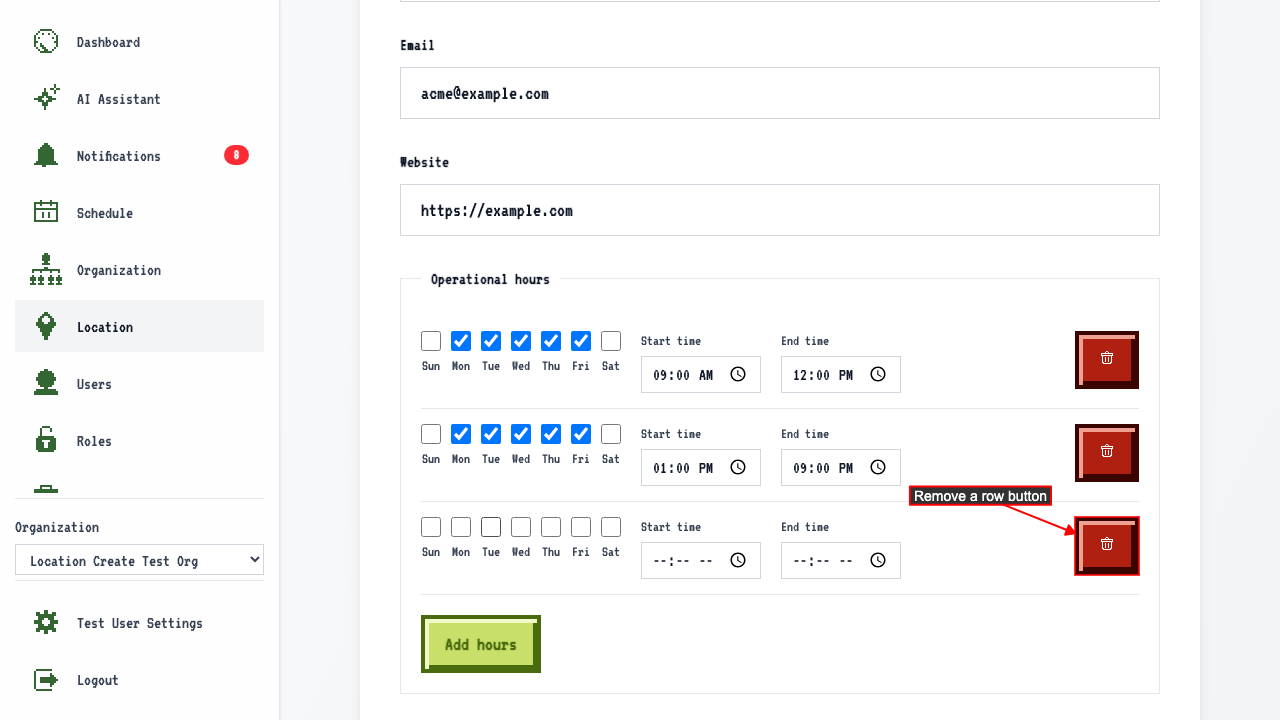
 The Remove button deletes a row, in case you make a mistake adding more time slots.
After entering those fields, submit the new location form.
This will redirect to the location management page where you can see your new location has been added.