How to Use the Chat Room
How to chat with your team
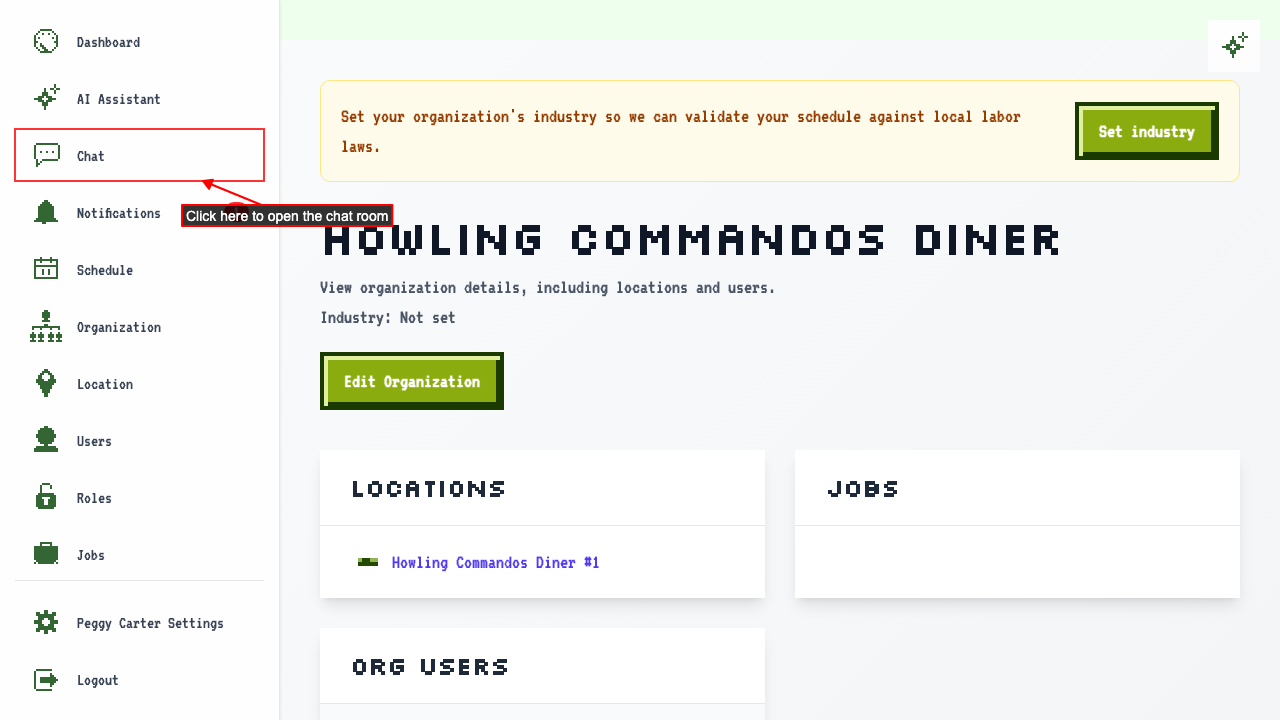
Click Chat in the sidebar to open your organization's chat room.
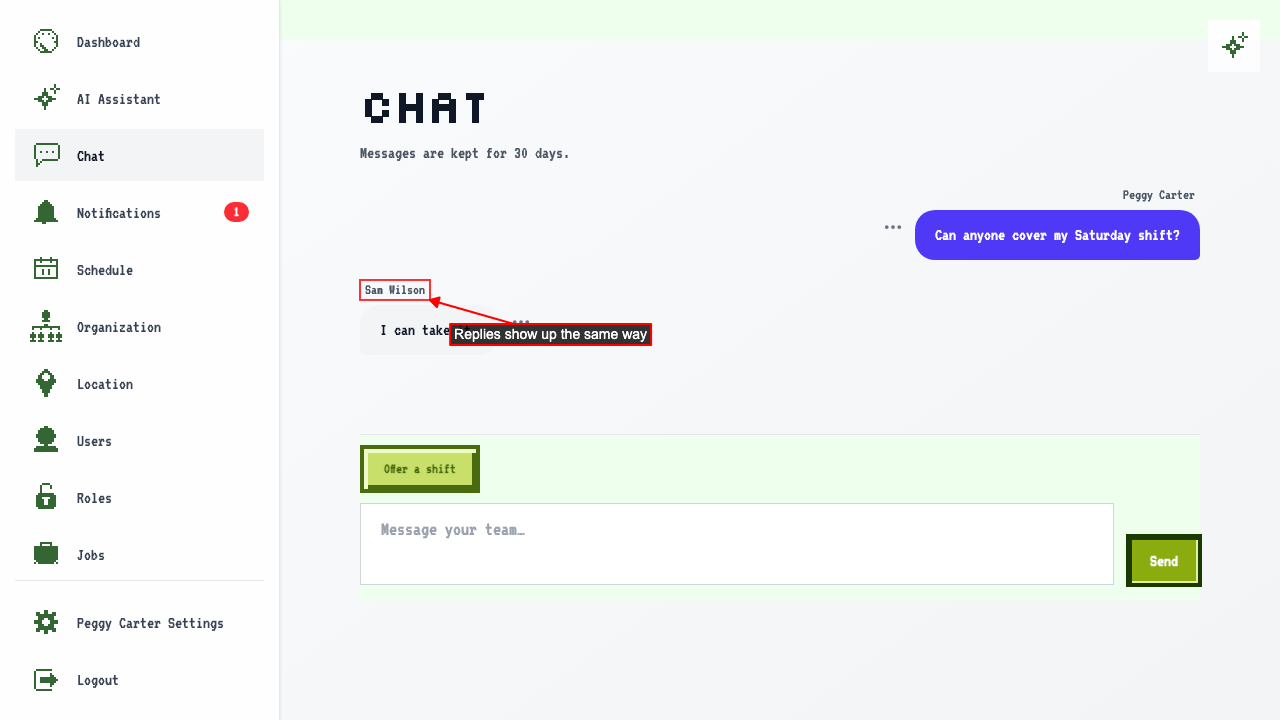
 Everyone in your organization shares the same chat room. In this guide, Sam Wilson has it open too.
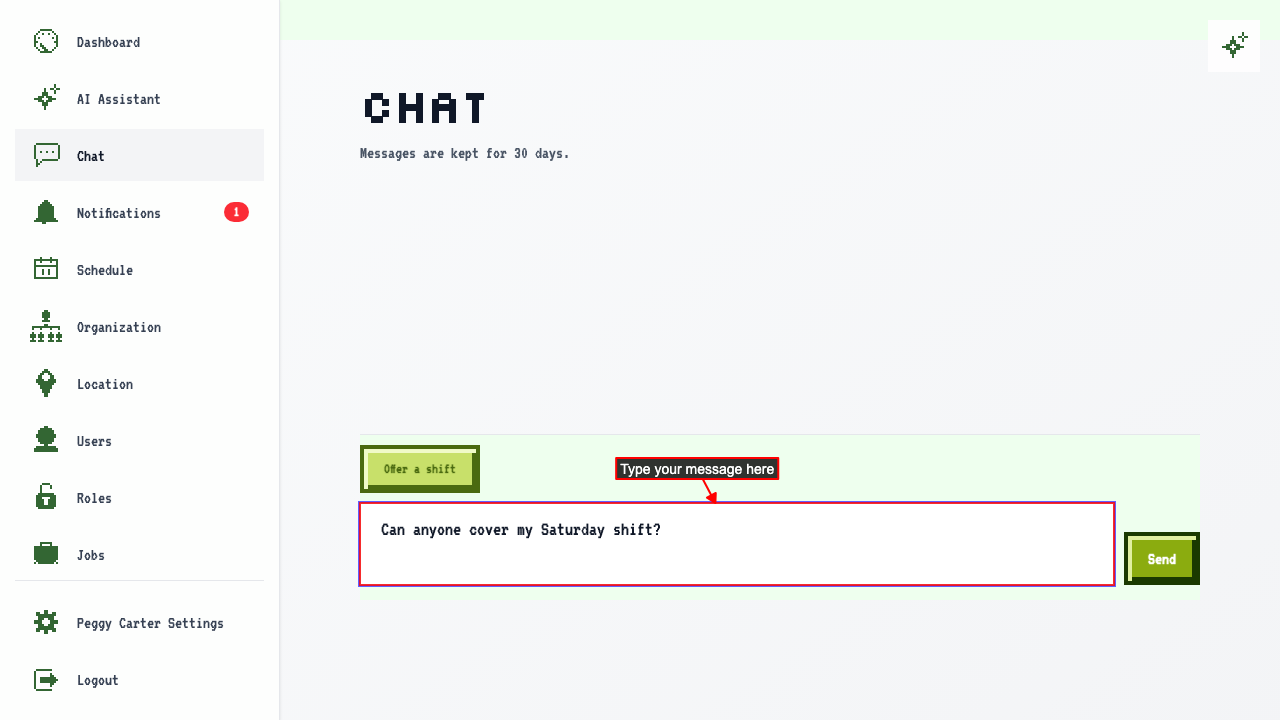
Type your message and click Send. To start a new line, press Shift+Enter.
 Everyone else sees your message right away.
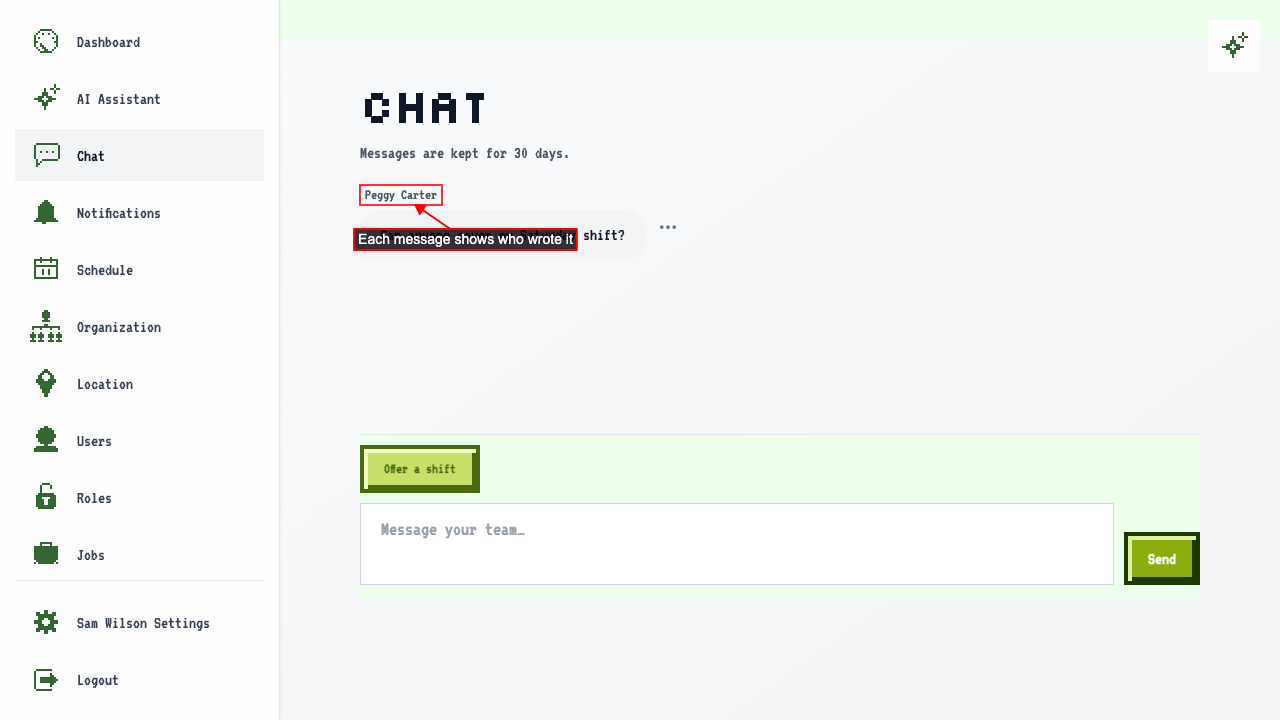
To reply, type in the same box and press Enter. Replies appear for everyone the same way.
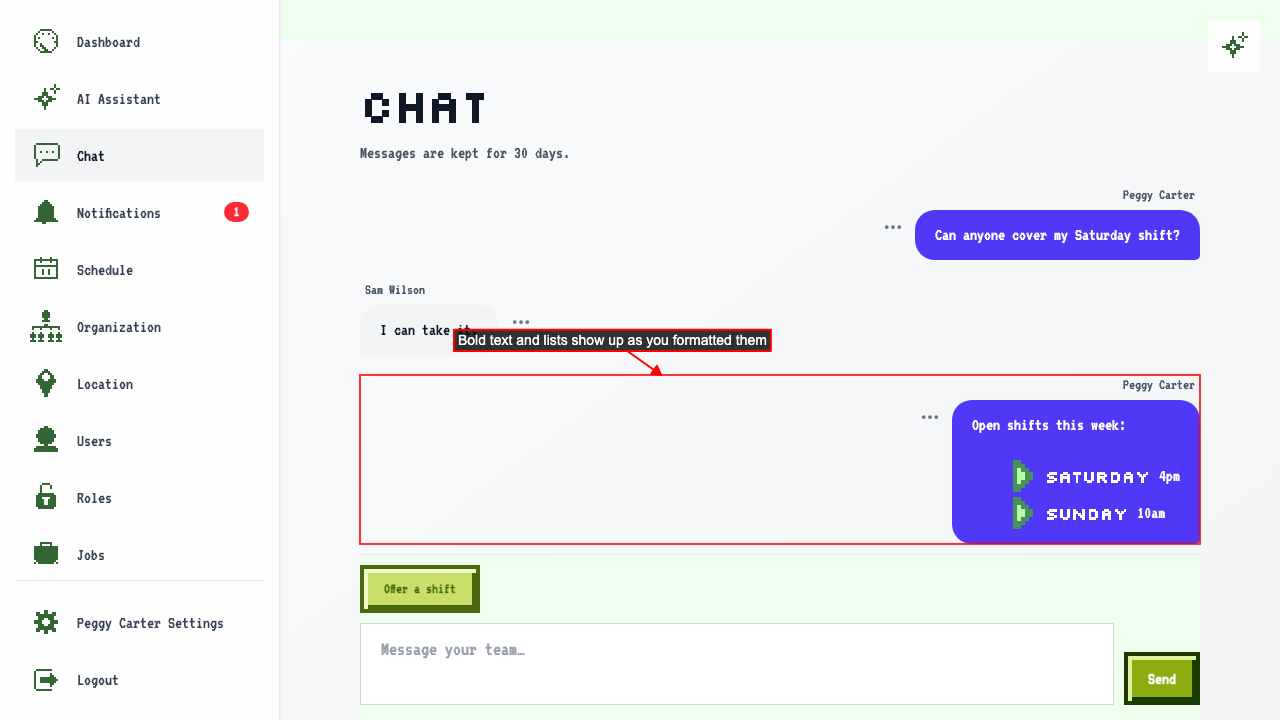
Format your message with Markdown. Wrap text in two asterisks to make it bold, or start lines with a dash to make a list.
How to see new messages
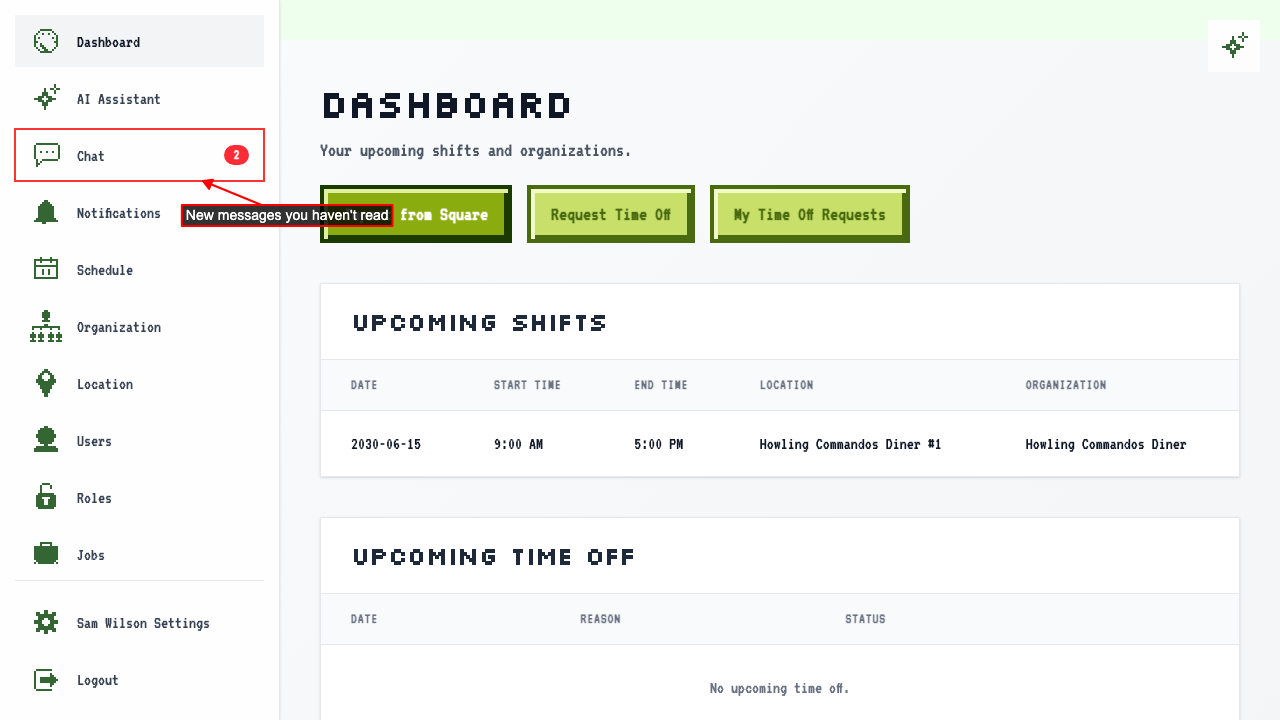
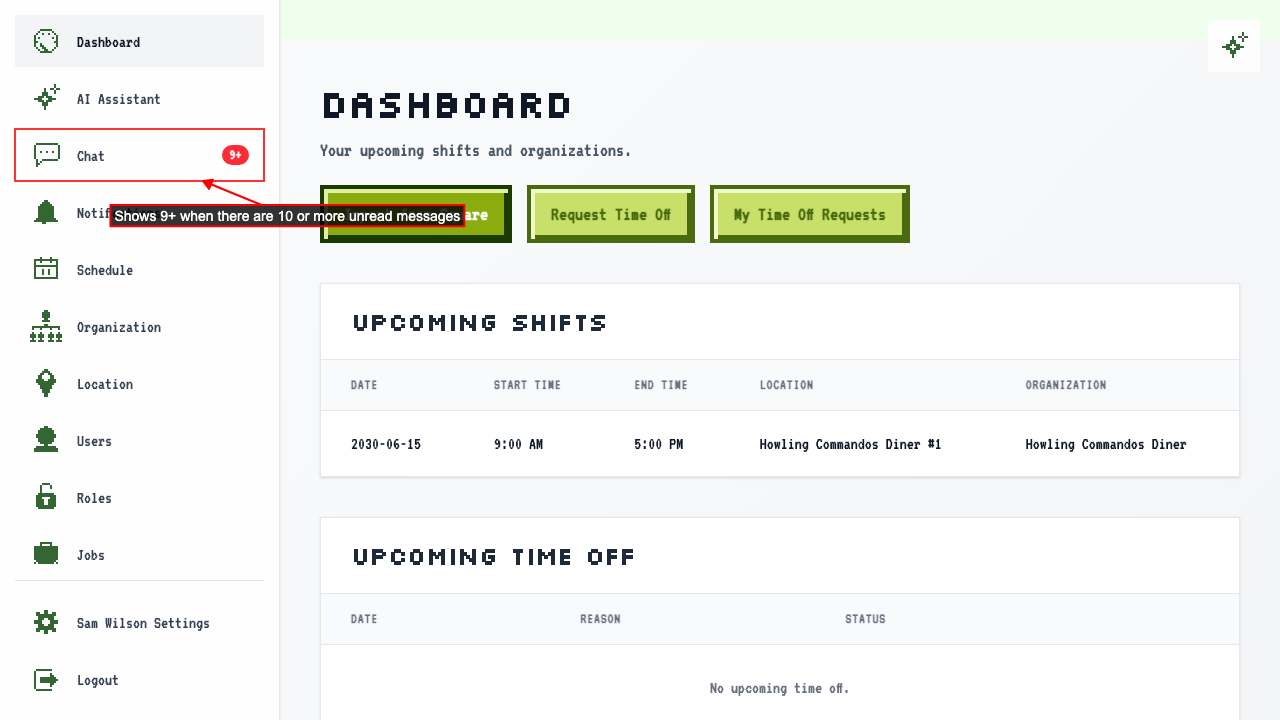
While you are somewhere else in ScheduleLord, a badge next to Chat counts the messages you haven't read.
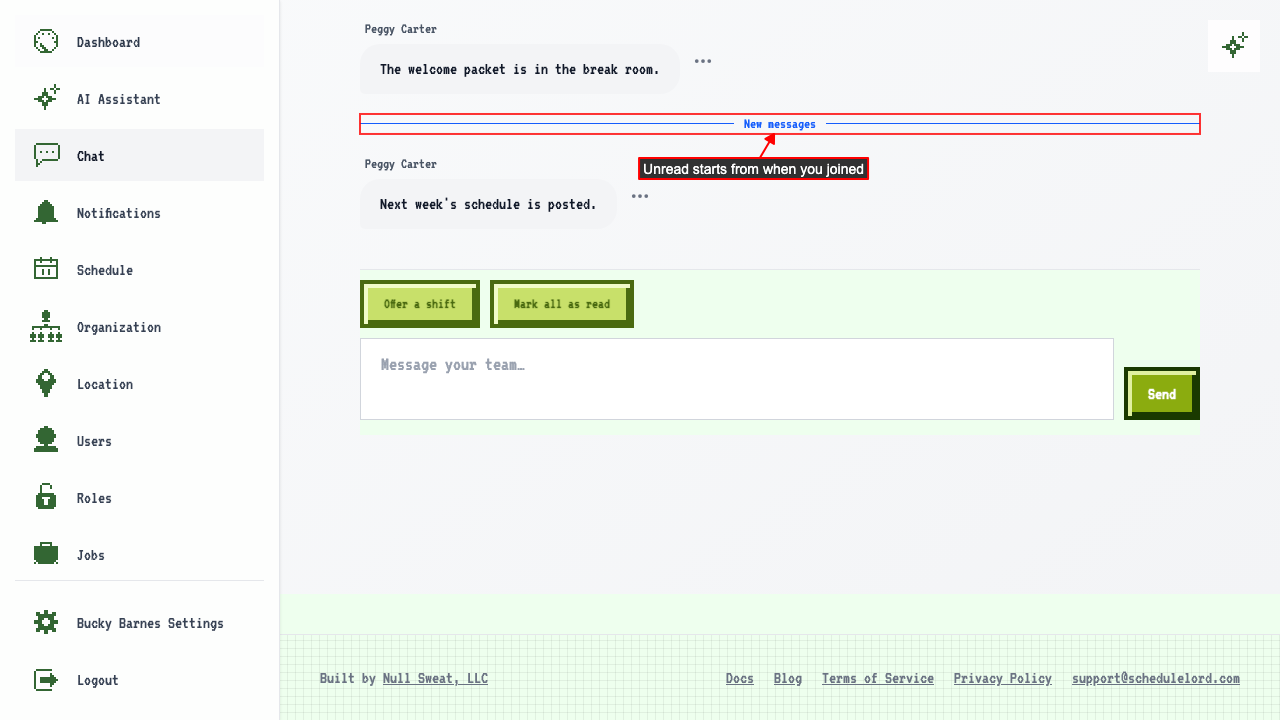
Open the chat. It scrolls to the first message you haven't read, which is marked with a New messages line. The badge clears.
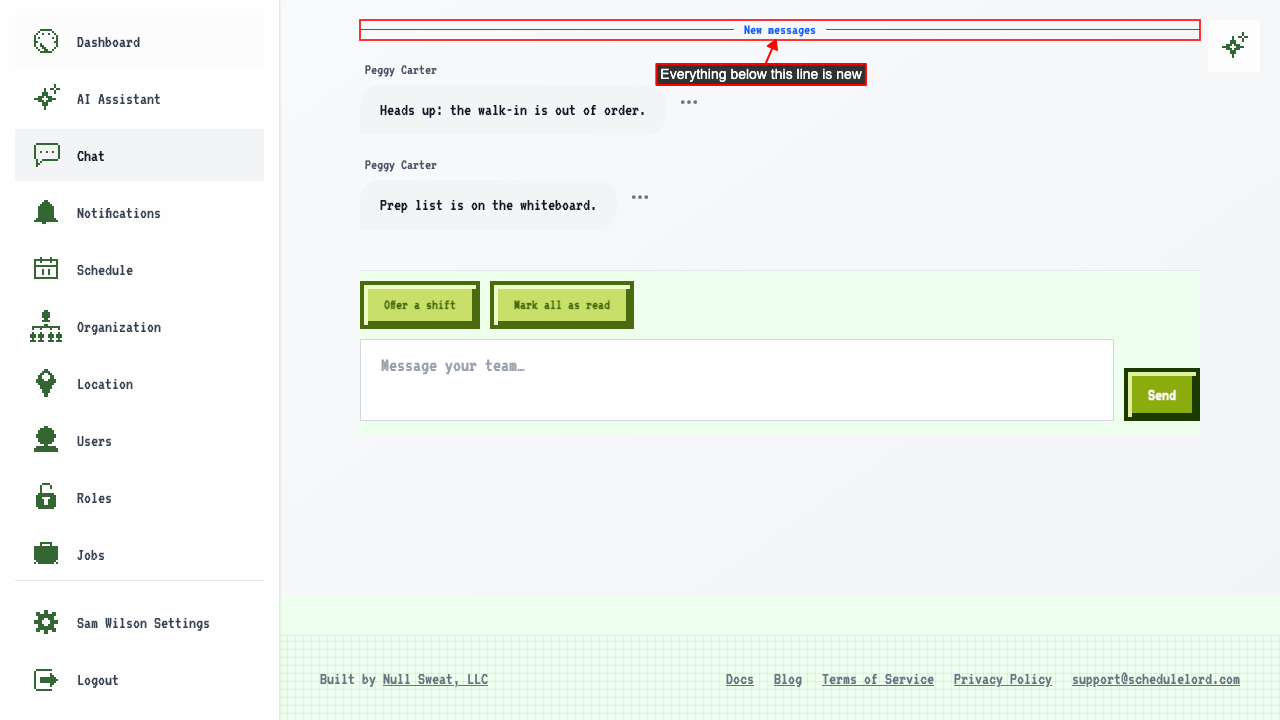
Messages that arrive while the chat is open don't add to the badge, because you can already see them. The line goes away the next time you open the chat.
How many unread messages the badge shows
The badge shows the number of unread messages, up to 9. With 10 or more unread messages, the badge shows 9+.
How to mark messages as unread or read
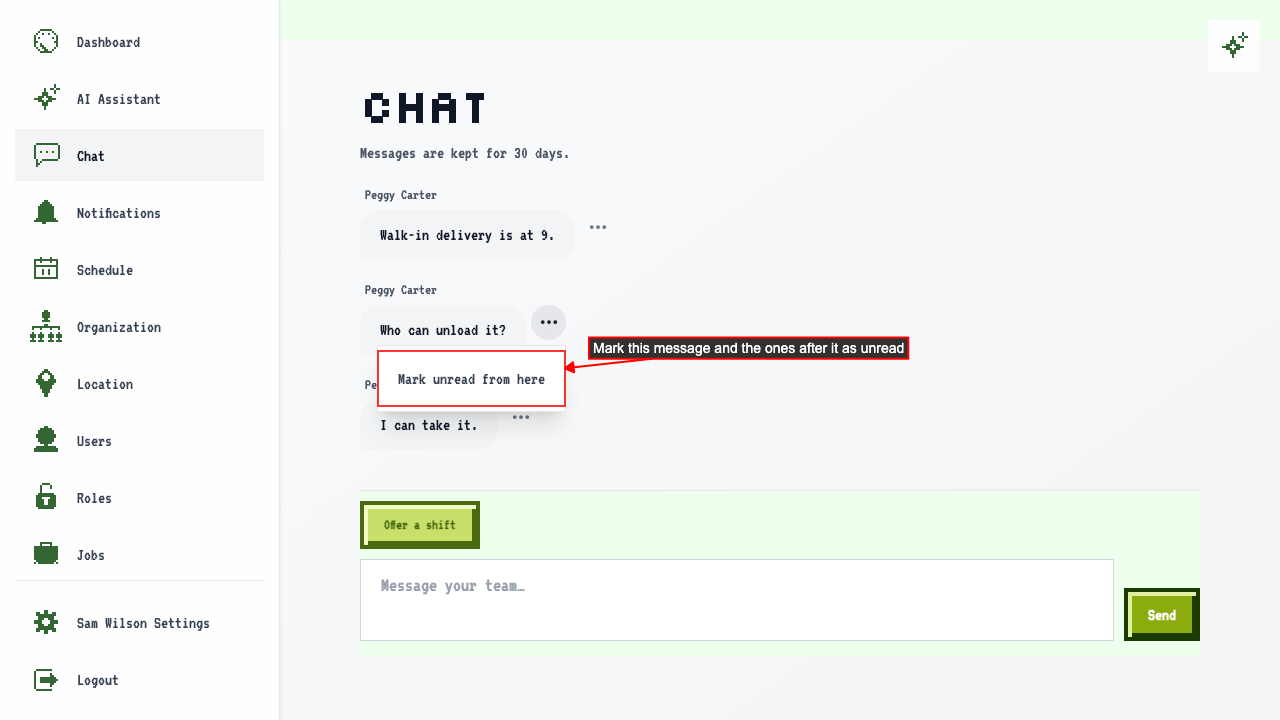
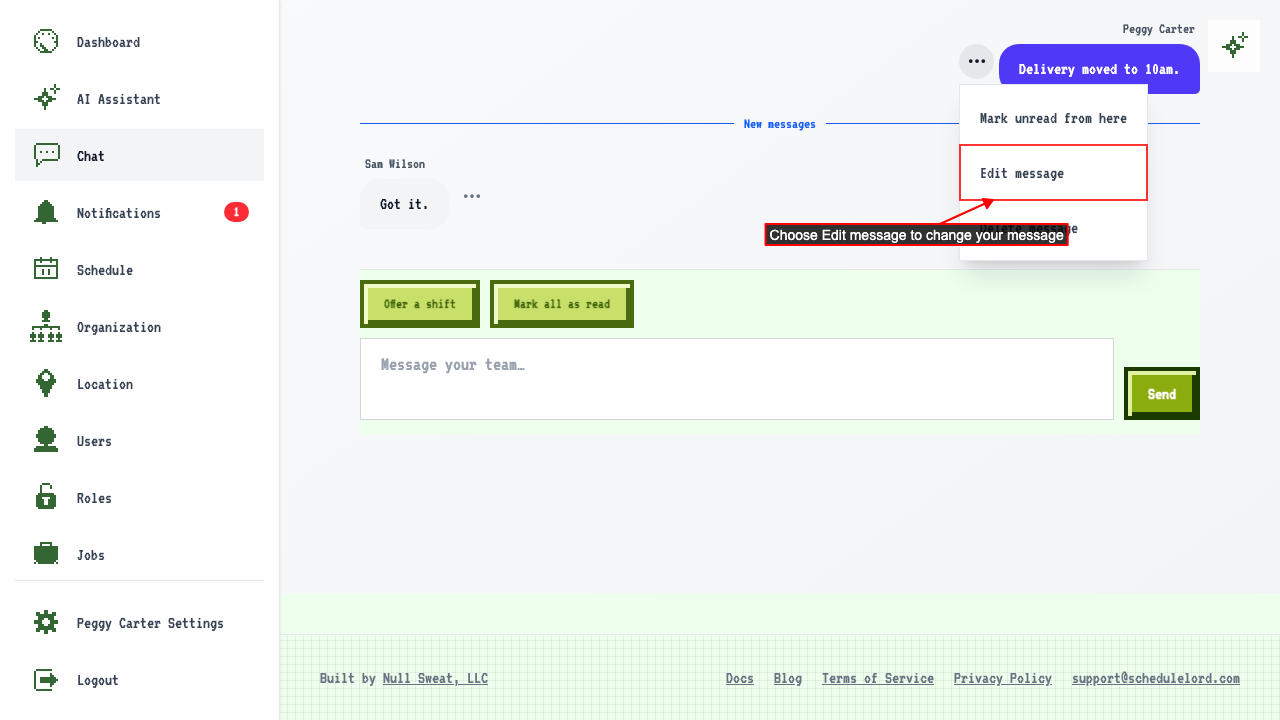
To come back to a message later, click its ⋯ button and choose Mark unread from here. The New messages line moves above it, and that message and the ones after it count as unread.
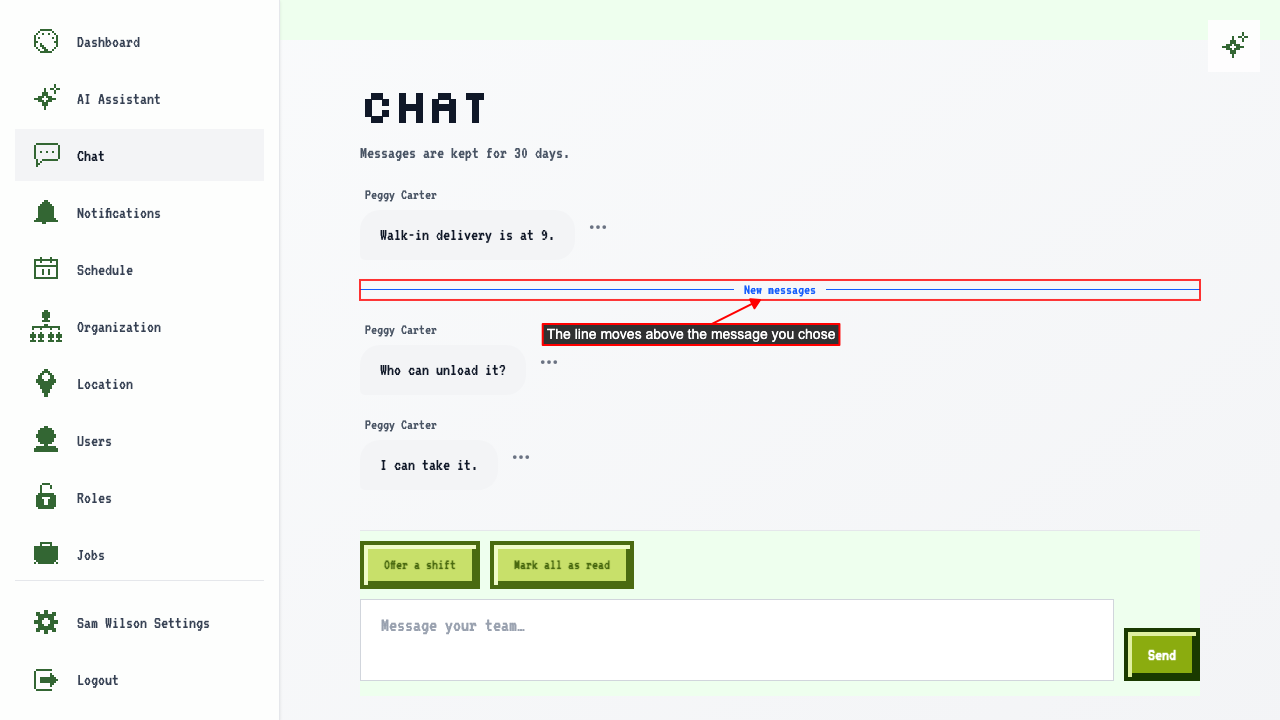
When you leave the chat, the badge counts the messages you marked as unread.
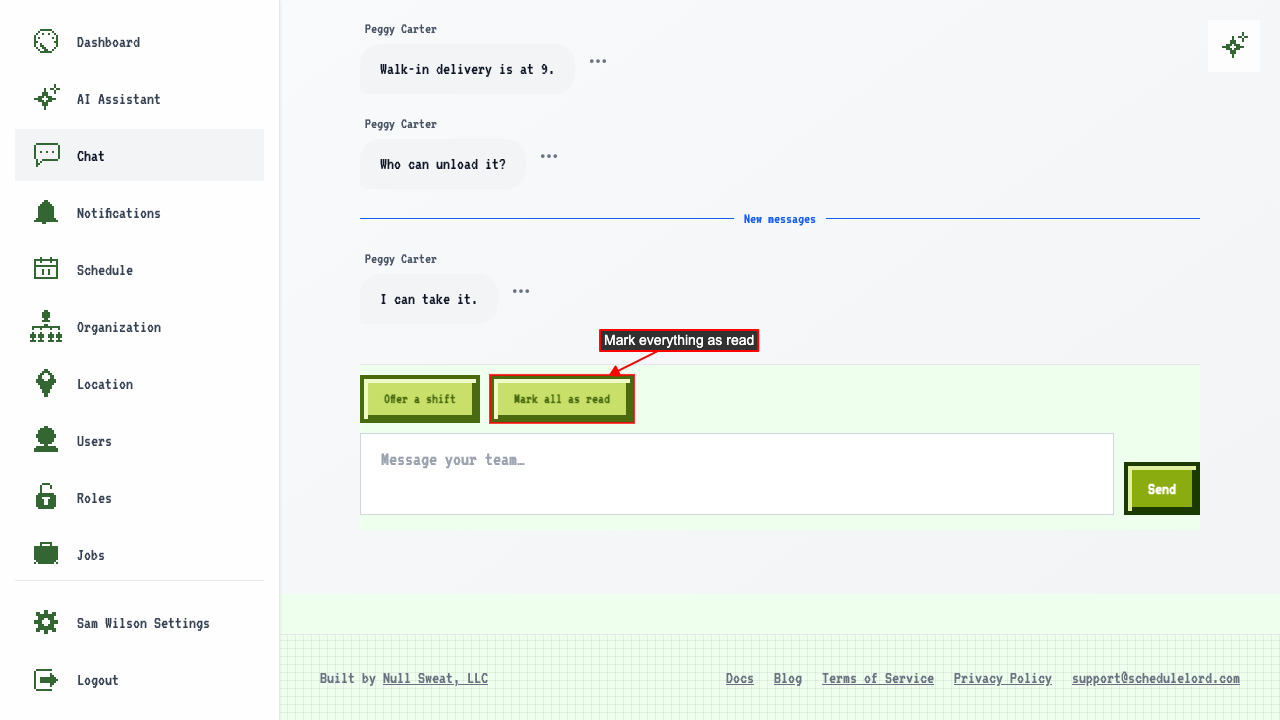
The next time you open the chat, it scrolls to the line, and the messages count as read again. The line stays until you click Mark all as read.
To mark everything as read without leaving the chat, click Mark all as read.
What counts as unread
The unread badge only counts messages posted after you joined the organization.
Messages posted before you joined the organization don't count as unread.
You can still scroll up to read them. The New messages line sits above the first message posted after you joined.
How to edit a message
To fix a typo or change what you said, click the ⋯ button on your own message and choose Edit message.
 The message turns into a box with its text. Change the text, then click Save.
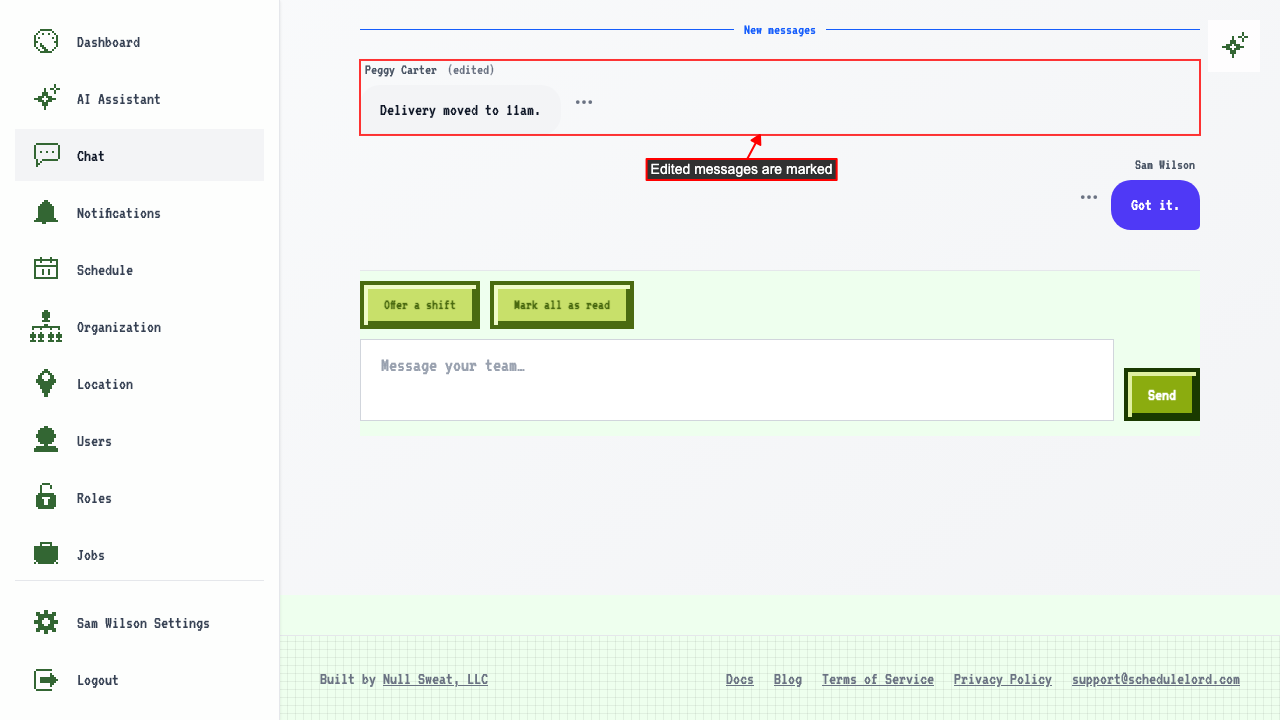
Your message shows the change, with a note that it was edited. Everyone in the chat sees it right away.
To keep a message as it is, click Cancel instead of Save.
You can only edit your own messages. Even if your role lets you delete other people's messages, they don't have Edit message in their ⋯ menu.
How to delete your own message
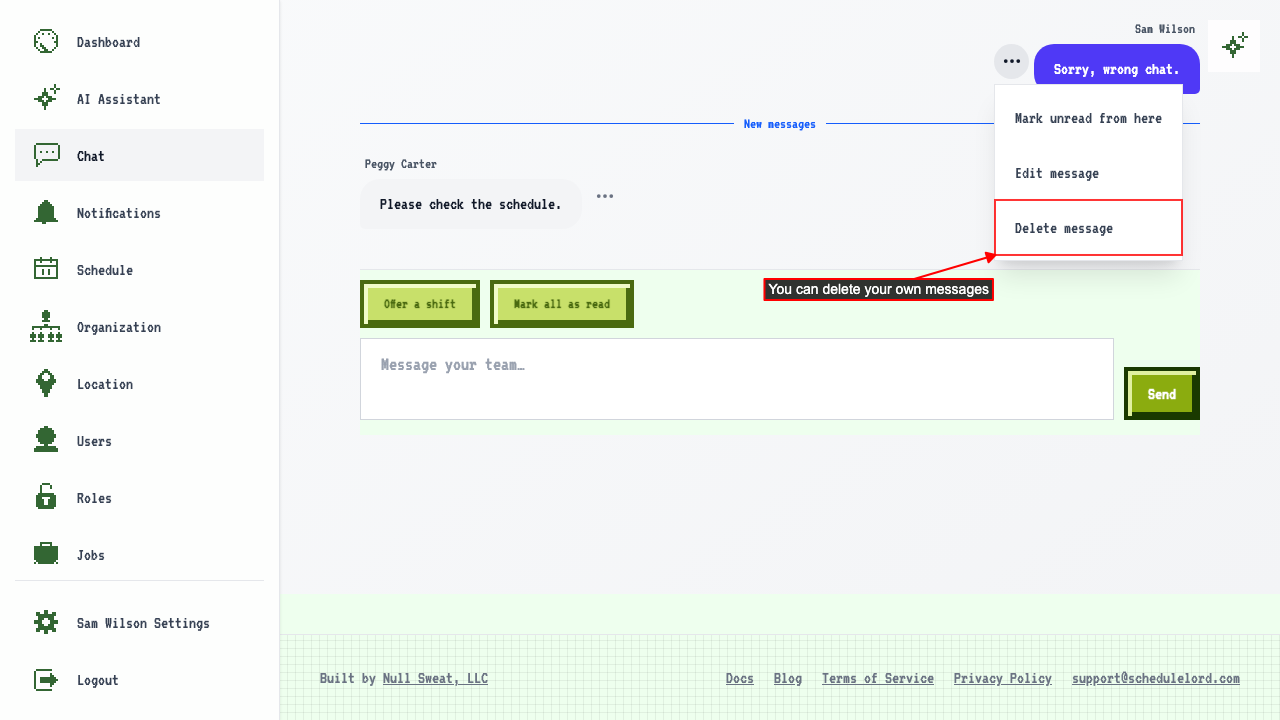
You can delete your own messages without any special permission. Click the ⋯ button on your message and choose Delete message.
 Confirm to delete it.
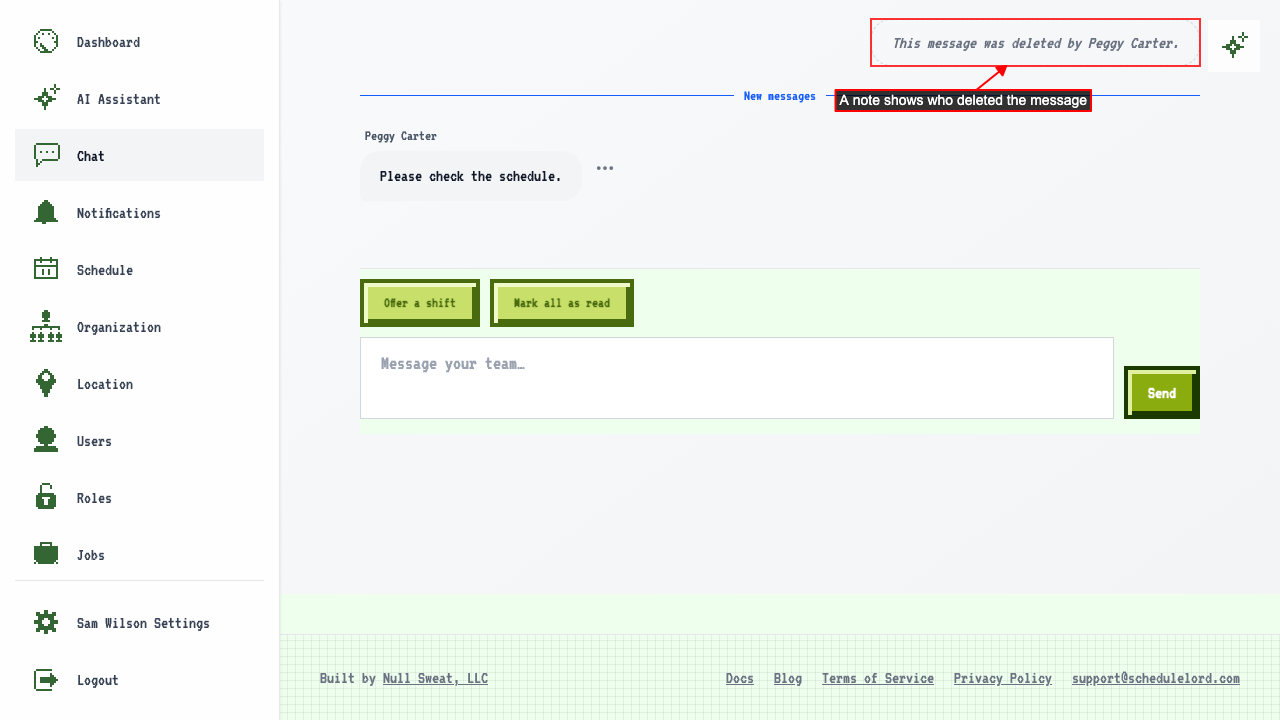
Everyone in the chat sees that you deleted it. The original text is gone.
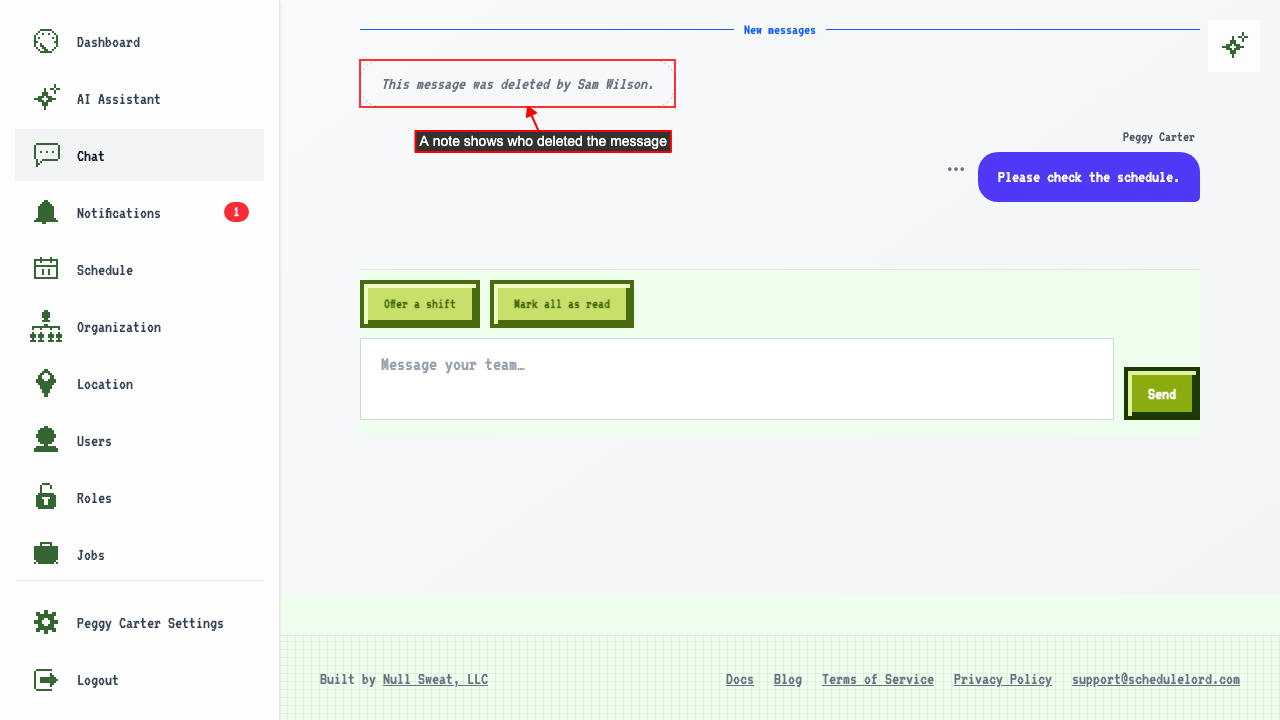
You can only delete other people's messages if your role has the Delete Chat Messages permission.
What happens to mentions when you edit a message
When you edit a message that mentions someone, the mention shows as a plain name in the edit box.
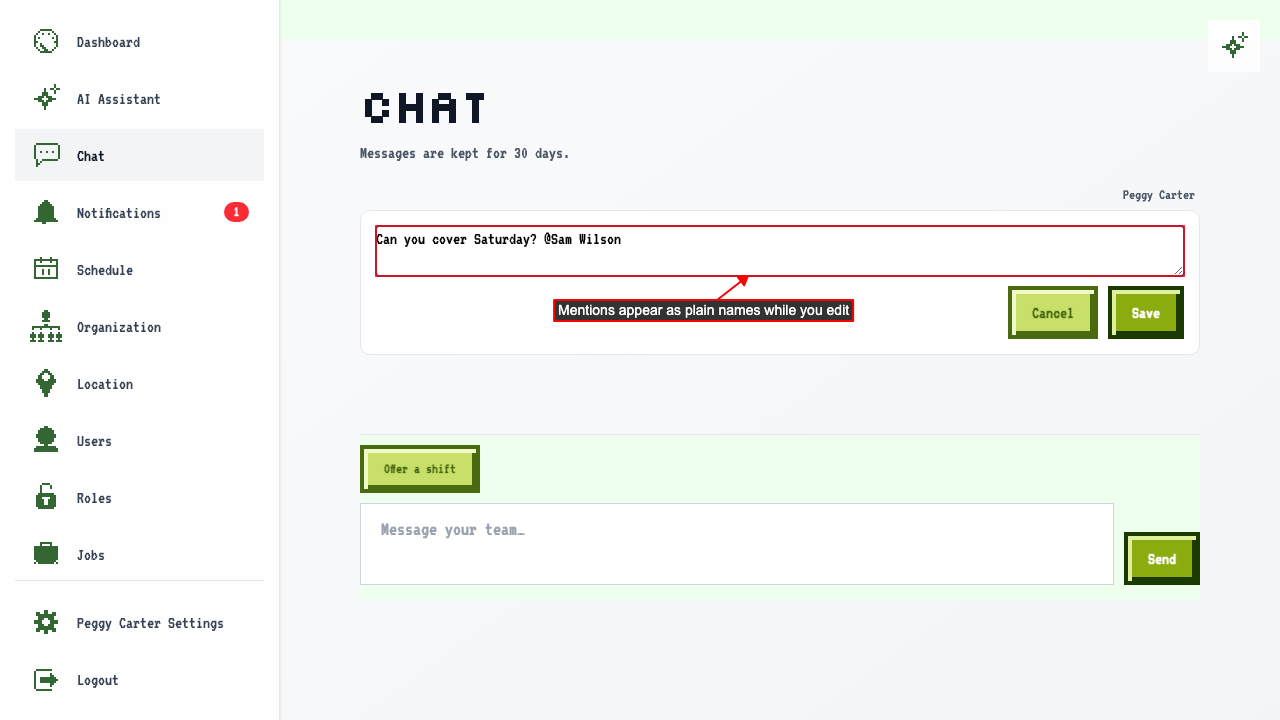 After you save, the mention is still highlighted.
Editing a message doesn't notify anyone, and you can't add or change who is mentioned. To notify someone new, delete the message and send a new one that mentions them.
How to delete a message
Anyone whose role has the Delete Chat Messages permission can delete any message, for example one that shares someone's personal details by mistake. Owners always can. Open the chat room and click the ⋯ button on the message.
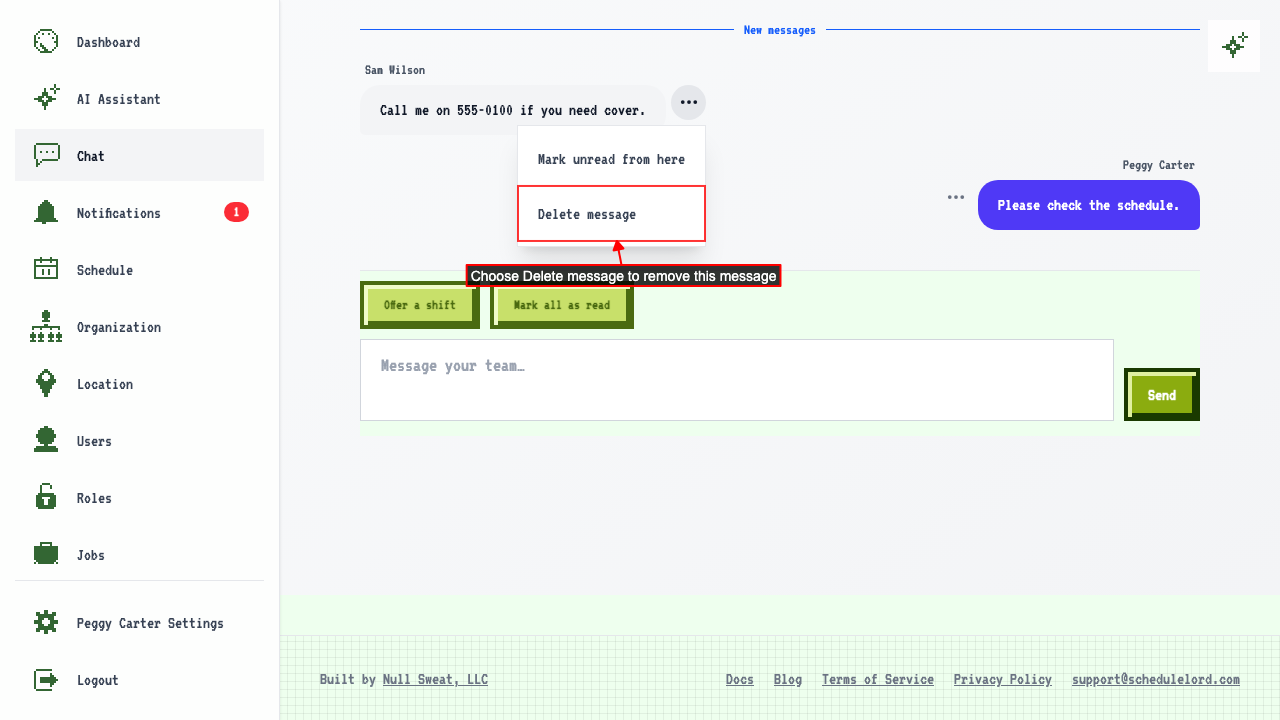 Choose Delete message. A confirmation shows the message you are about to delete.
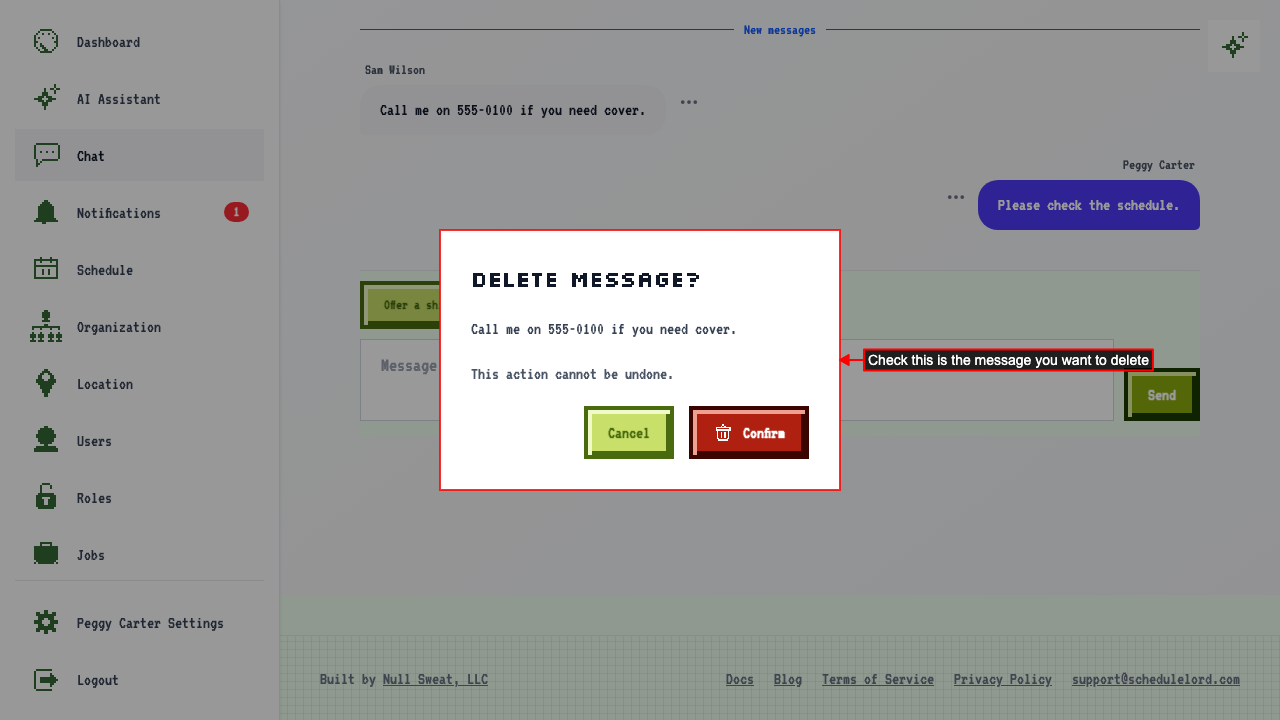 If you change your mind, click Cancel. The message stays.
To delete the message, click Confirm. A deleted message can't be recovered.
Everyone in the chat sees that the message was deleted. The original text is gone.
People whose role doesn't have the Delete Chat Messages permission, such as employees, don't see Delete message in the ⋯ menu of other people's messages.
How long messages are kept
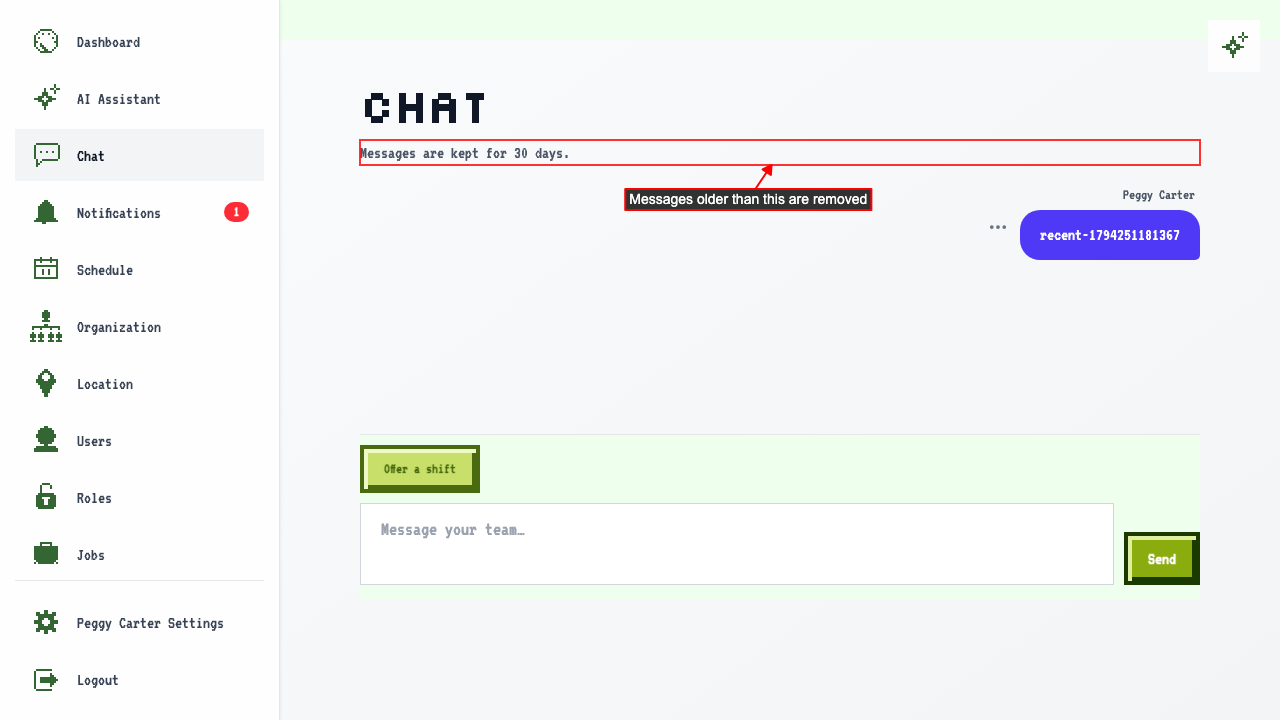
The chat room tells everyone how long messages are kept. After 30 days they are removed and can't be recovered.