What Square Controls
Your team comes from Square
Open the Users page of a Square-connected organization.
A notice explains that your team is managed in Square.
The Add User button links to Square's team management page instead of the ScheduleLord add user form.
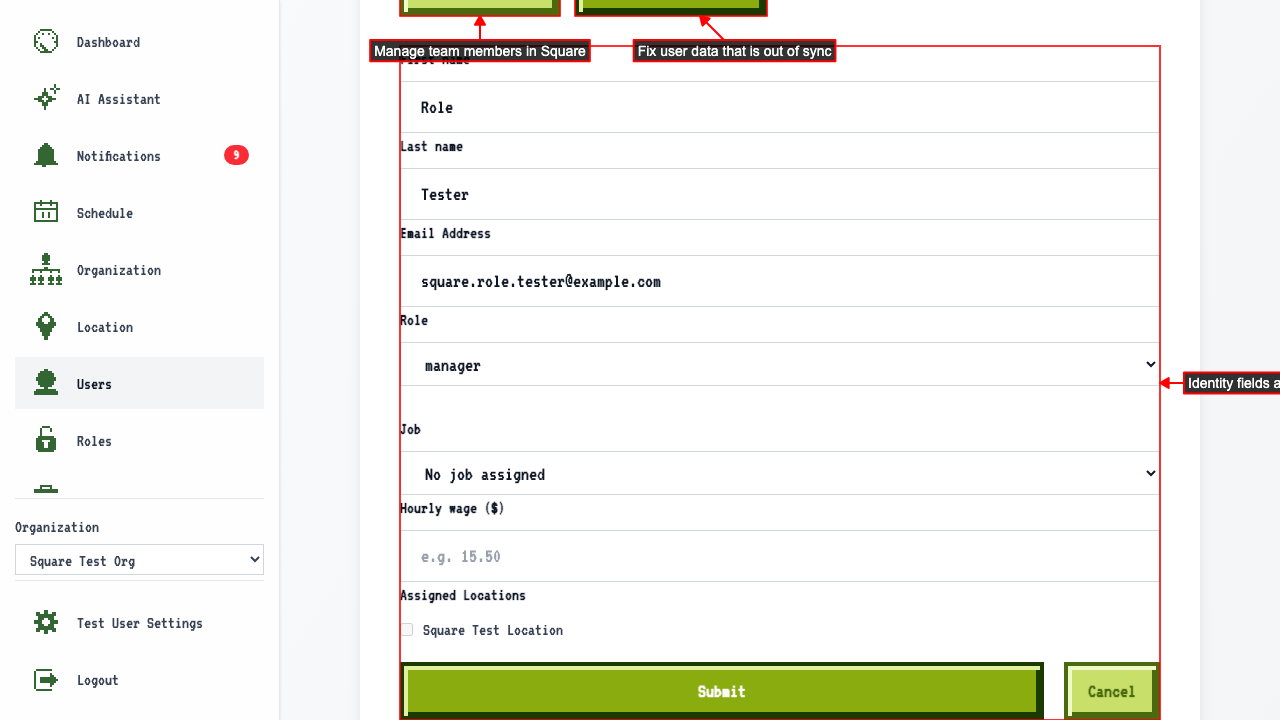
Clicking the edit buttons will take you to the edit page.
On the edit page, identity fields synced from Square (name, email, job, wage, locations) are disabled, but the user's role can still be changed and saved.
There's a link through to Square to change their details.
There's also a button to pull their latest details back in.
Your locations come from Square
Open the Locations page of a Square-connected organization. A notice explains that your locations are managed in Square. The Add Location button links to Square's locations page. The edit buttons in the location table also link to Square. Navigating directly to a location's edit page also redirects to Square.
Your jobs come from Square
Open the Jobs page of a Square-connected organization. A notice explains that your jobs are managed in Square. The Add Job button links to Square's team members page, where jobs are managed. The edit buttons in the job table also link to Square. Navigating directly to a job's edit page also redirects to Square.