Break Coverage
A break that leaves a job unstaffed
Navigate to the edit page for the second Server's shift.
Click Add Break, then enter a break that overlaps the other Server's existing 12:00-12:30 break.
A warning appears — every Server at this location would be on break at once.
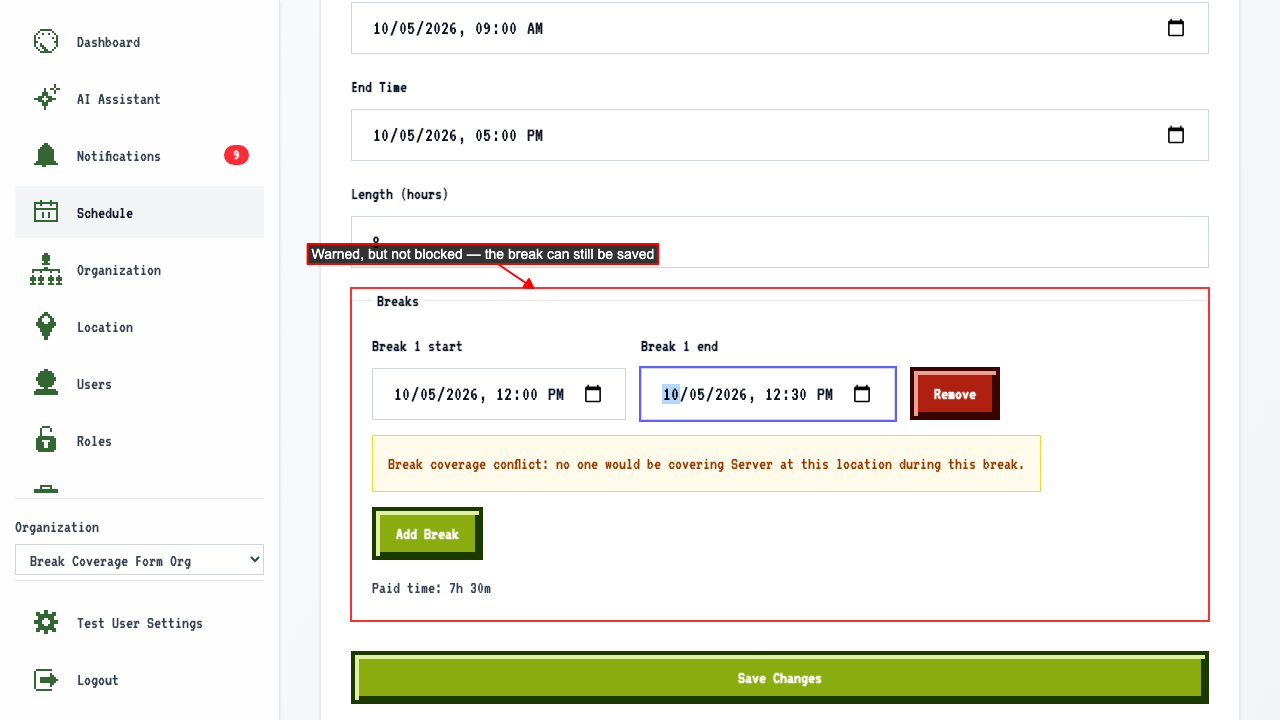 Saving anyway still adds the break.
Editing the break to a time that doesn't overlap shows no coverage warning.
Editing it back to overlap the other Server's break shows the warning again.
Saving anyway still adds the break.
Editing the break to a time that doesn't overlap shows no coverage warning.
Editing it back to overlap the other Server's break shows the warning again.
Existing coverage gaps are flagged as soon as you open the shift
Navigate to the edit page for the second Server's shift. The break's coverage conflict is flagged immediately, without editing it.
The same check runs on draft shifts
On the plan page for that week, select the location.
Open the add draft shift dialog for a second Server on the same day.
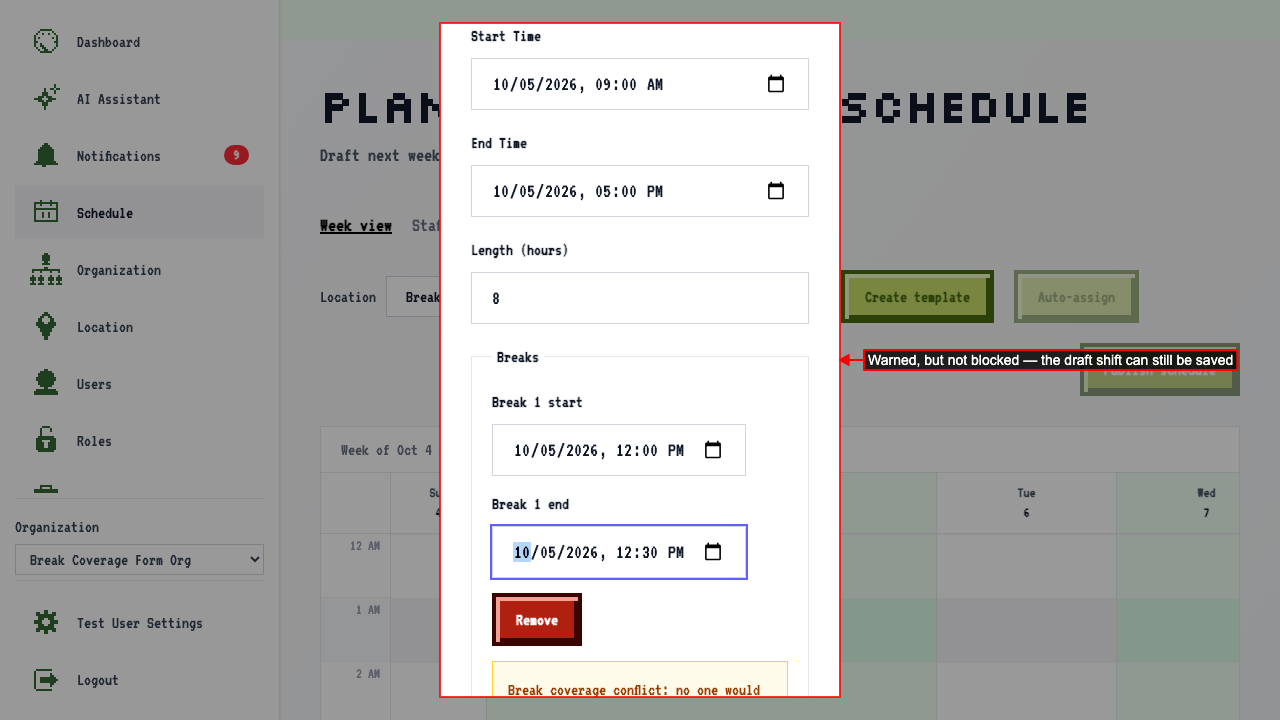
Enter a break that overlaps the other Server's existing 12:00-12:30 break.
A warning appears — every Server at this location would be on break at once.
No warning when another shift you're planning covers the gap
On the plan page for that week, select the location.
Add a first draft Server shift with no break.
Add a second draft Server shift at the same time, with a break.
Enter a break — the first draft shift (no break of its own) is still covering.
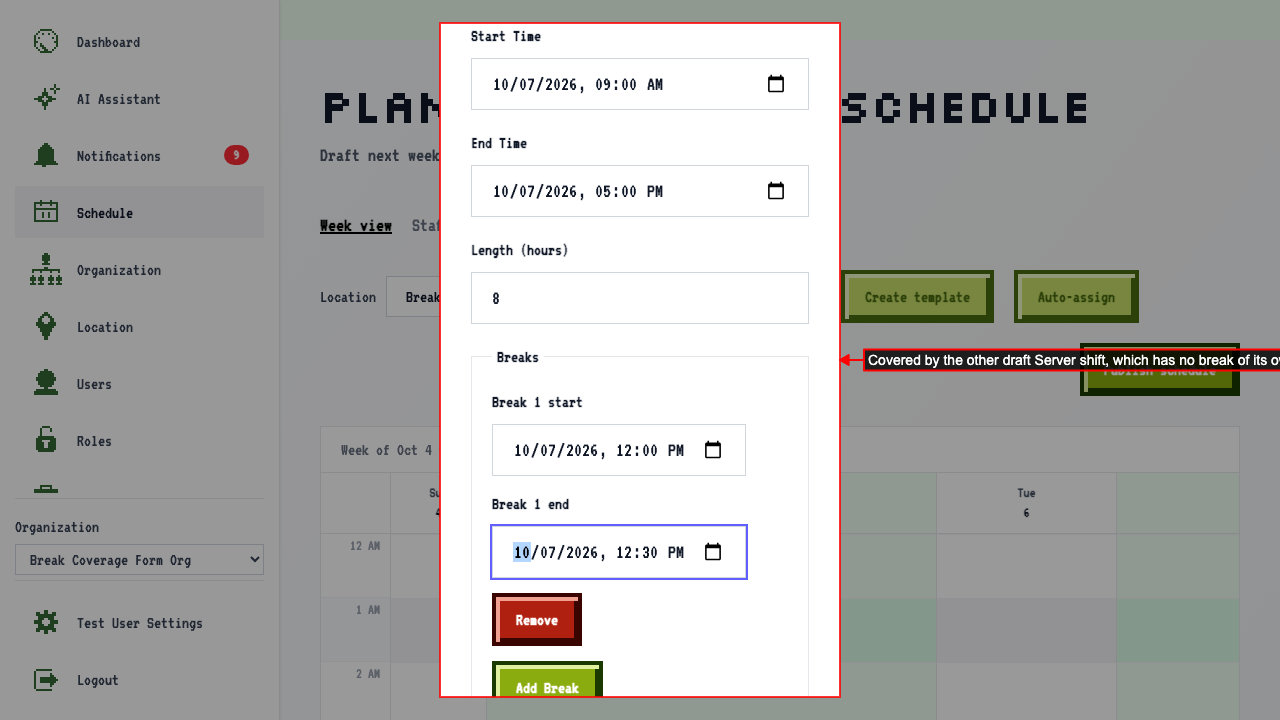
No coverage warning appears, since the sibling draft shift is covering the job at this location.