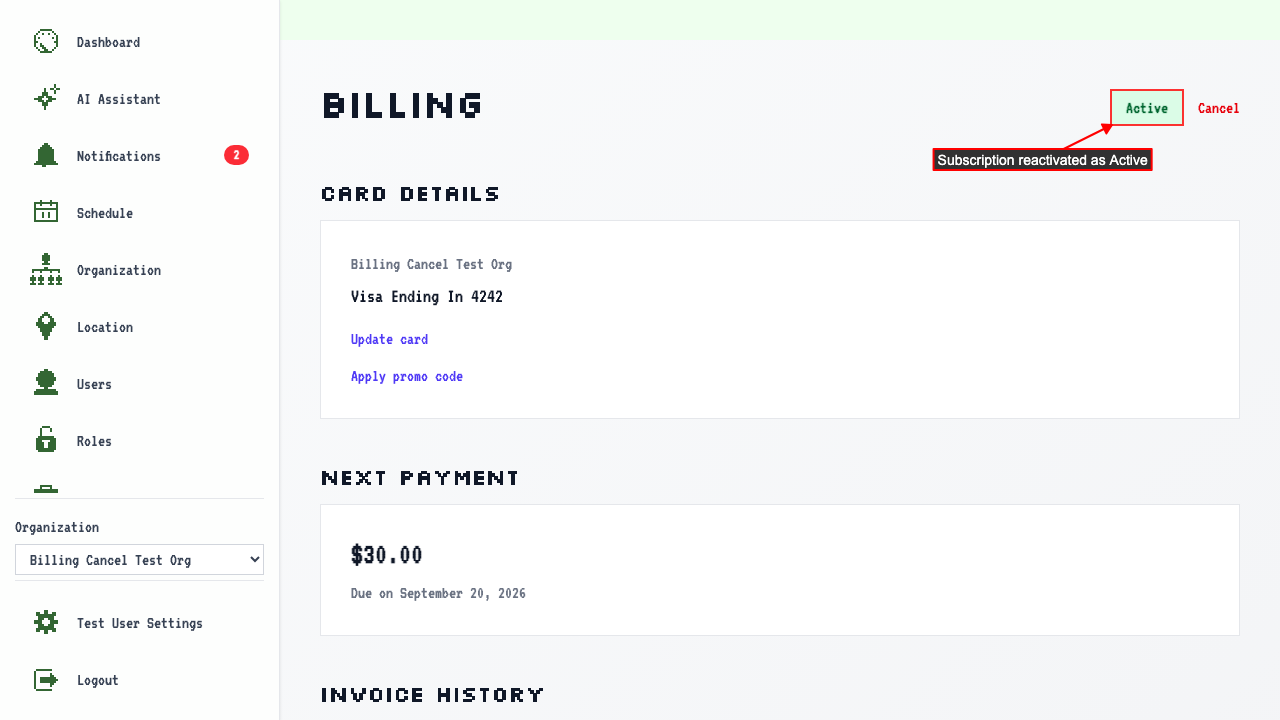
Cancel Subscription
How to cancel a subscription
On the Billing Overview page, click the Cancel button.
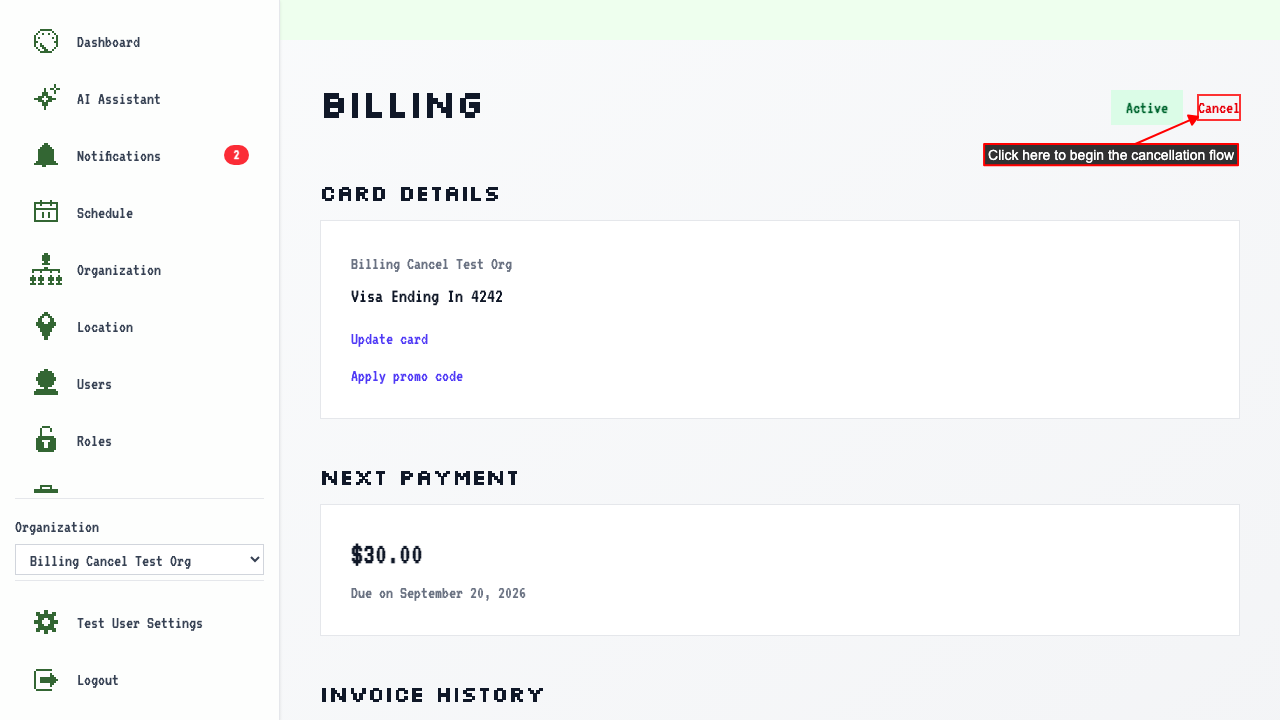 The Cancel Subscription page will ask to confirm cancellation.
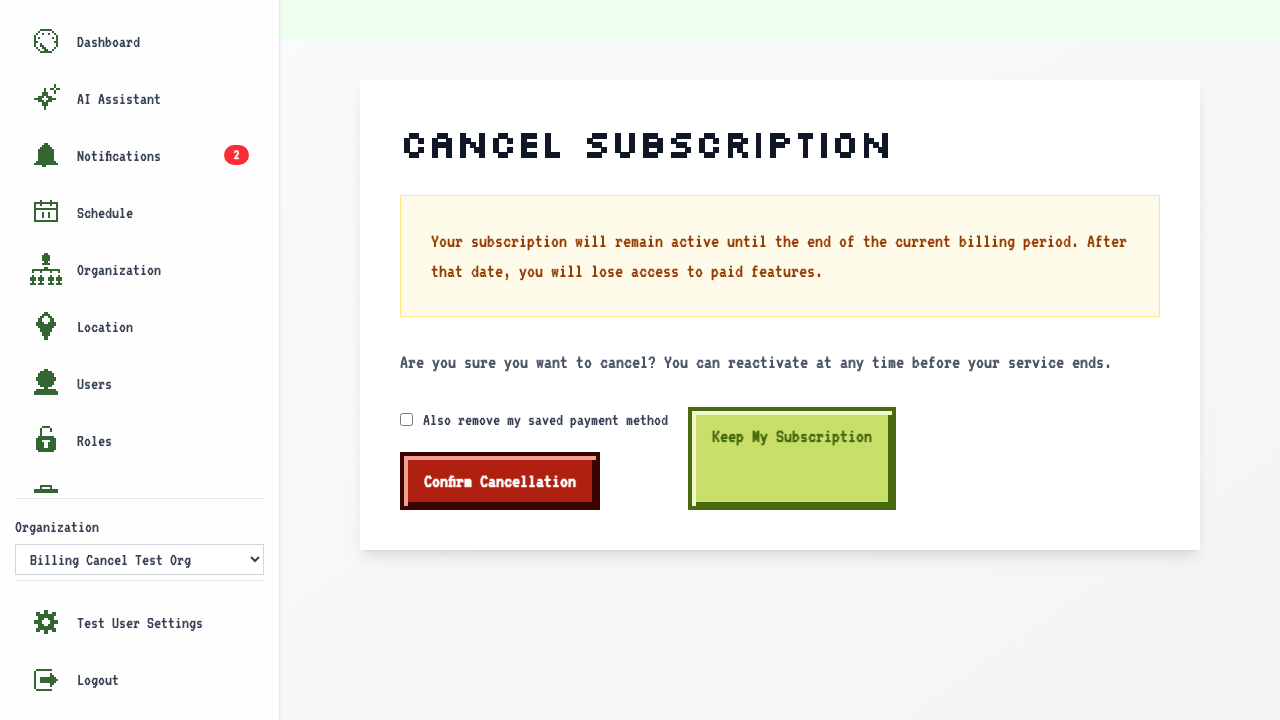
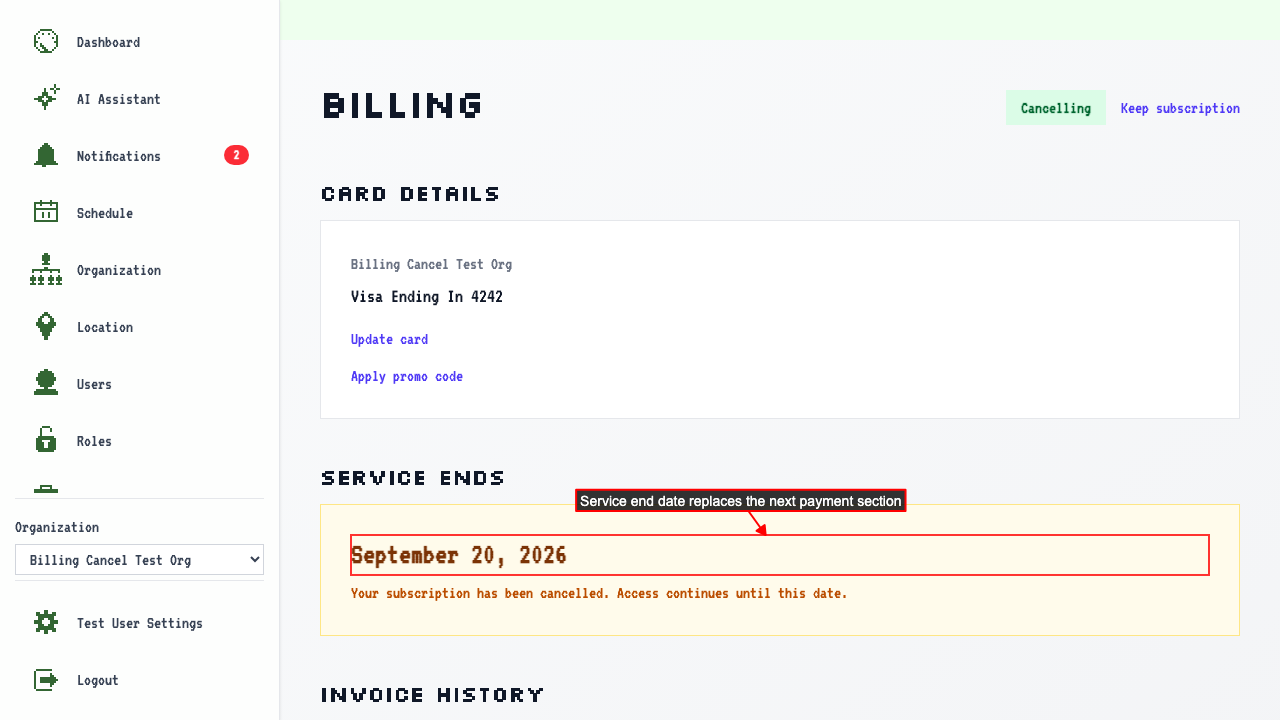
Clicking Confirm Cancellation will cancel your subscription and return to the Billing Overview.
The Billing Overview now shows when service will end instead of the next payment date.
How to re-subscribe while in a cancelling state to restore the active subscription
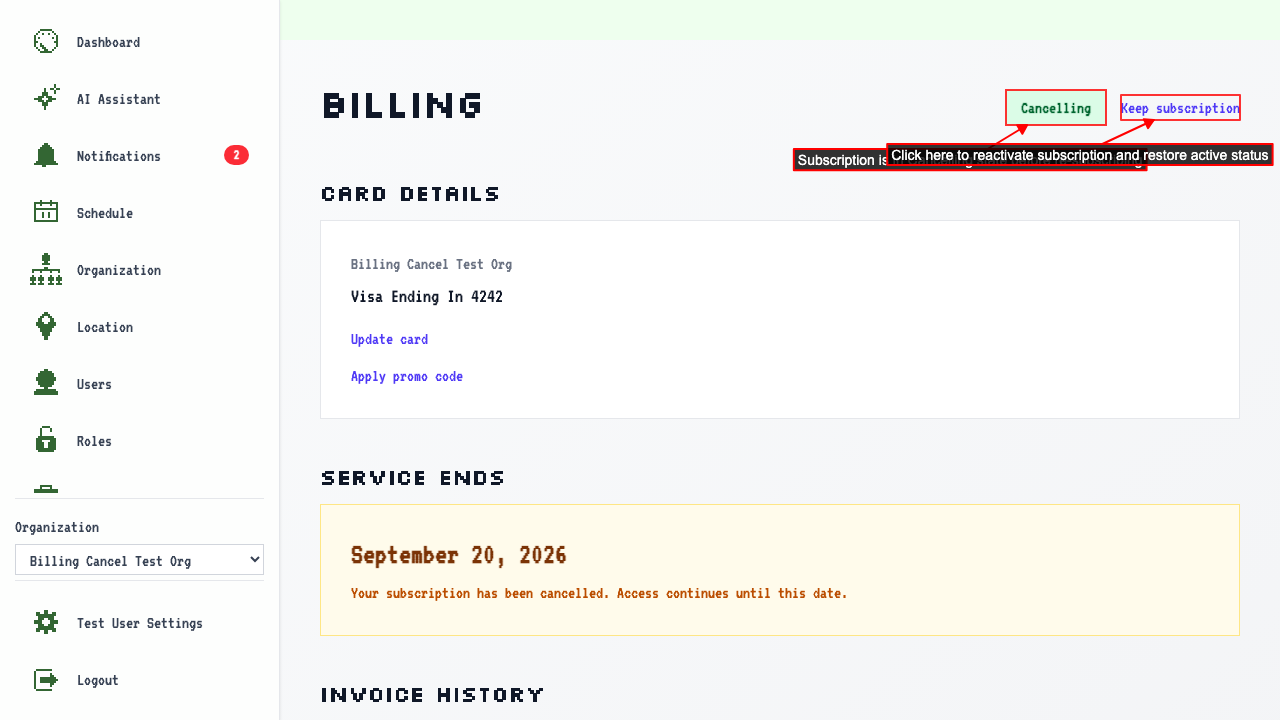
when the subscription status is Cancelling then you'll be able to re-subscribe to restore the active subscription.
Clicking 'Keep subscription' navigates to the upgrade page.
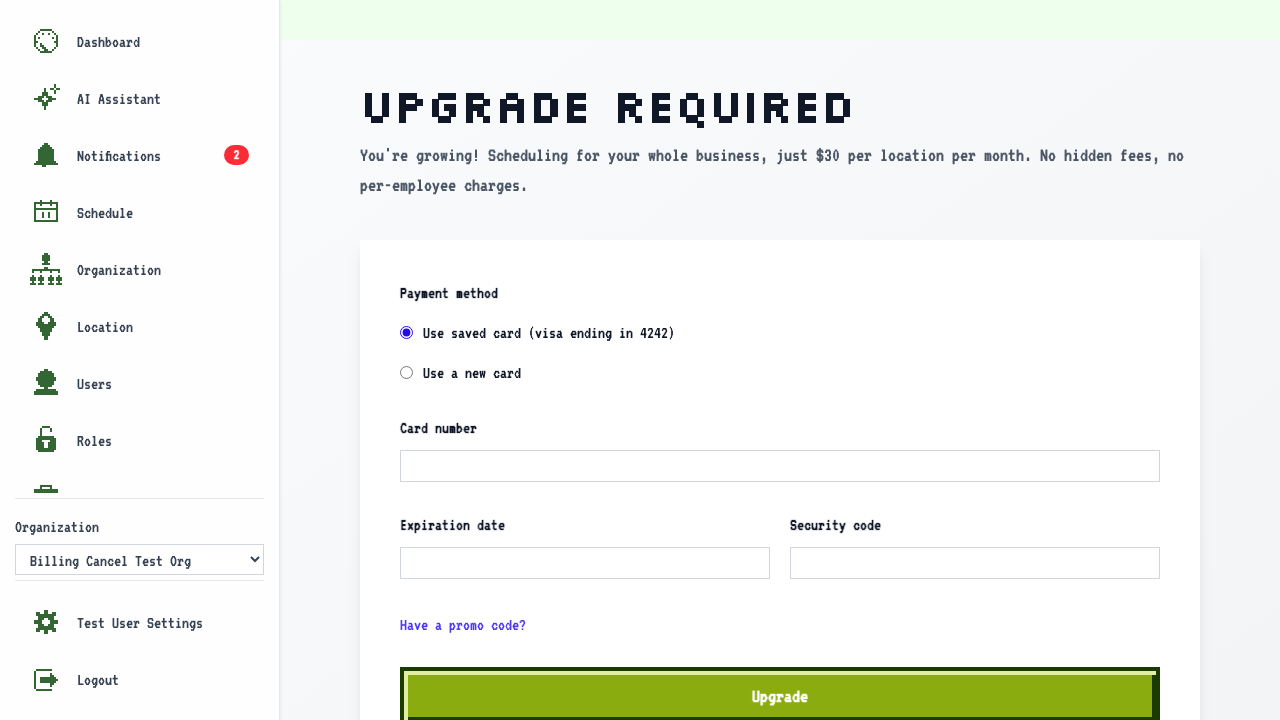
 On the upgrade page, select your saved card and submit to restore the subscription.
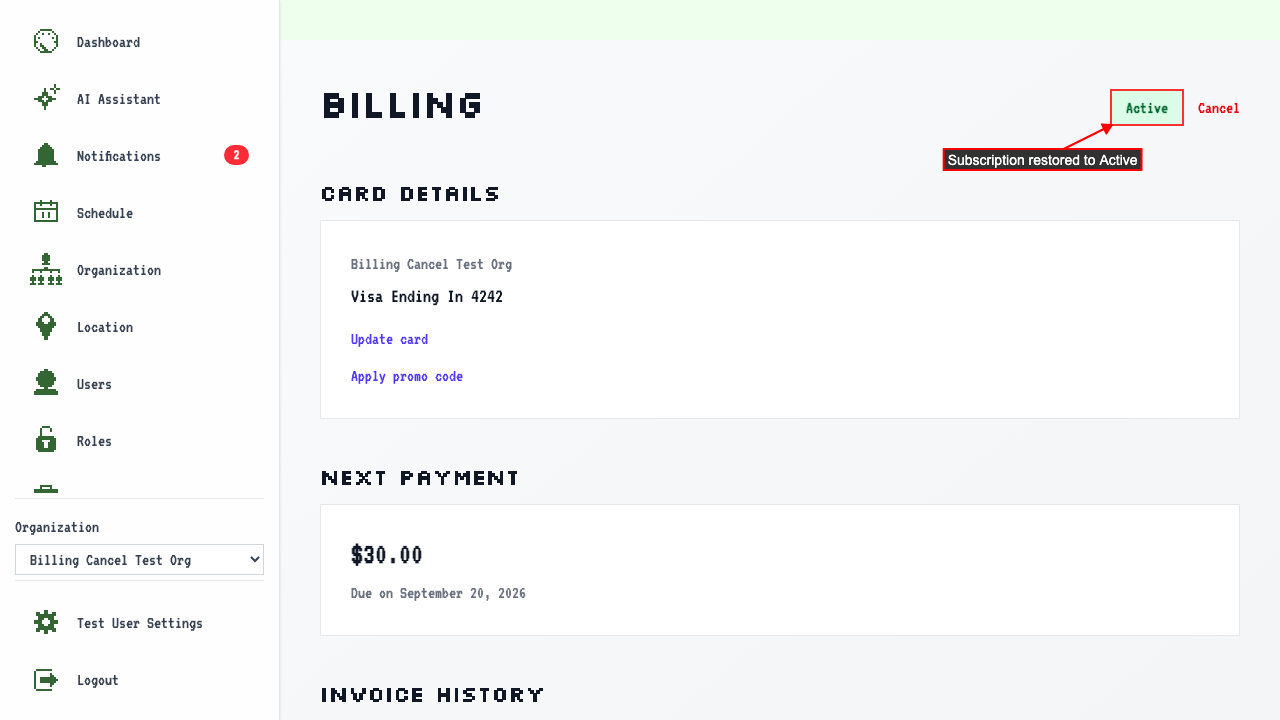
After submitting, the subscription is restored to Active again.
After expiring Stripe will trigger a webhook and make the subscription inactive
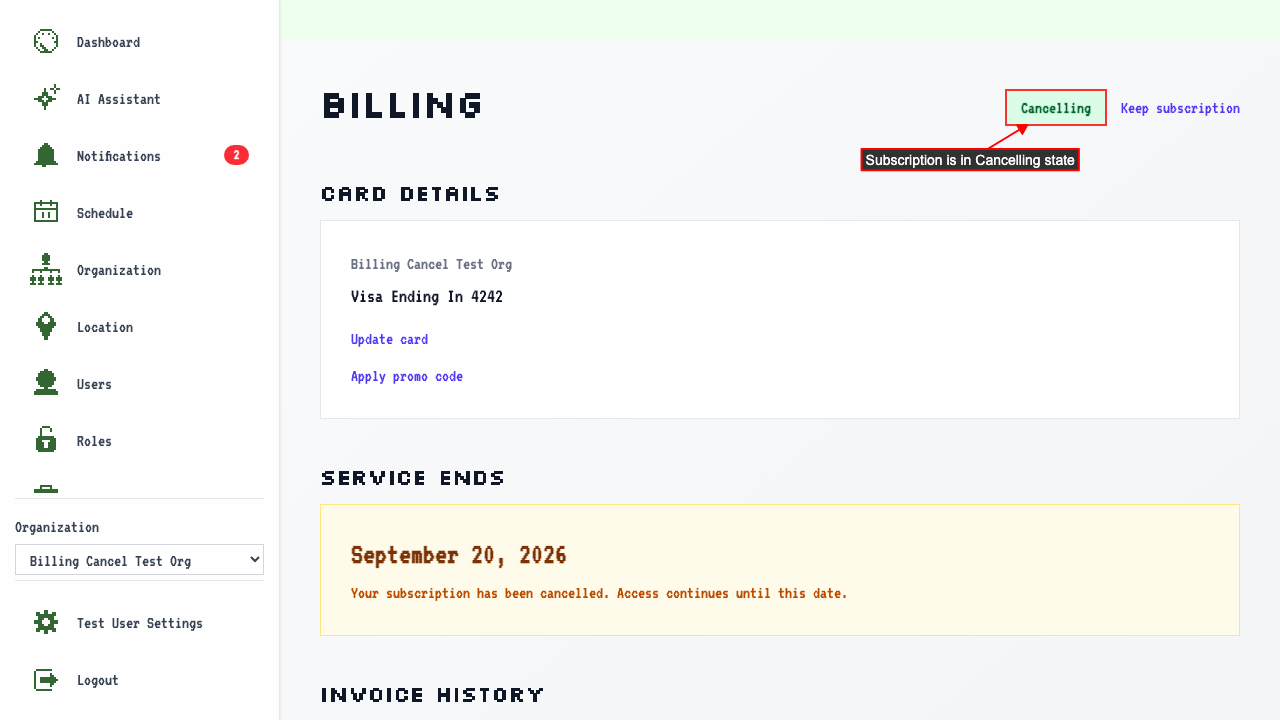
Before the webhook fires, the subscription status is Cancelling.
 Stripe will trigger a webhook when the subscription is expired,
and the Billing Overview Page will then show the subscription as Inactive.
Stripe will trigger a webhook when the subscription is expired,
and the Billing Overview Page will then show the subscription as Inactive.
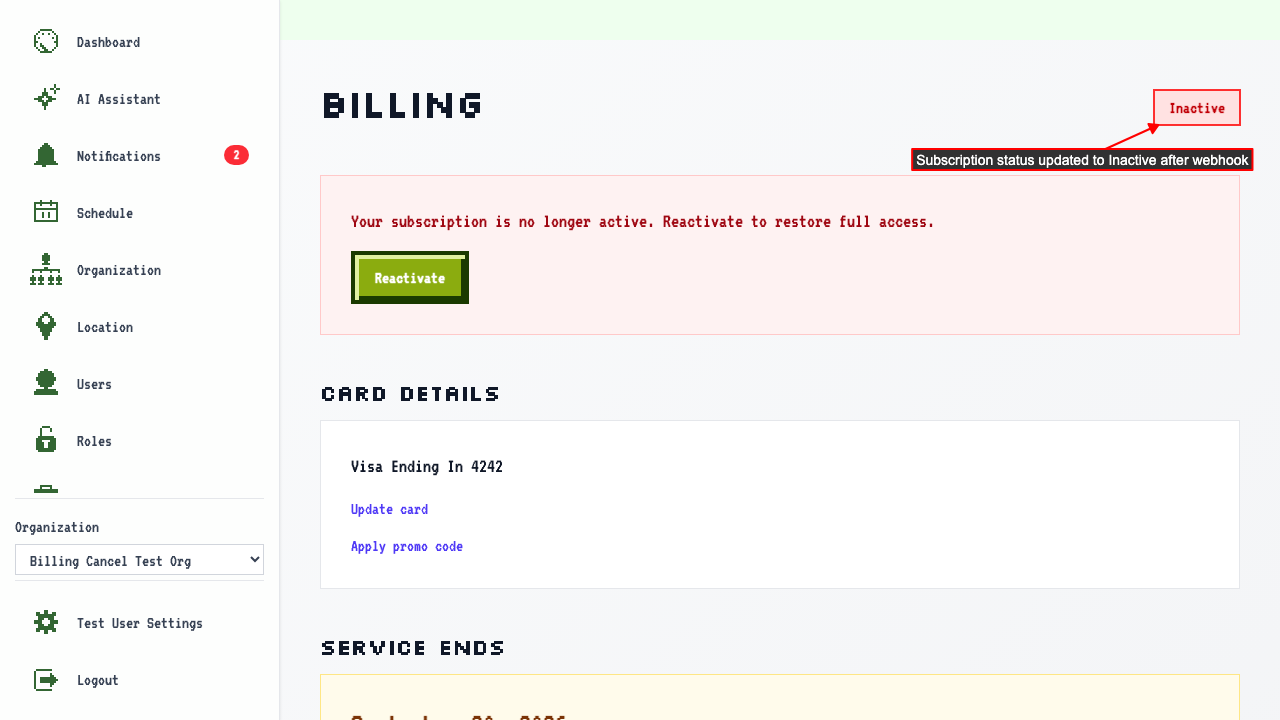
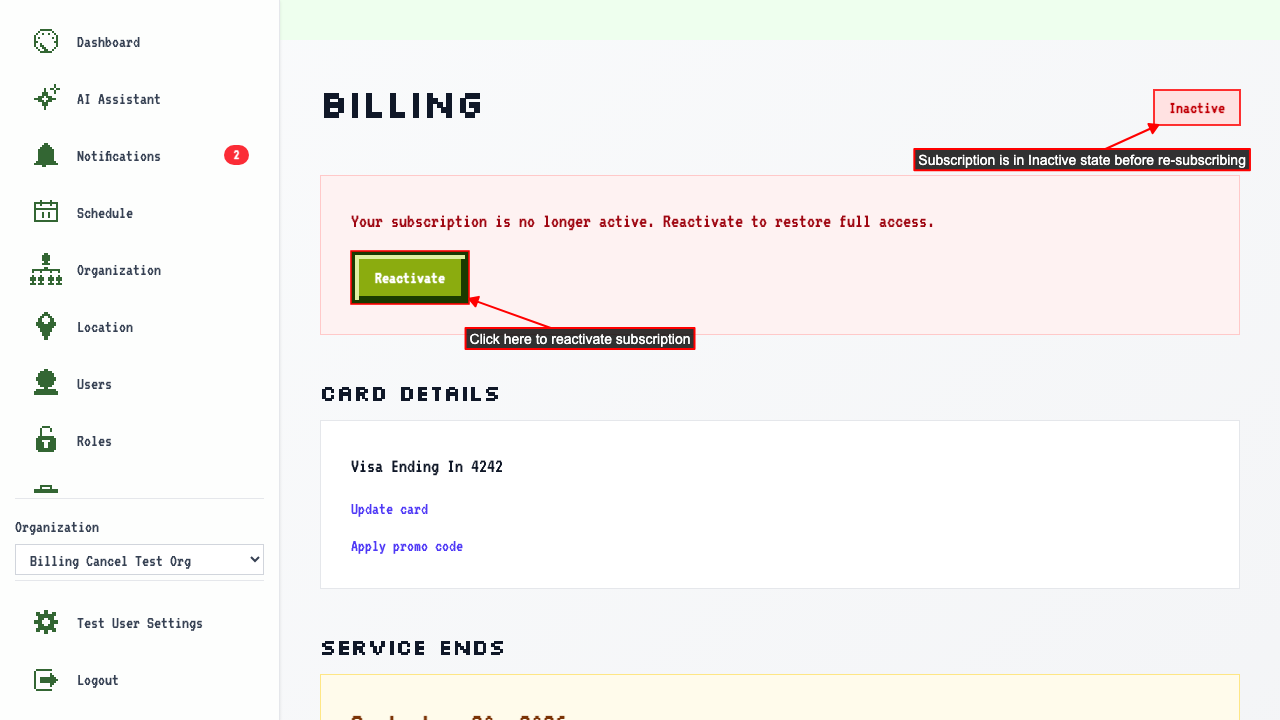
How to re-subscribing after your subscription goes inactive
When your subscription status is Inactive.
Clicking 'Reactivate' navigates to the upgrade page.
 You can select a saved payment method to reuse, or enter a new credit card.
After submitting this will create a new subscription.
You can select a saved payment method to reuse, or enter a new credit card.
After submitting this will create a new subscription.