Remove Card
Cancelling the subscription can remove your saved payment method
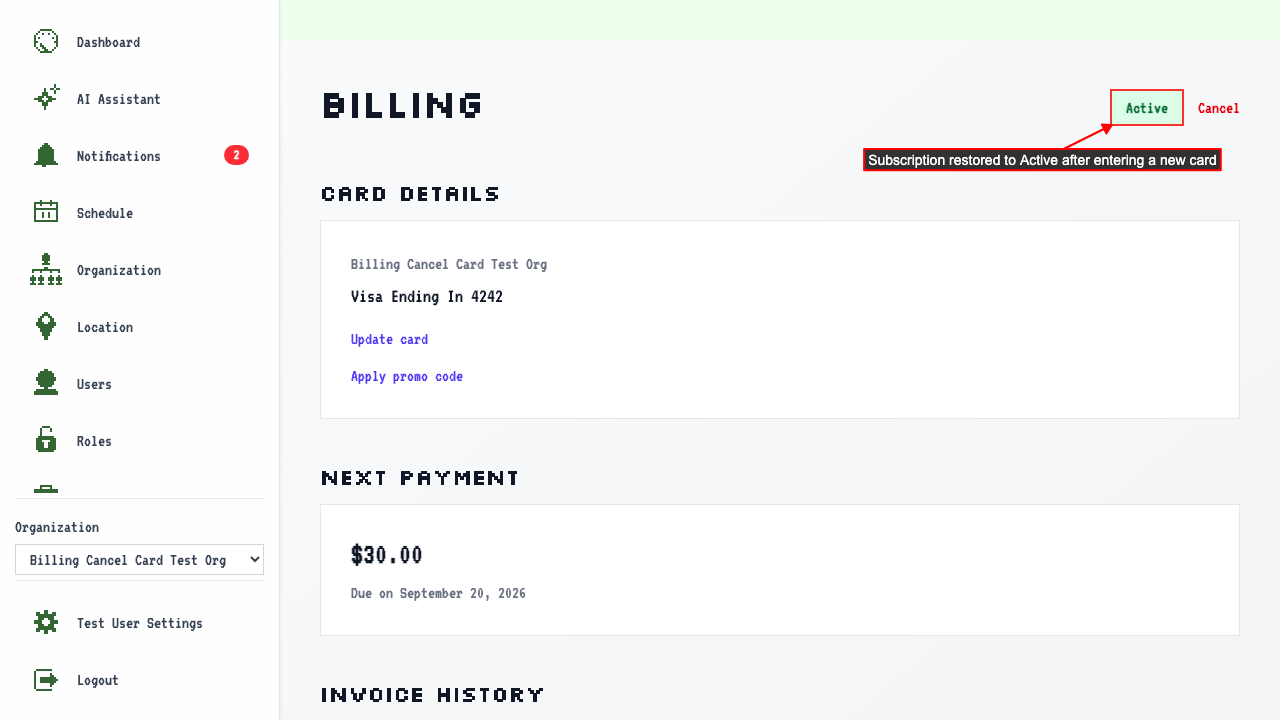
On the Billing Overview page, click the Cancel button.
The Cancel Subscription page has an opt-in checkbox to also remove the saved payment method.
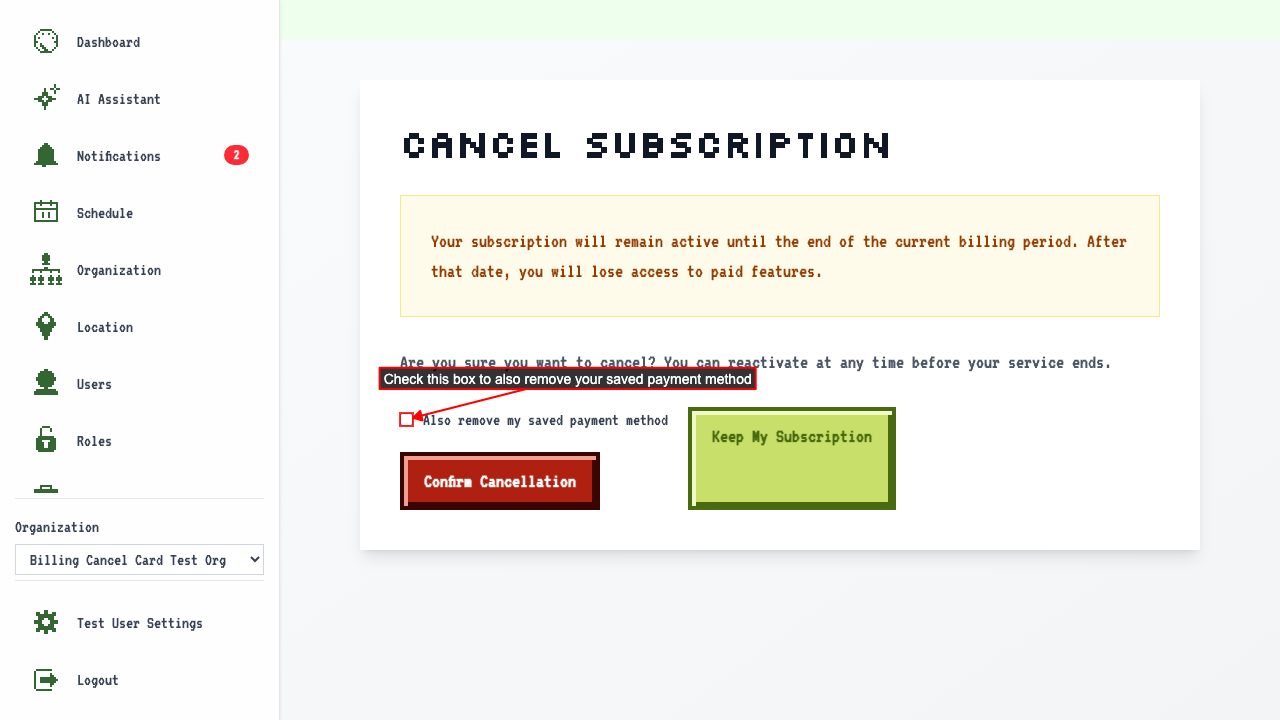 Checking the box and confirming cancellation removes the card and cancels the subscription.
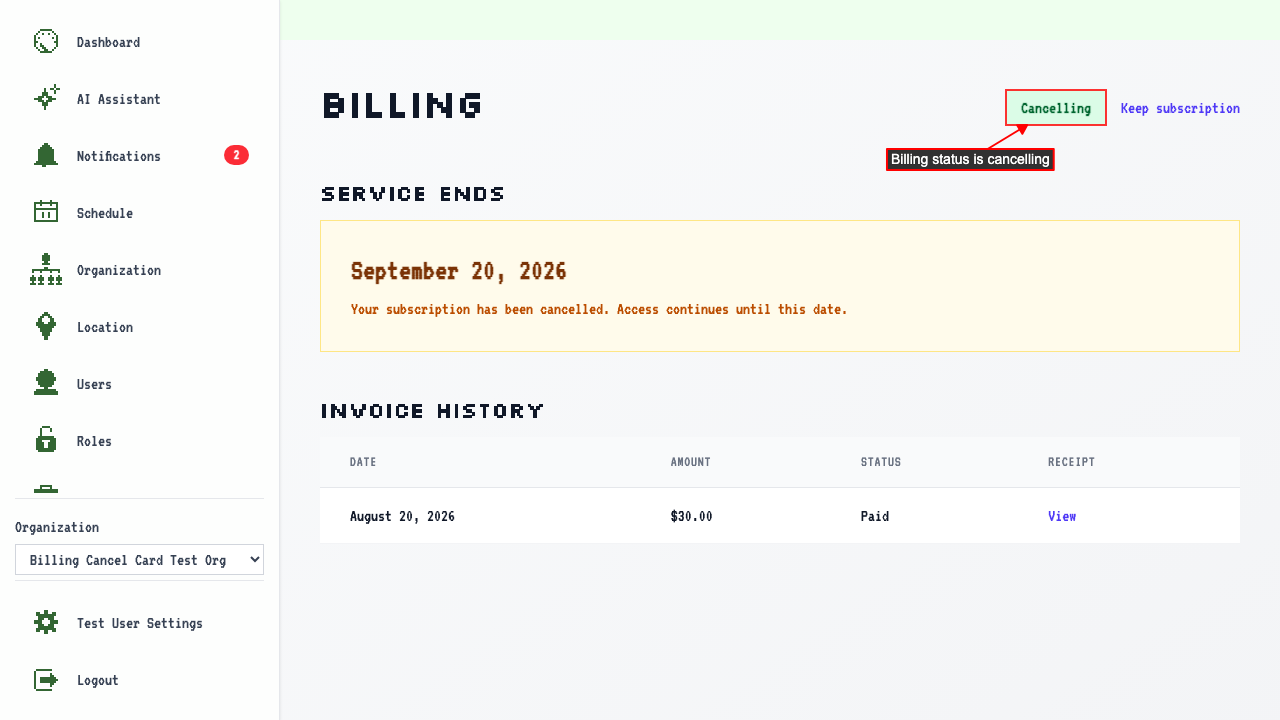
The Billing Overview shows the subscription as Cancelling with no saved card on file.
Checking the box and confirming cancellation removes the card and cancels the subscription.
The Billing Overview shows the subscription as Cancelling with no saved card on file.
Re-subscribing after cancelling with card removal requires entering a new card
When the subscription is Cancelling and no card is on file, clicking 'Keep subscription' navigates to the upgrade page. Without a saved card, only the new card form is shown — there is no saved card option.
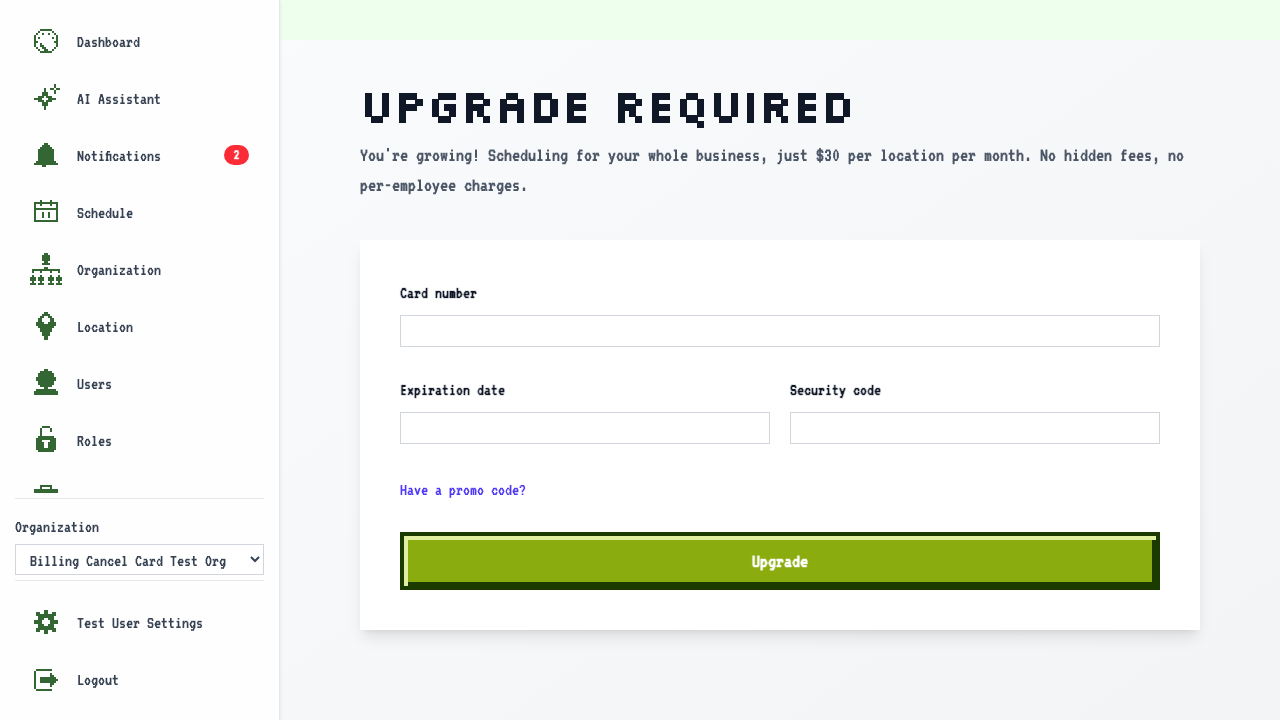
Entering a new card and submitting restores the active subscription.