Review Time Off Requests
How to approve or reject a pending time off request
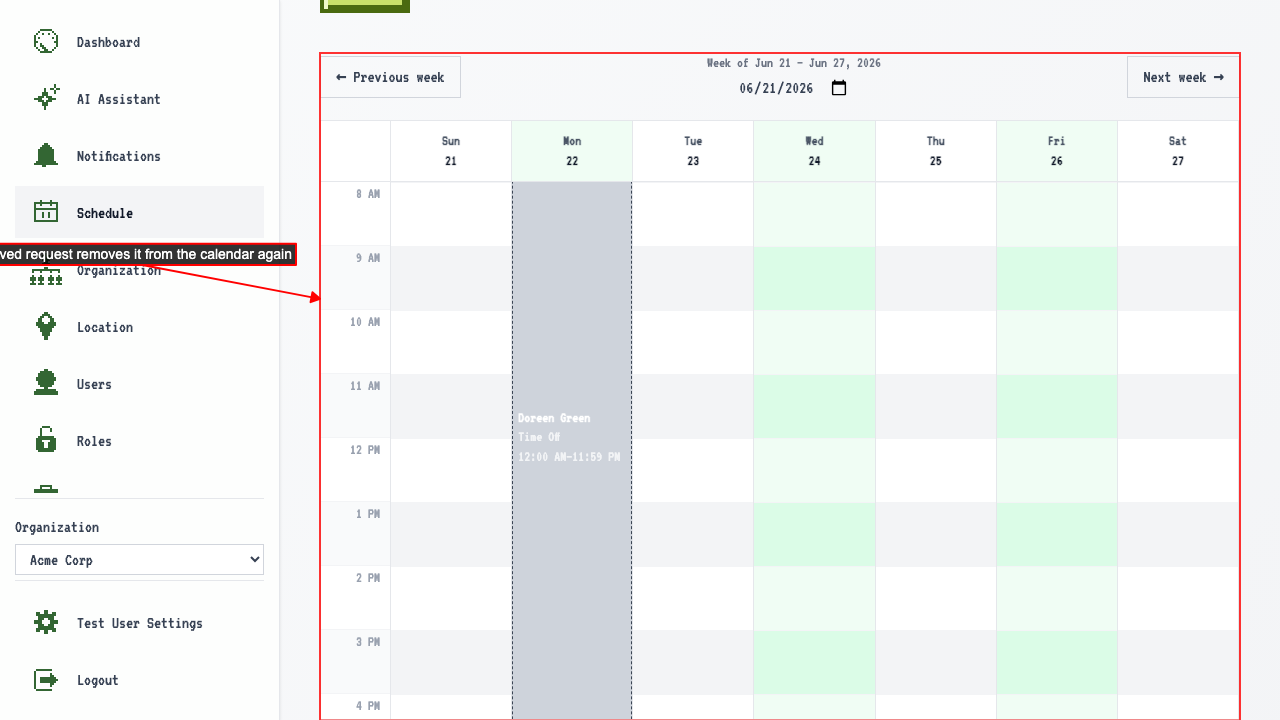
On the schedule page, click a pending time off request.
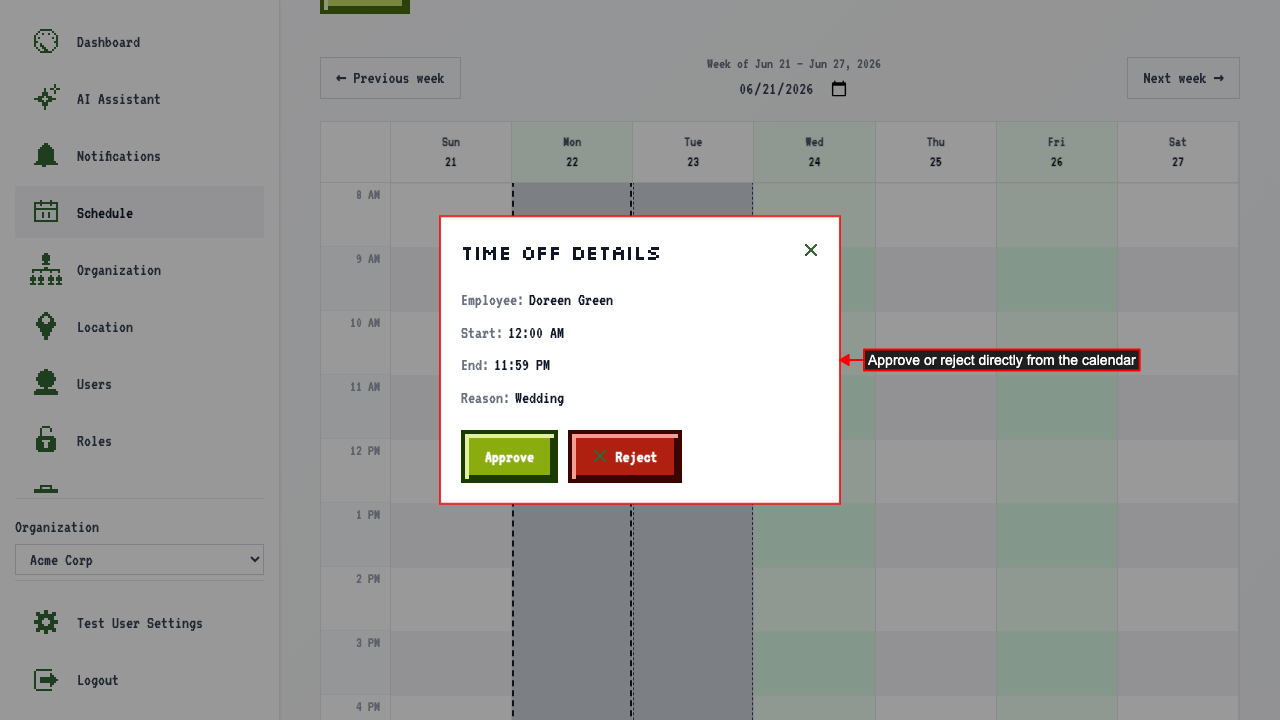
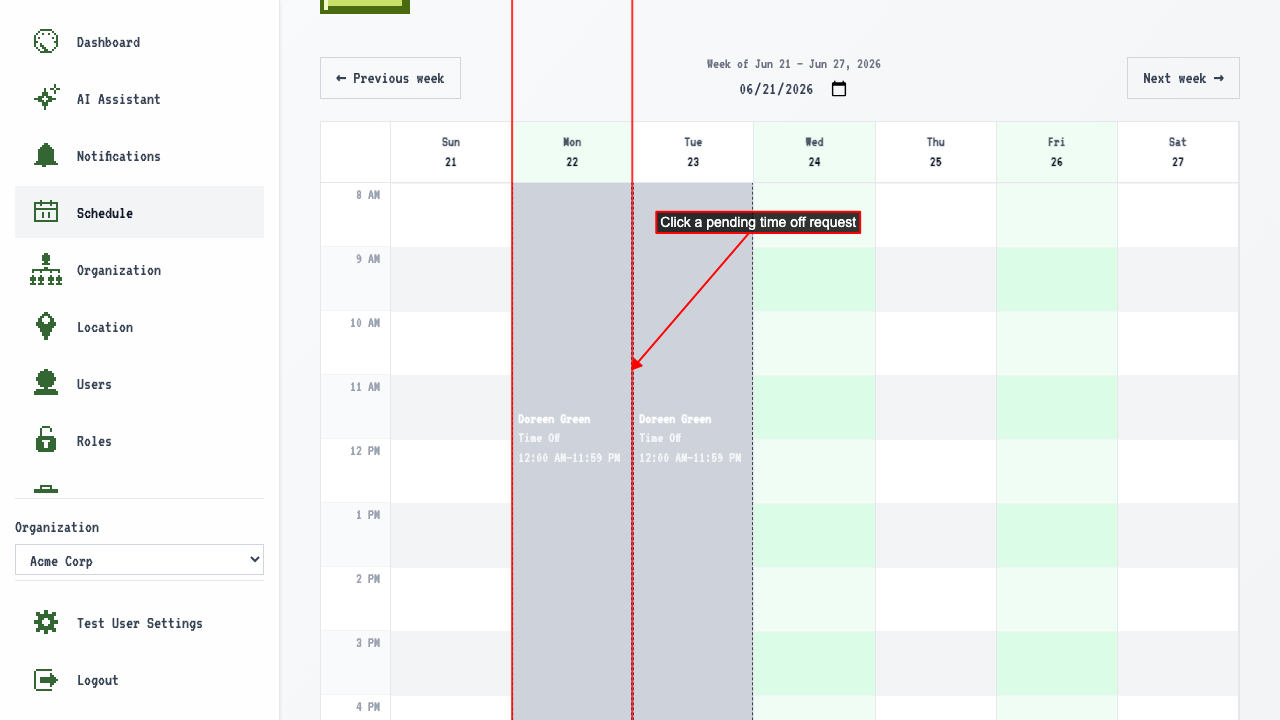 The details popover has Approve and Reject buttons. Approve this one.
 Reject the other pending request the same way.
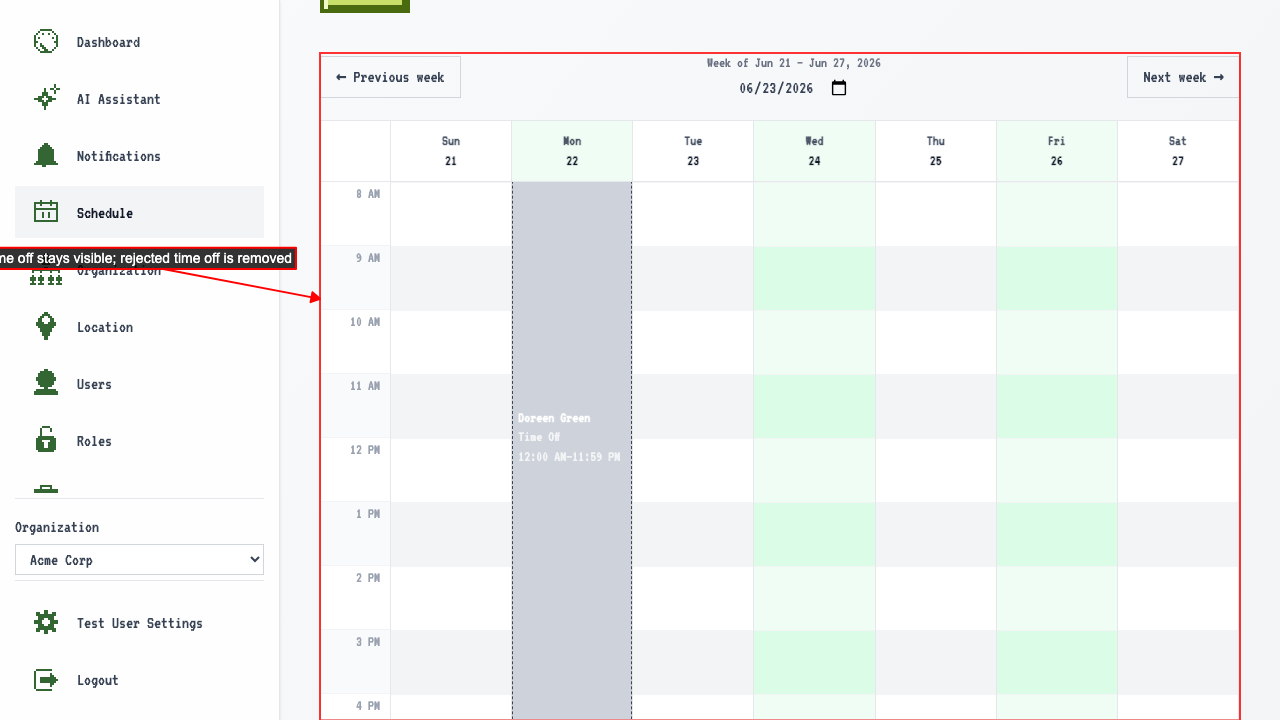
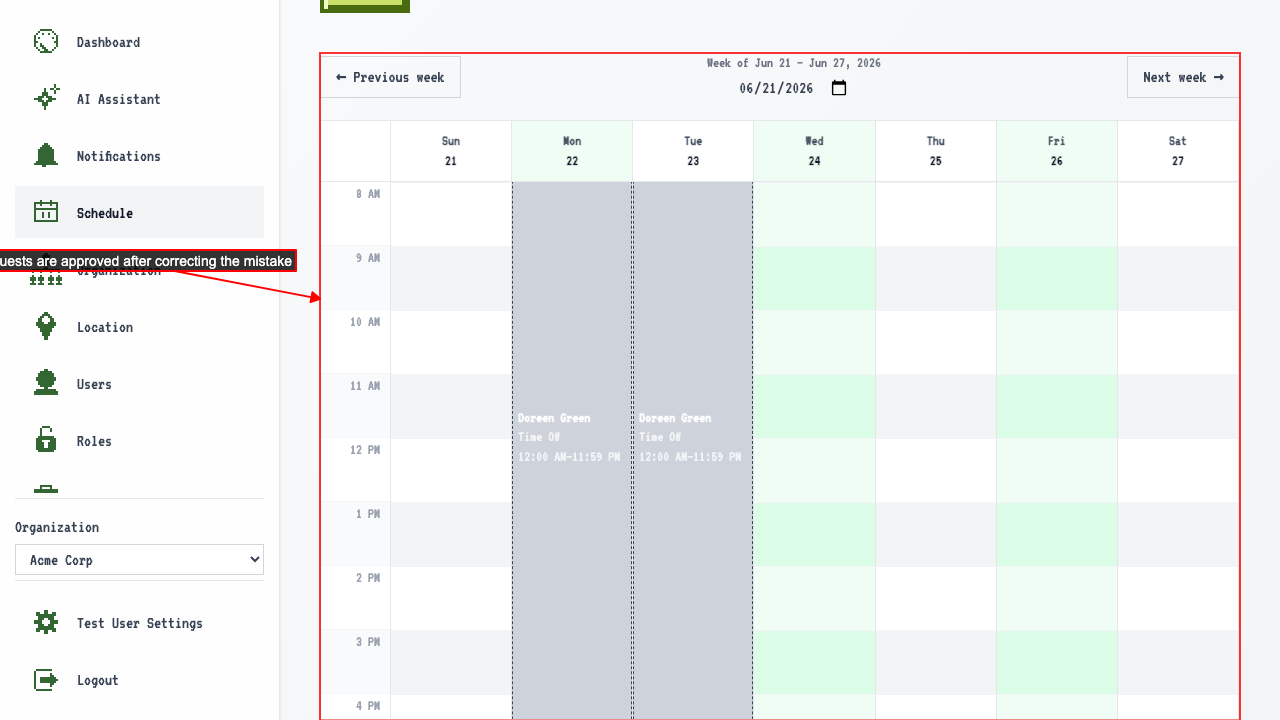
Rejected time off disappears from the calendar, but the approved one stays (it's still a real conflict).
Reject the other pending request the same way.
Rejected time off disappears from the calendar, but the approved one stays (it's still a real conflict).
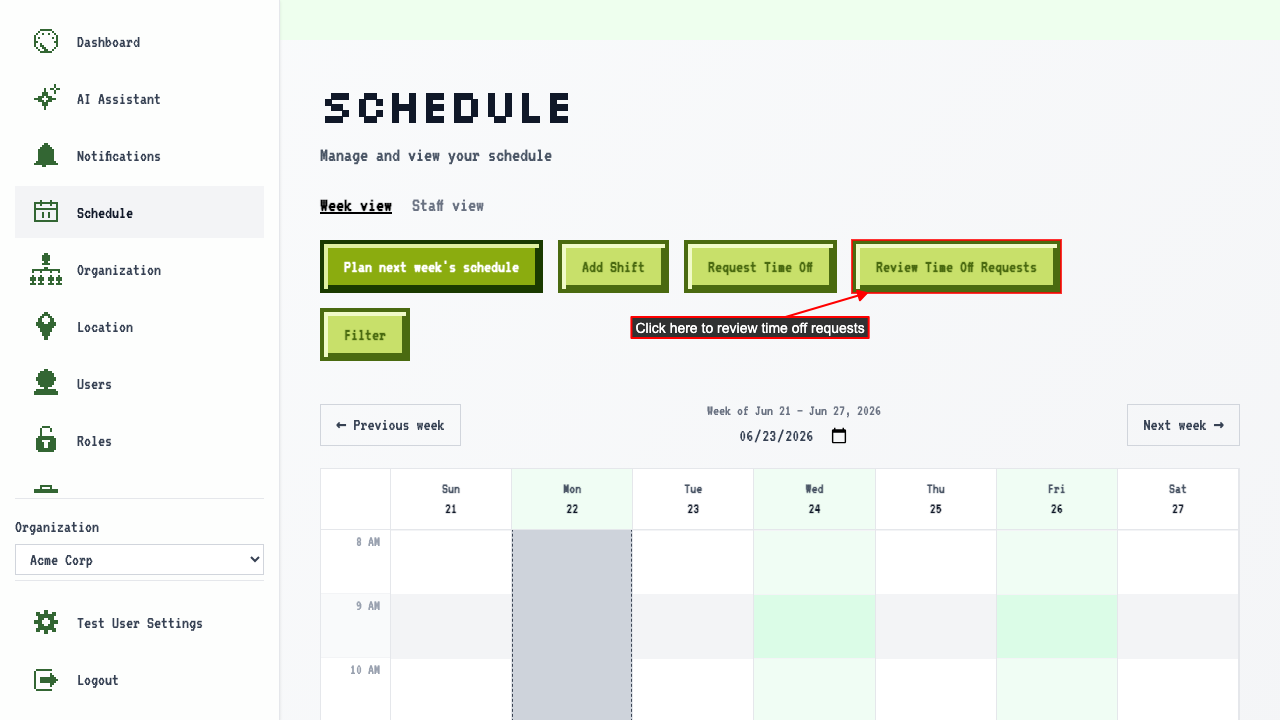
 Click 'Review Time Off Requests' to see every request and its status in one place.
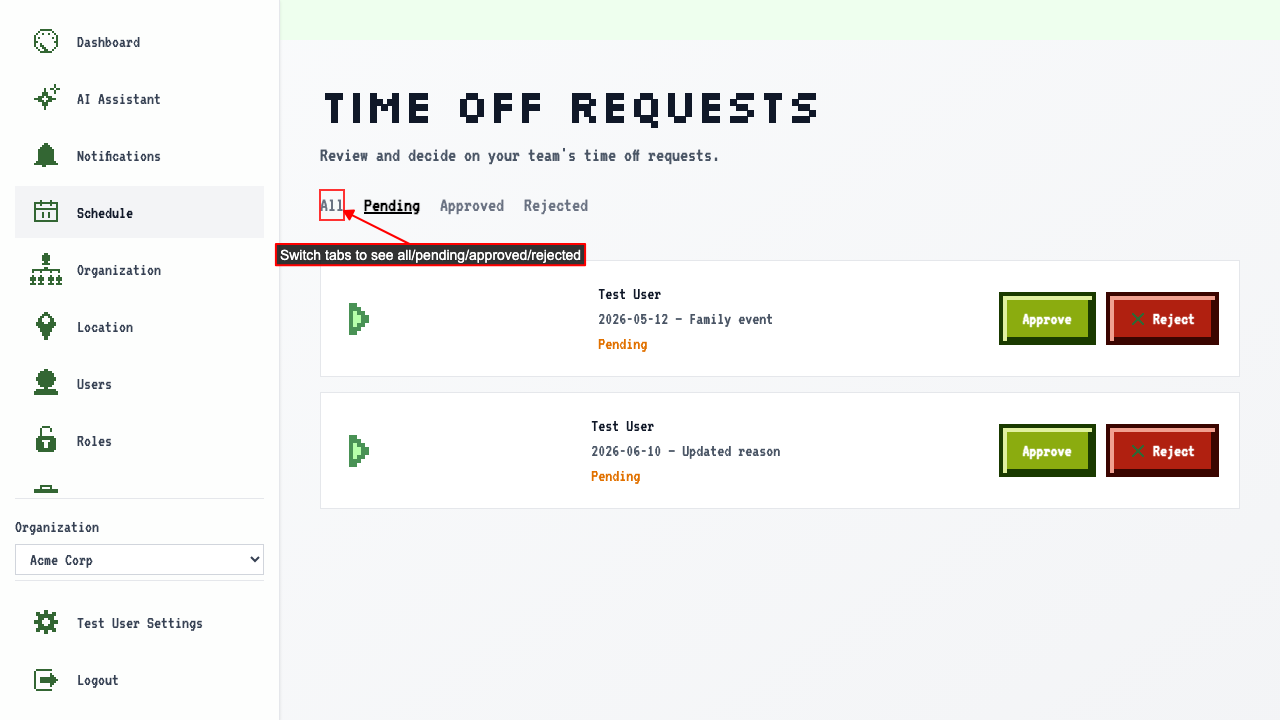
 By default you land on the Pending tab — since both requests were already decided, it's empty.
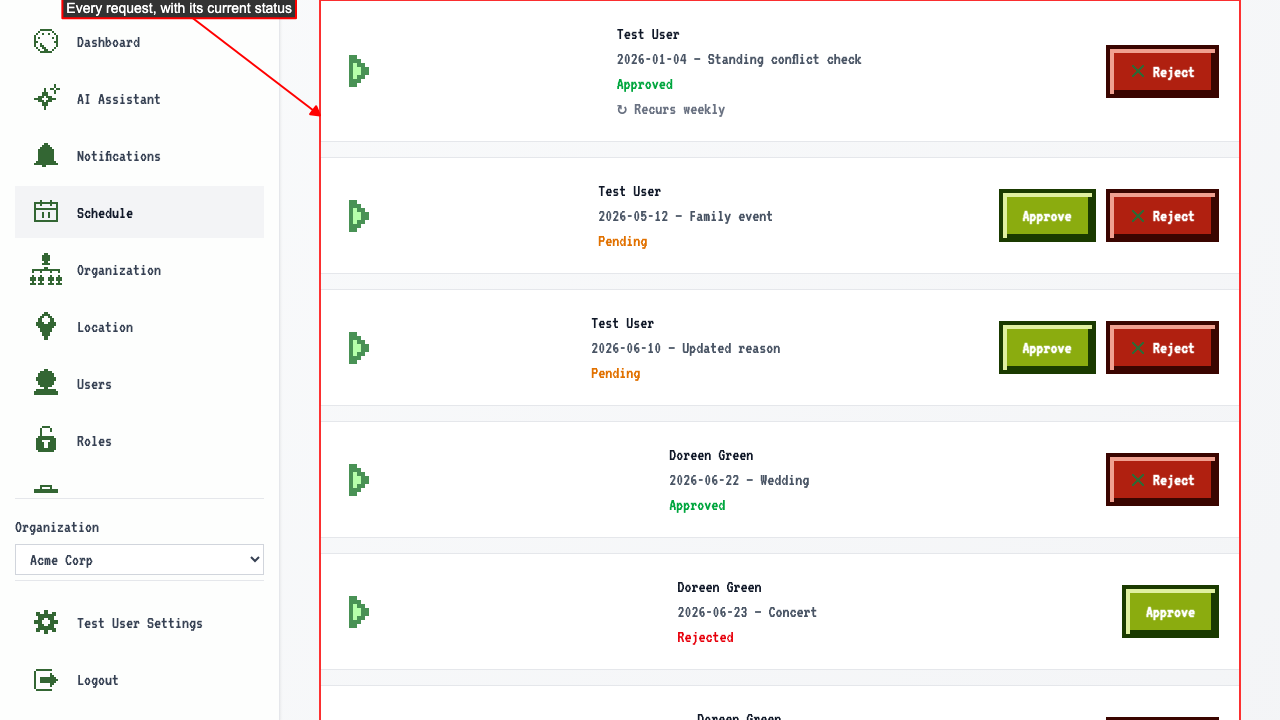
Switch to the All tab to see every request and its current status.
By default you land on the Pending tab — since both requests were already decided, it's empty.
Switch to the All tab to see every request and its current status.
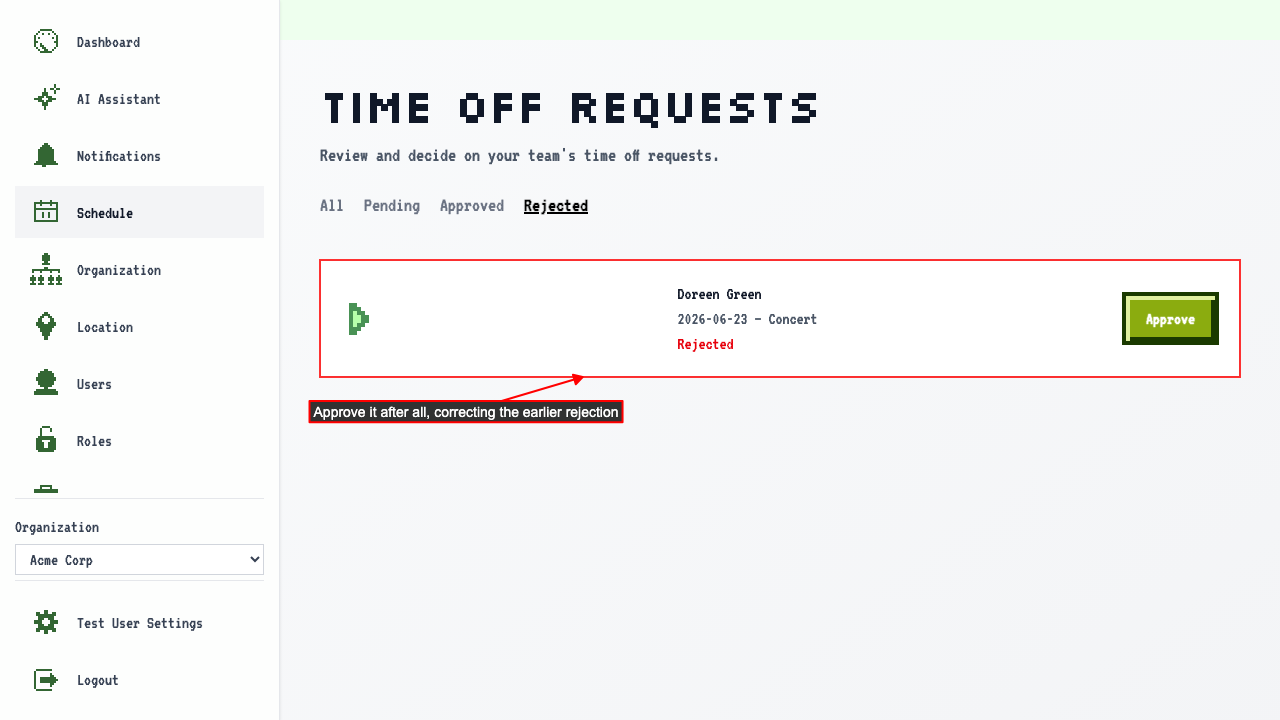
 The Rejected tab shows only rejected requests — and lets you change your mind.
 Back on the schedule, both requests are now approved and visible.
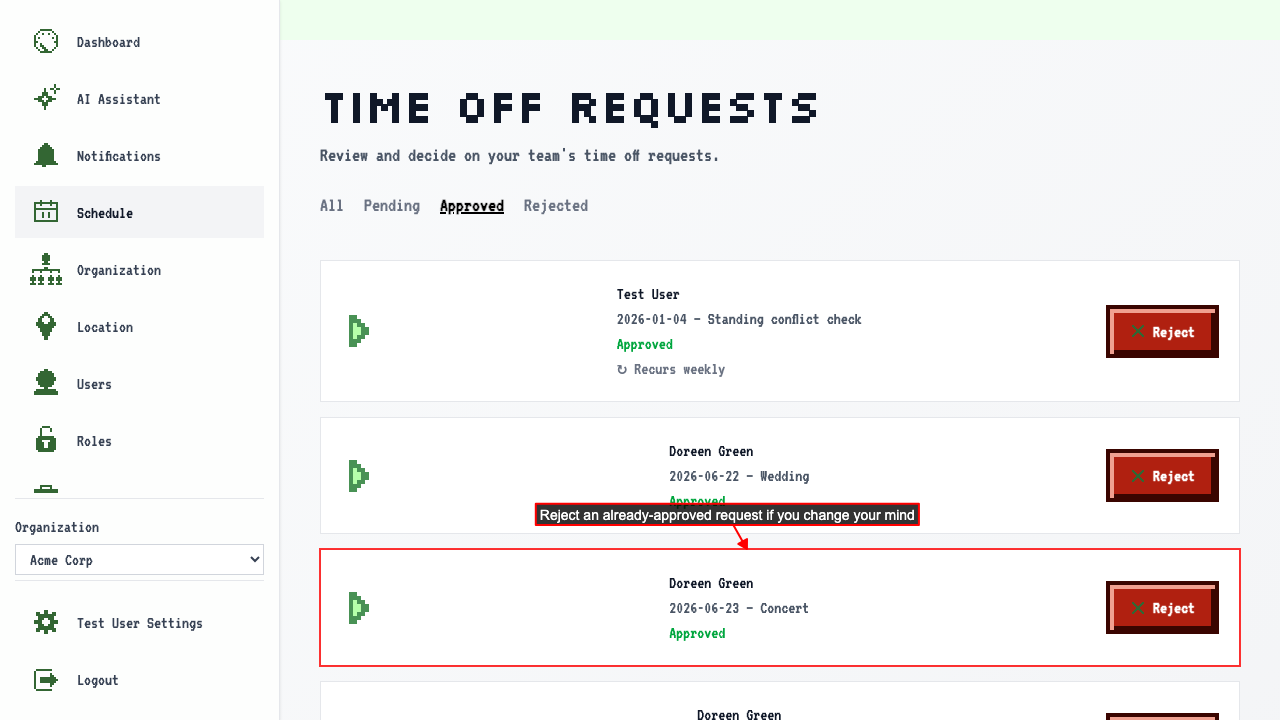
 The toggle also works the other way — an approved request can be rejected from the Approved tab.
 Back on the schedule, the newly-rejected request is gone again.