Team chat is now built into ScheduleLord

ScheduleLord now has a chat room for your whole team. Post a quick message, mention a coworker, or offer a shift you can't work, without leaving the app where your schedule lives.
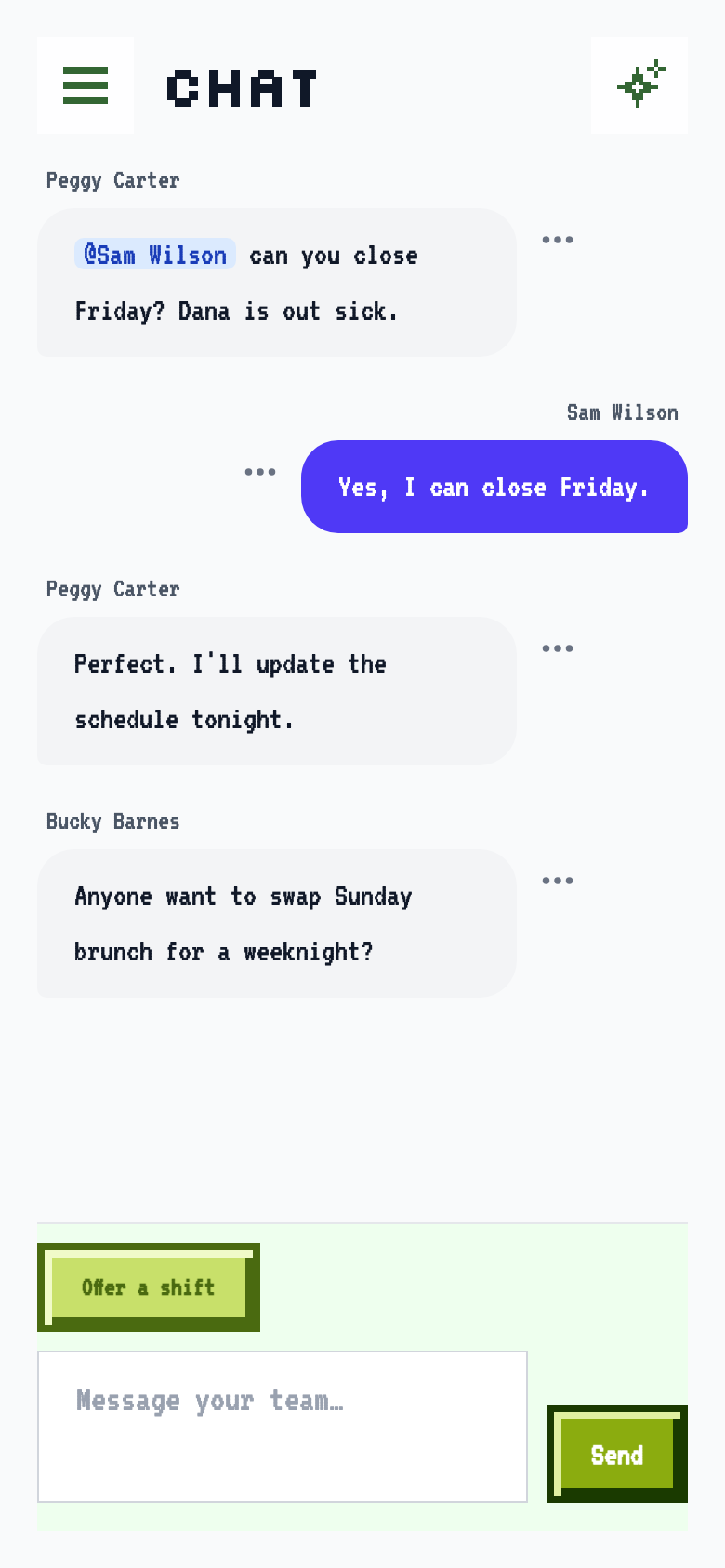
What it is
Click Chat in the sidebar. Everyone in your organization shares one chat room. Type a message, press Enter, and everyone sees it right away. Press Shift+Enter to start a new line. You can format a message with Markdown, so two asterisks make text bold and a dash starts a list.
- Mention people. Type
@and the first letters of a name, then pick the person from the list. They get a push notification, even if they don't have the chat open. Type@everyoneto notify the whole organization. Only the people you mention are notified. Everyone else sees your message when they open the chat. - Never lose your place. A badge next to Chat counts the messages you haven't read. When you open the chat, it scrolls to the first unread message and puts a New messages line above it. If you want to come back to a message later, open its ⋯ menu and choose Mark unread from here. The line moves above that message and stays there until you click Mark all as read.
- Offer a shift. Click Offer a shift, pick one of your upcoming shifts, add a note, and post it. Your offer appears as a card, pinned to the top of the chat so it stays in view however many messages follow. A coworker can click Take this shift, or Offer a swap if they'd rather trade. If the change would break one of your labor rules, such as putting someone over 40 hours, it waits for a manager to approve or decline it.
- Fix mistakes. You can edit or delete your own messages. Owners and managers can delete anyone's. A deleted message leaves a note saying who deleted it, so a conversation doesn't suddenly stop making sense.
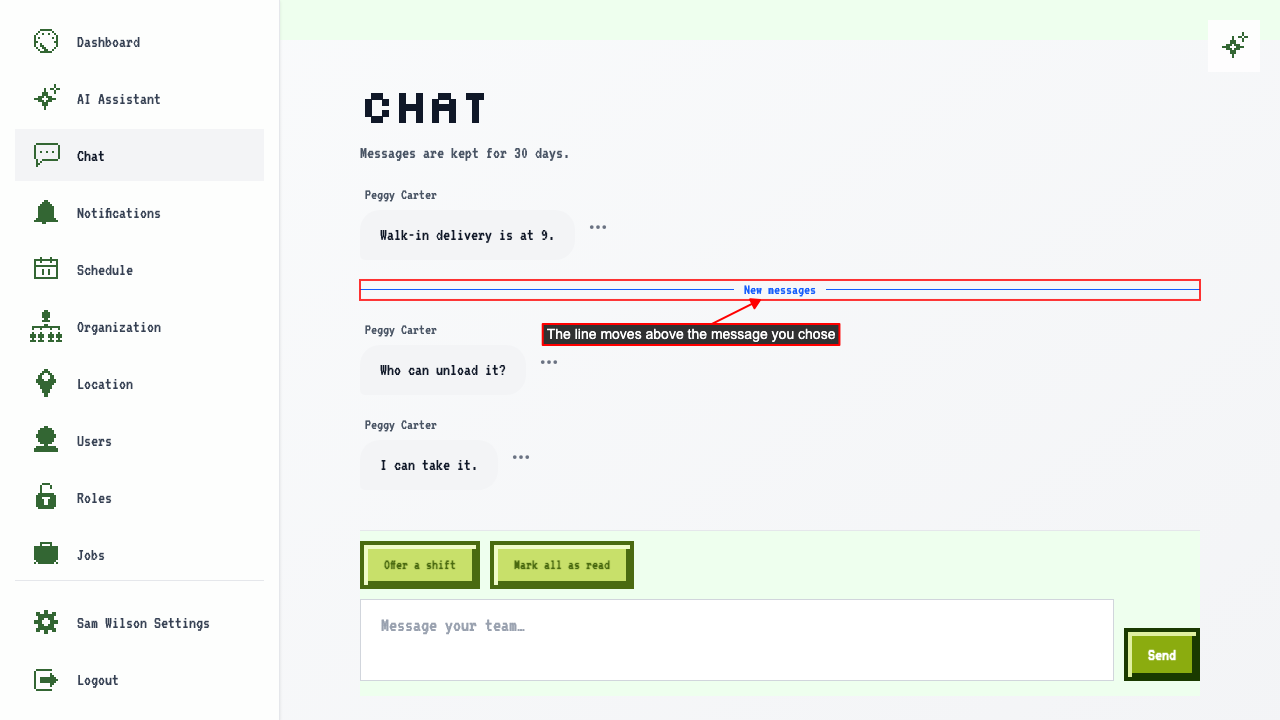
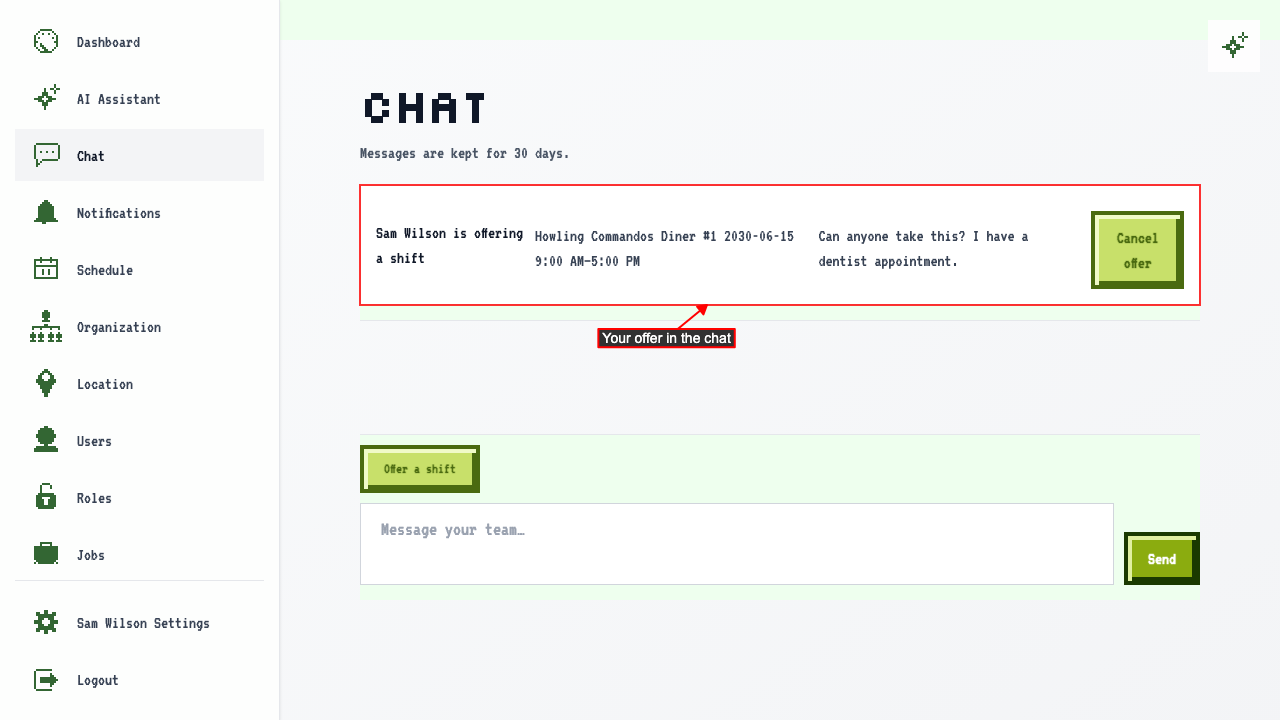
Messages are kept for 30 days.
The guides have the details, with screenshots:
On a phone, the chat fills the screen like the AI Assistant does, with your message box pinned at the bottom.
Why we did it
Scheduling is a conversation. Someone is sick, someone wants Saturday off, someone can cover if they get a reminder. Those conversations were happening in group texts and chat apps that don't know anything about your schedule. A shift got swapped in a thread, and then somebody had to remember to change the schedule to match.
Putting the chat next to the schedule fixes that. When a coworker takes a shift in the chat, the shift moves to their schedule and both people are notified. Nobody has to copy anything over. And since it's the same place you already look at your schedule, there's no second app for your team to install or keep up with.
We kept it simple on purpose. There's one room for the whole organization, no channels to set up, and messages disappear after 30 days. For now the chat is for the conversations that keep a schedule running, and a group text is still better for a long-term archive. We'll add more as our customers ask for it.
How we did it
This part is for the curious. You don't need any of it to use the feature.
- Mentions are chosen, not guessed. If you type
@Samand don't pick Sam from the list, nobody is notified. A name typed by hand could match the wrong person, or no one, so only names picked from the list count. Editing a message doesn't notify anyone and can't add or change who is mentioned. To notify someone new, delete the message and send a new one. - Shift offers go through the same rules as the schedule. Taking a shift or swapping runs the same labor-rule checks as editing the schedule by hand, which is why an overtime problem sends the offer to a manager instead of quietly handing the shift over.
- Messages are plain text with light formatting. We render Markdown, but images and raw HTML in a message are shown as text, not displayed, so a message can't load something from somewhere else.
- Unread is tracked per person. The badge, the New messages line and Mark unread from here all come from where each person last read up to. Your own messages never count as unread, and messages posted before you joined the organization don't count either.
Like our other guides, the chat guides are generated from our automated tests, screenshots included, so they show what the app actually does today.
Try it
If you already use ScheduleLord, Chat is in your sidebar now. If you don't, head to schedulelord.com and click Get started free. ScheduleLord is free for up to 15 employees at one location, with no credit card needed.
Want something changed?
If the chat is missing something your team needs, like separate rooms or direct messages, email us at [email protected] and tell us what you'd use. We'll build what people ask for most.