Creating a Shift
How to create a new shift
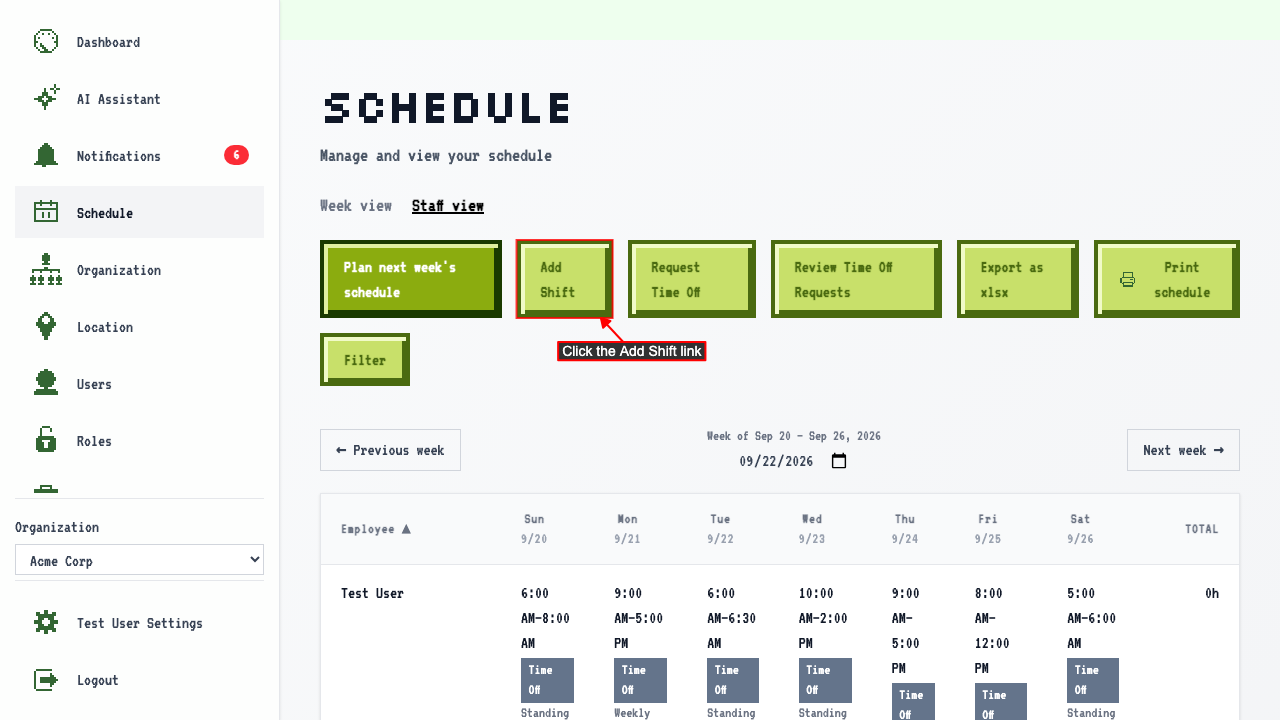
Start on the schedule page.
Click 'Add Shift' to open the new shift form.
 There should be a new shift form where you can enter the shift details.
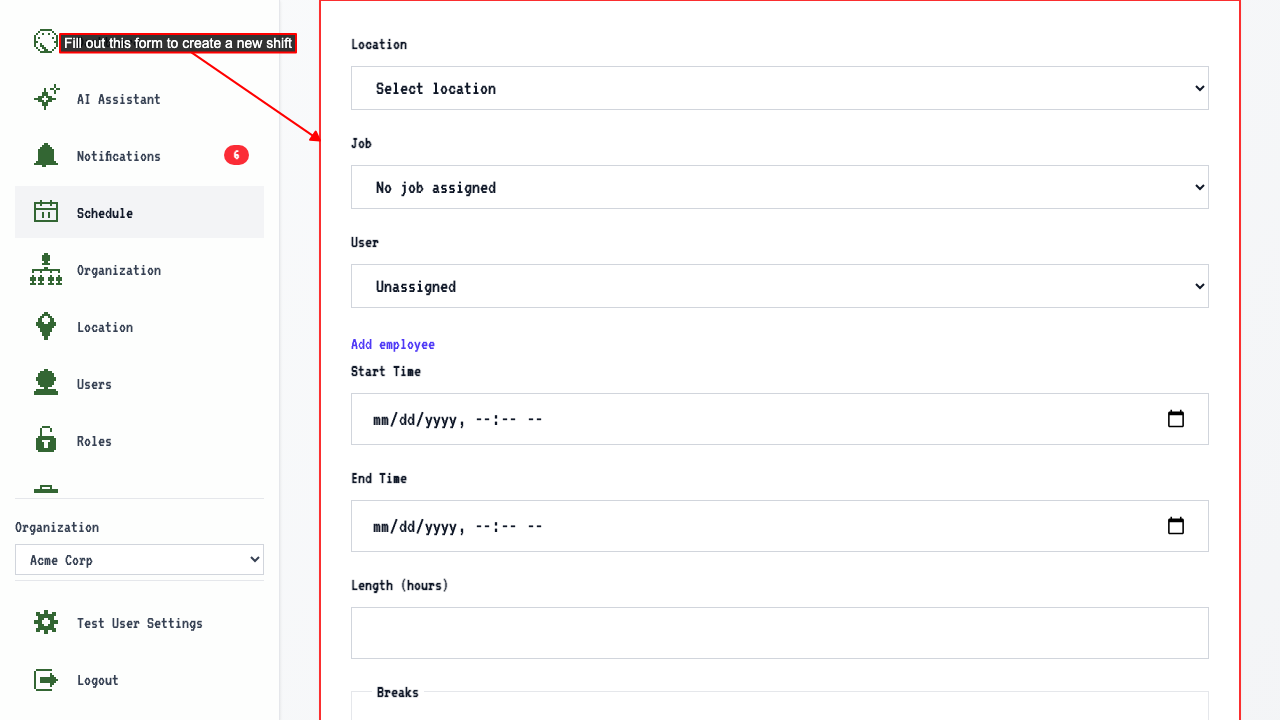 The form will contain fields for:
- Location
- Job (after selecting a job, the user list is reordered to put employees with that job at the top)
- User
- Start Time
- End Time
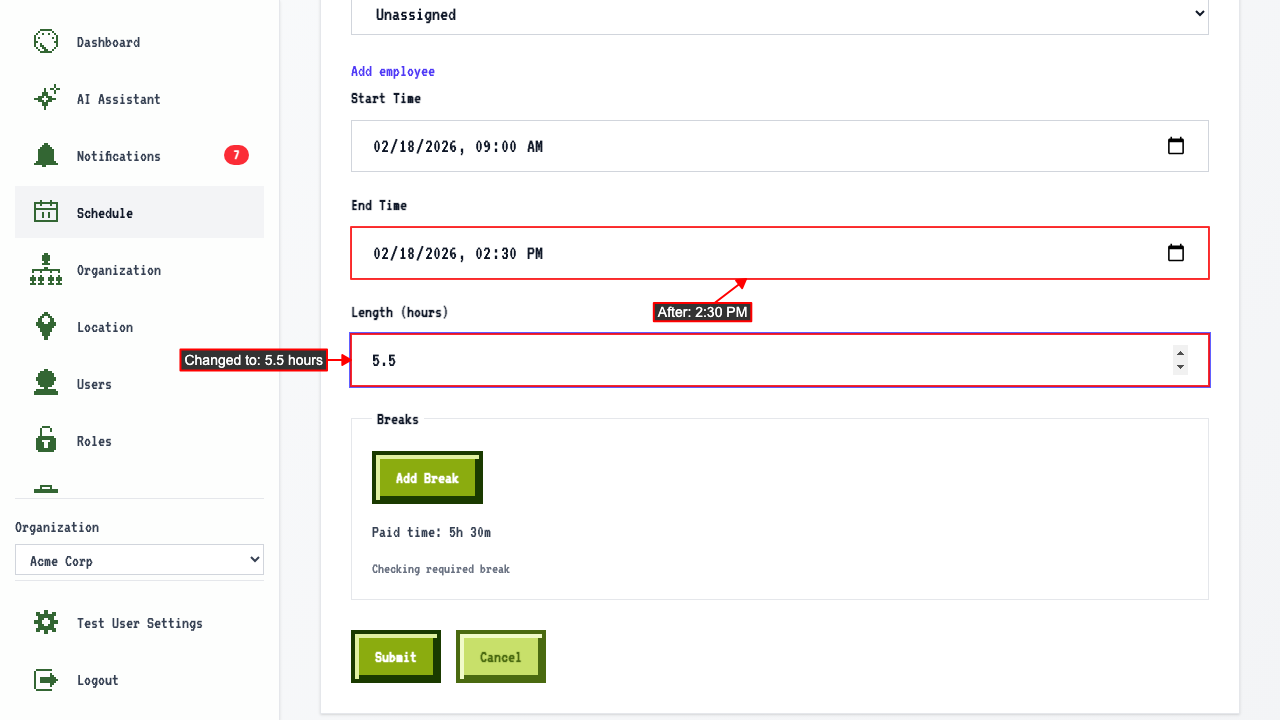
- Length of the shift, shown in hours and kept in sync with Start/End Time — editing it moves End Time instead, keeping Start Time fixed
- Paid time, before any breaks — the whole shift, since there's nothing unpaid to subtract yet
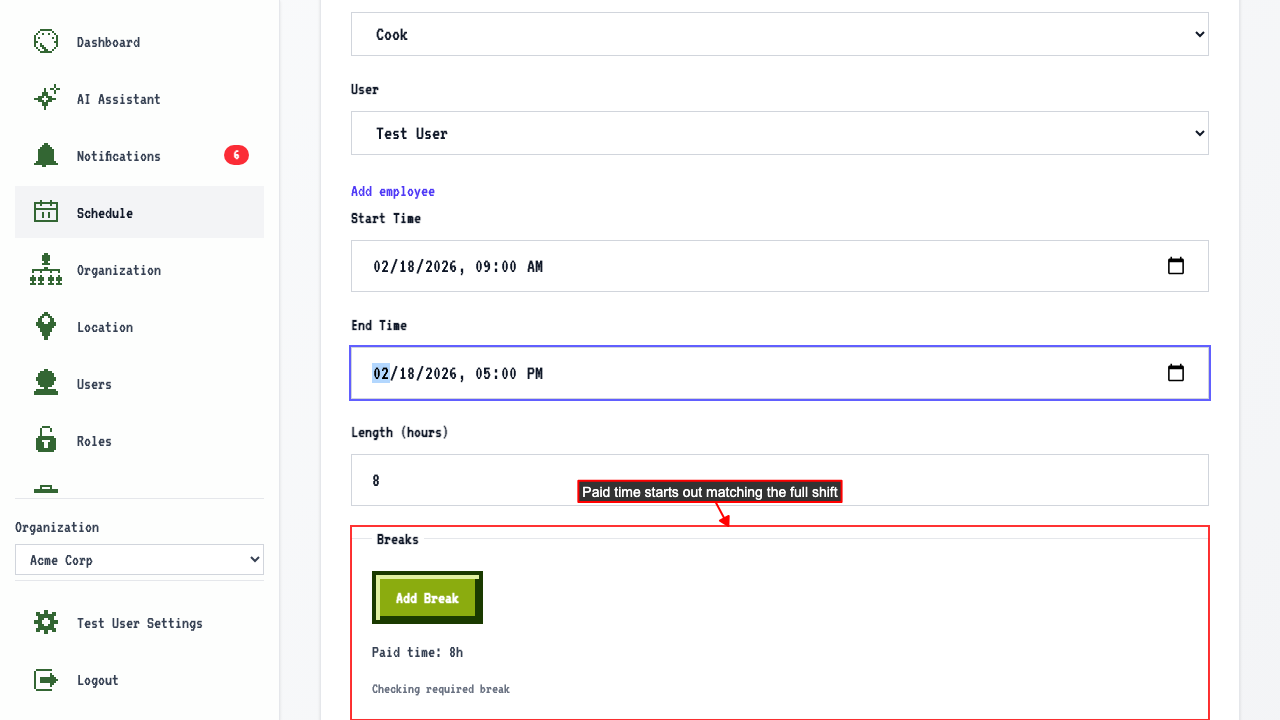
- Breaks
- Paid time
Don't see the employee you're looking for? Click 'Add employee' to go add them, then come back to finish this form.
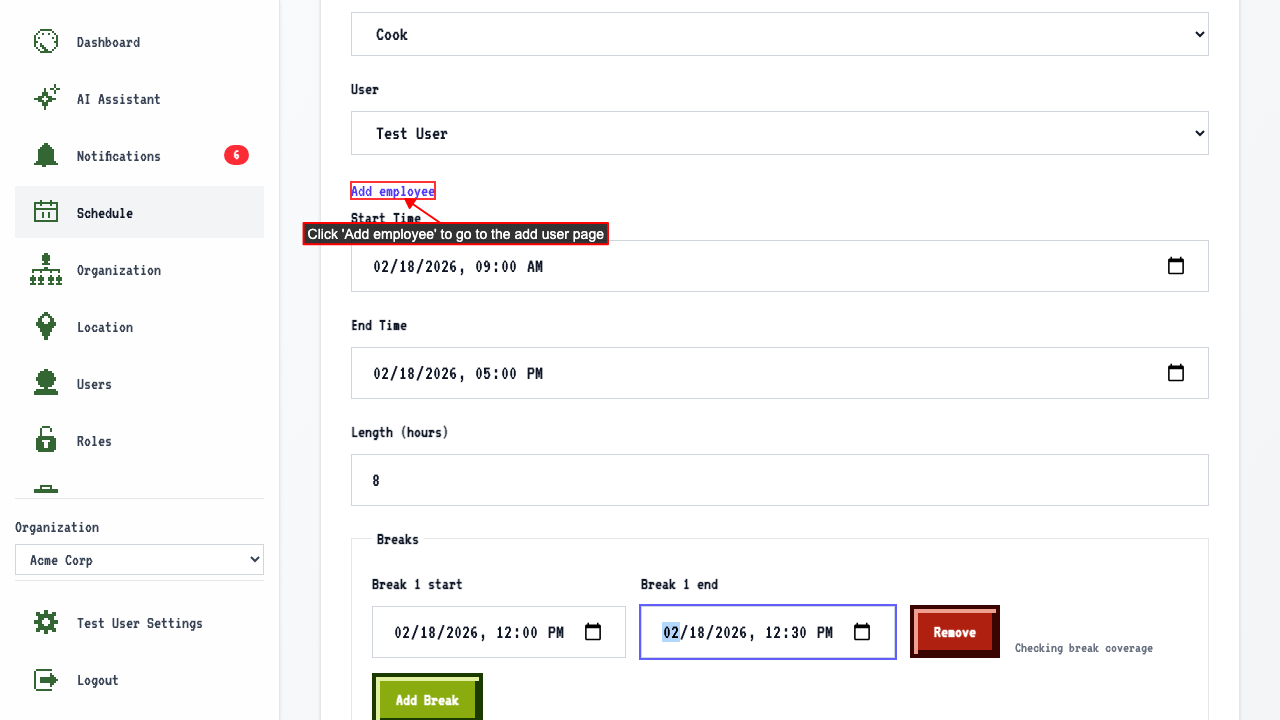
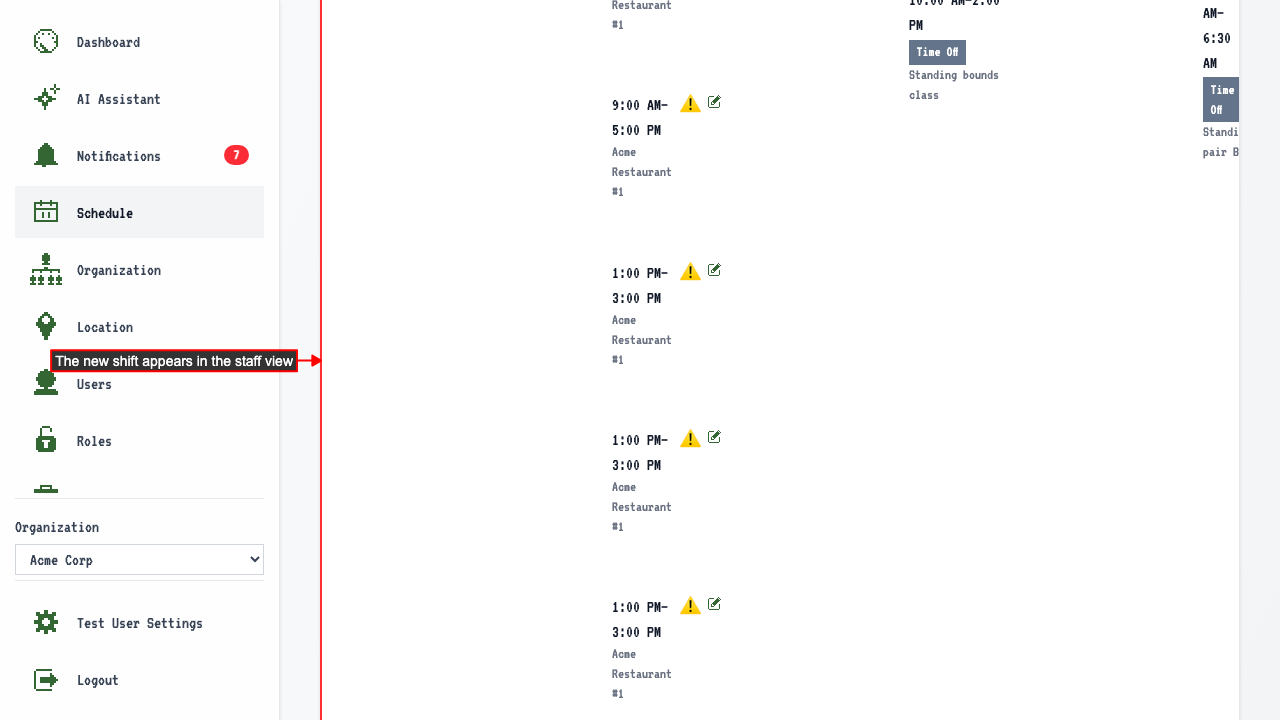
After entering those details, submit the new shift form.
This returns you to the staff view — where you started — with the new shift appearing in the table.
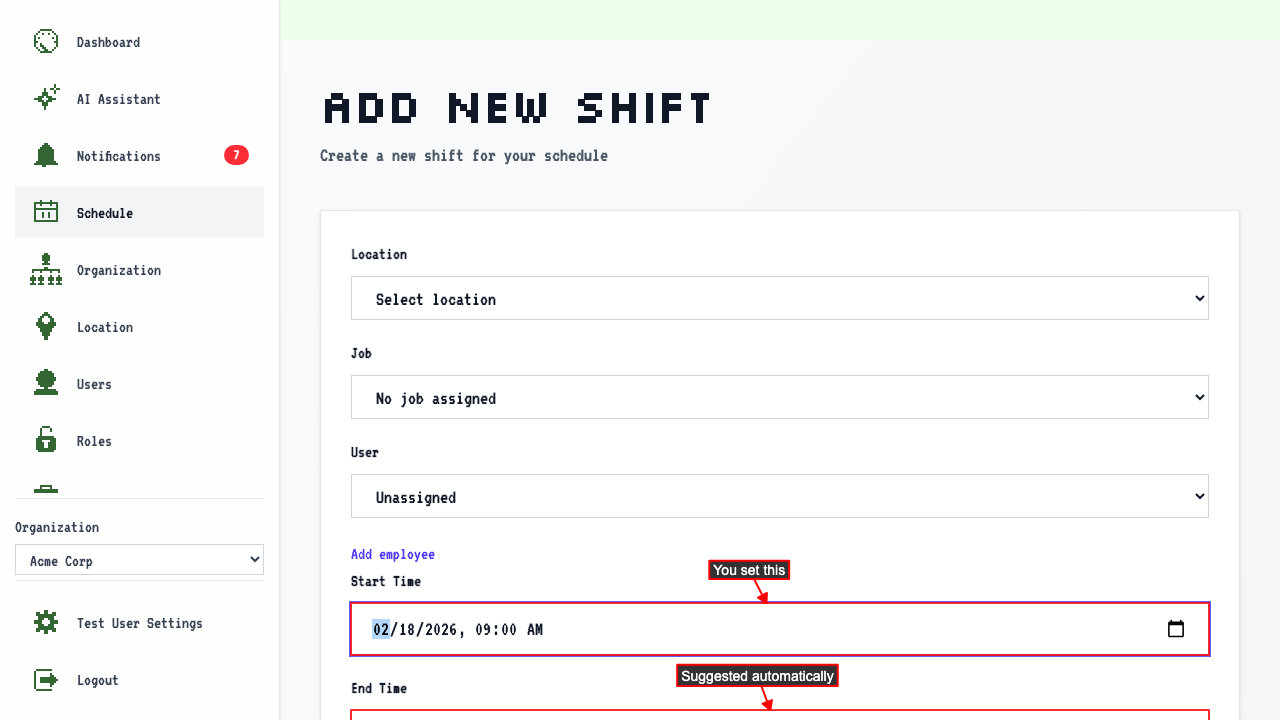
Setting a start time suggests an end time 8 hours later
Start on the new shift form.
Enter a start time and leave End Time blank.
End Time fills in automatically, 8 hours after the start — a starting point you're free to adjust, not a decision that's been made for you.
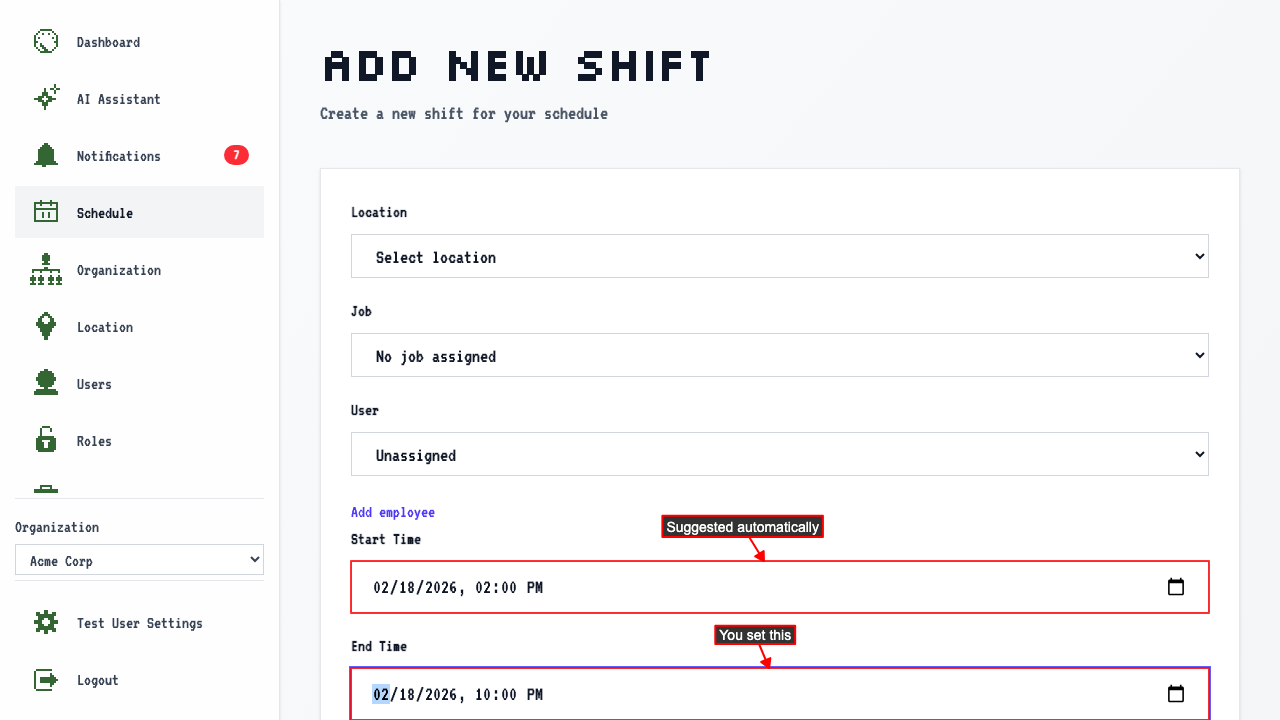
Setting an end time suggests a start time 8 hours earlier
Start on the new shift form.
Enter an end time first and leave Start Time blank.
Start Time fills in automatically, 8 hours before the end.
Changing the shift length adjusts the end time
Start on the new shift form.
Enter a start time.
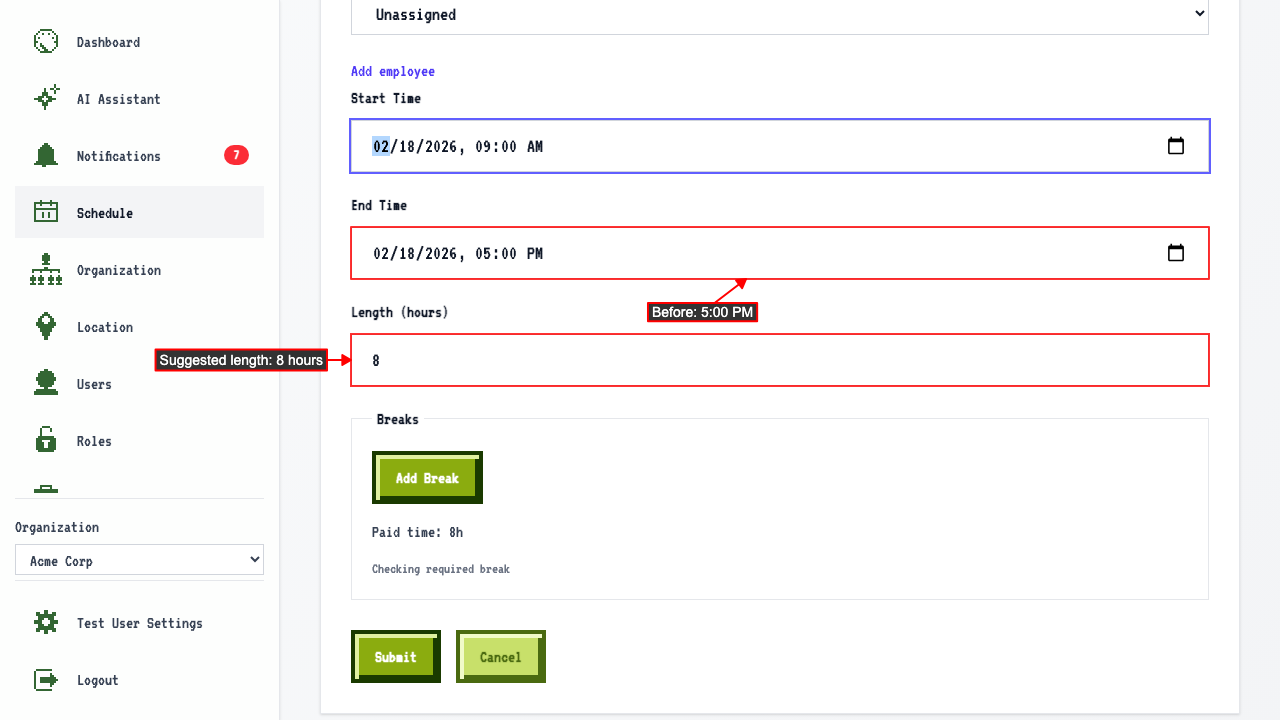 Change the Length field instead of End Time directly, and End Time updates to match — Start Time stays put.