Filtering the Schedule
How to filter the schedule
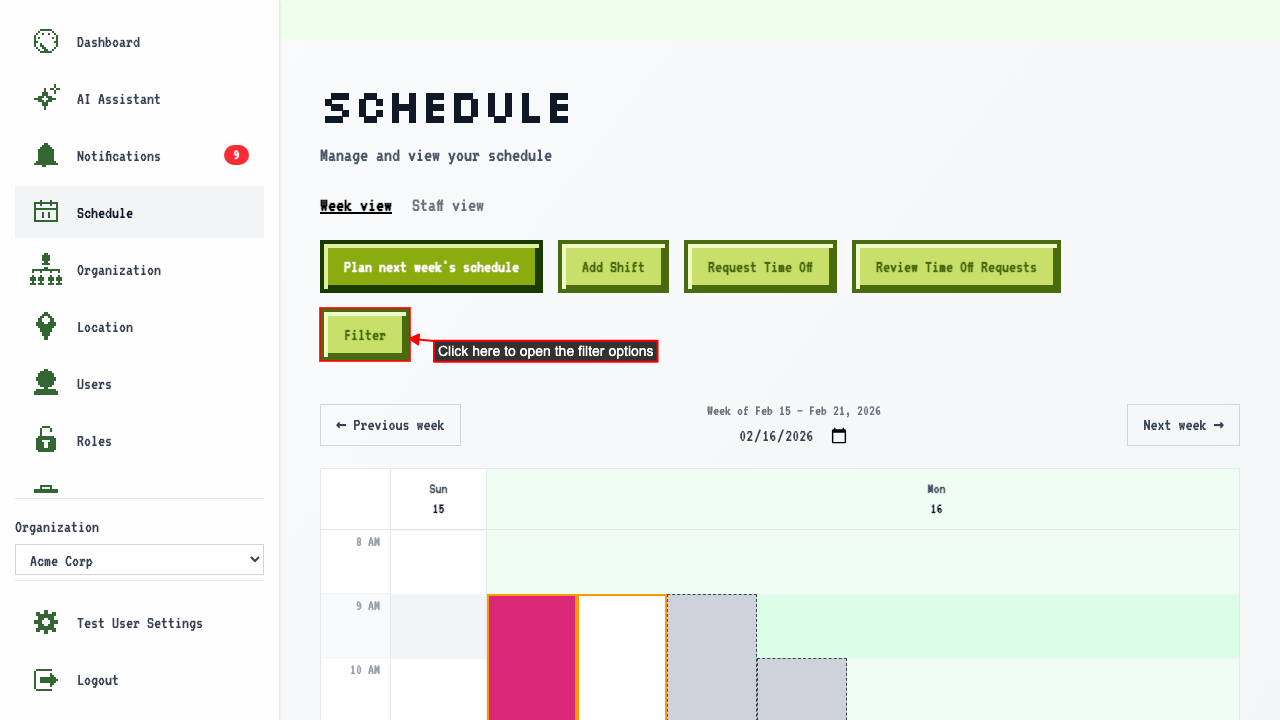
Start on the schedule page.
Click 'Filter' to open the filter options.
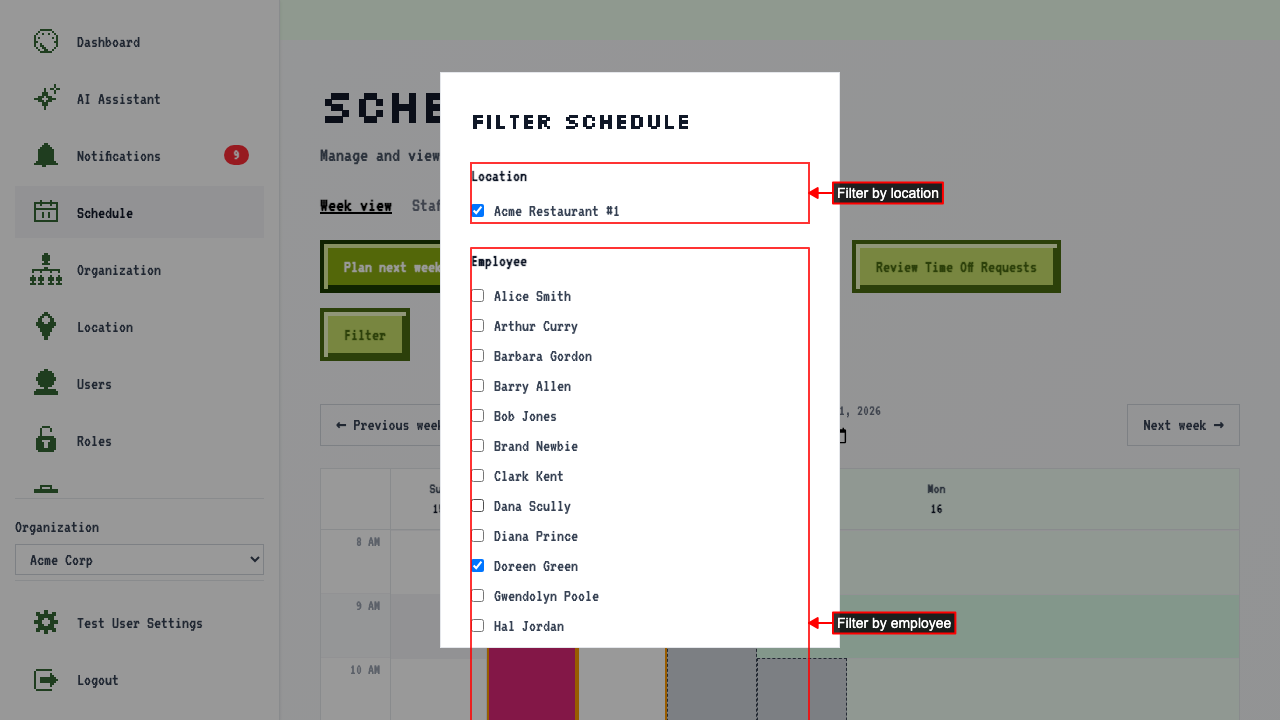
 The filter modal has three sections:
- Location: Use the Location section to show only shifts at specific locations
- Employee: Use the Employee section to show only shifts assigned to specific employees
- Job: Use the Job section to show only shifts for specific roles
To apply the filters click the Apply filters button at the bottom of the modal.
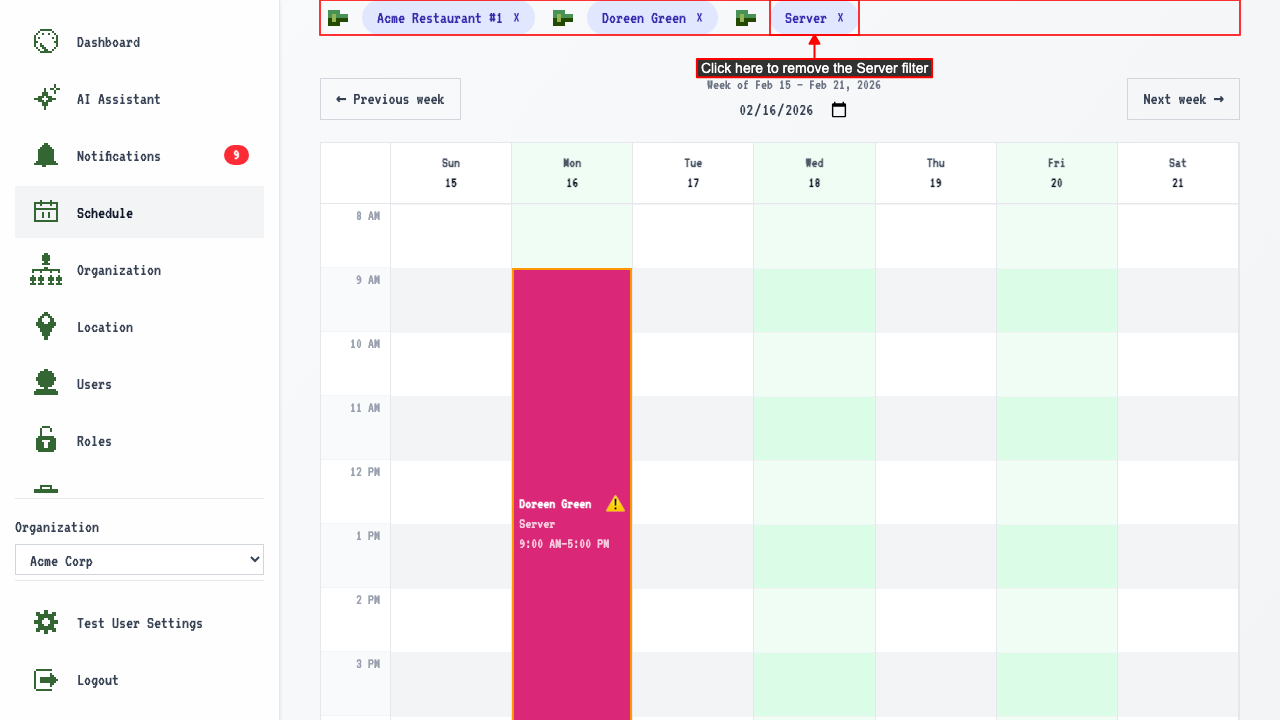
 Active filter pills appear above the calendar for each applied filter.
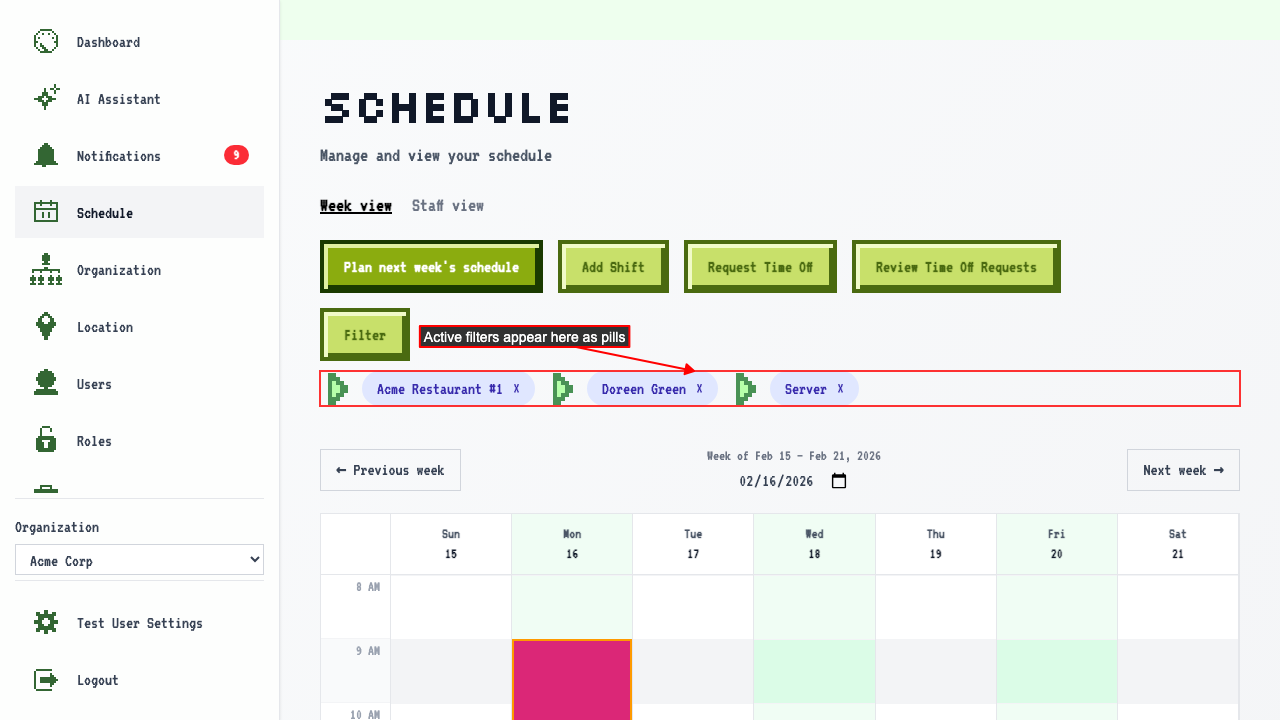 The schedule also now shows only shifts matching all selected filters.
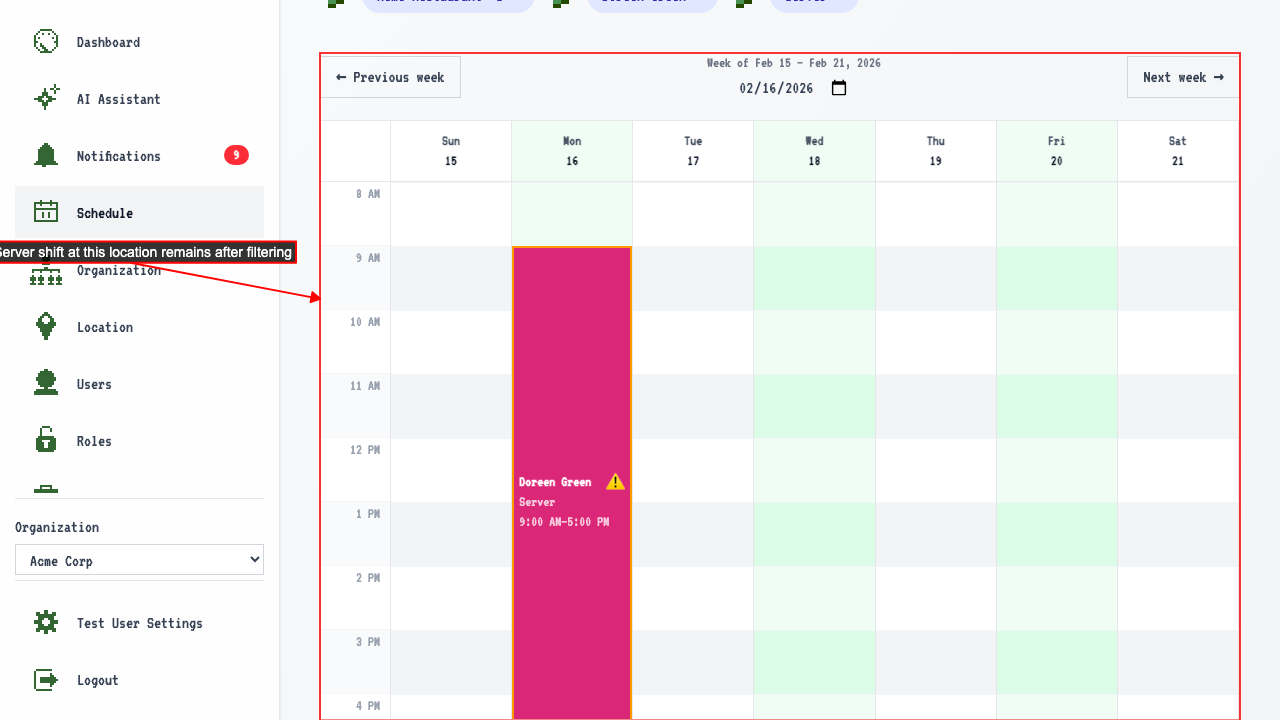 To remove a filter, click the filter pill you wish to remove.
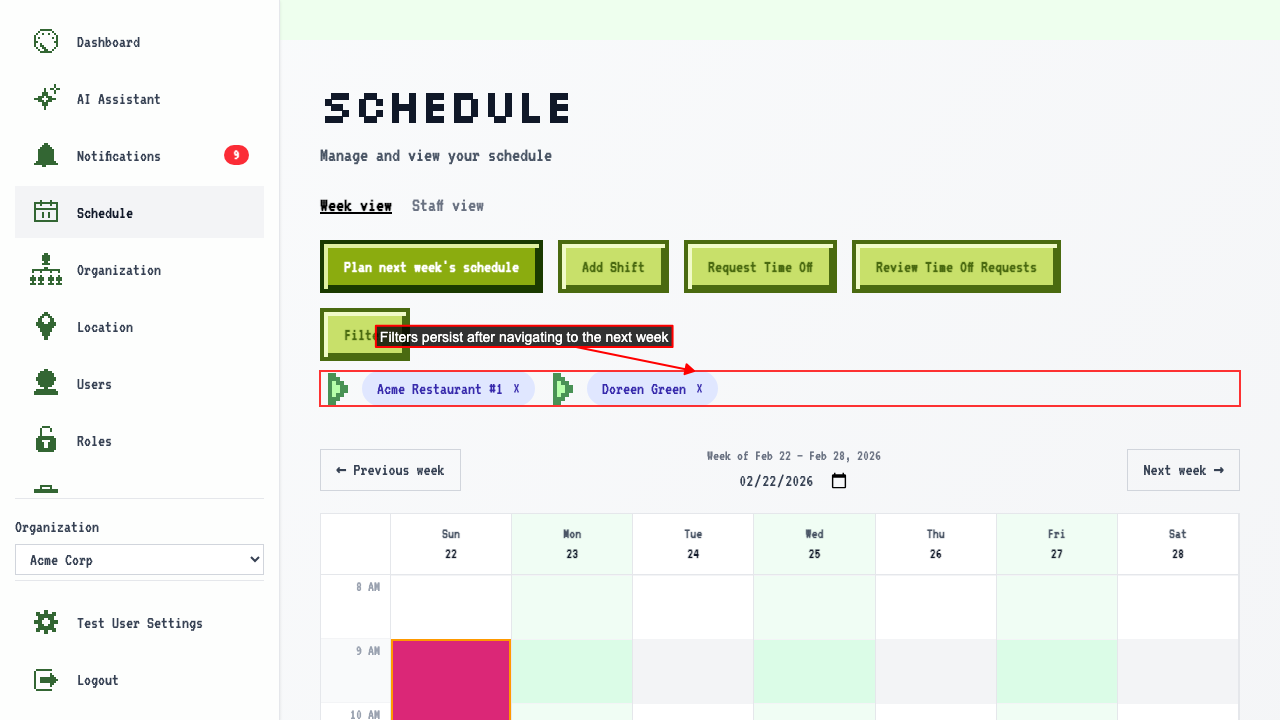
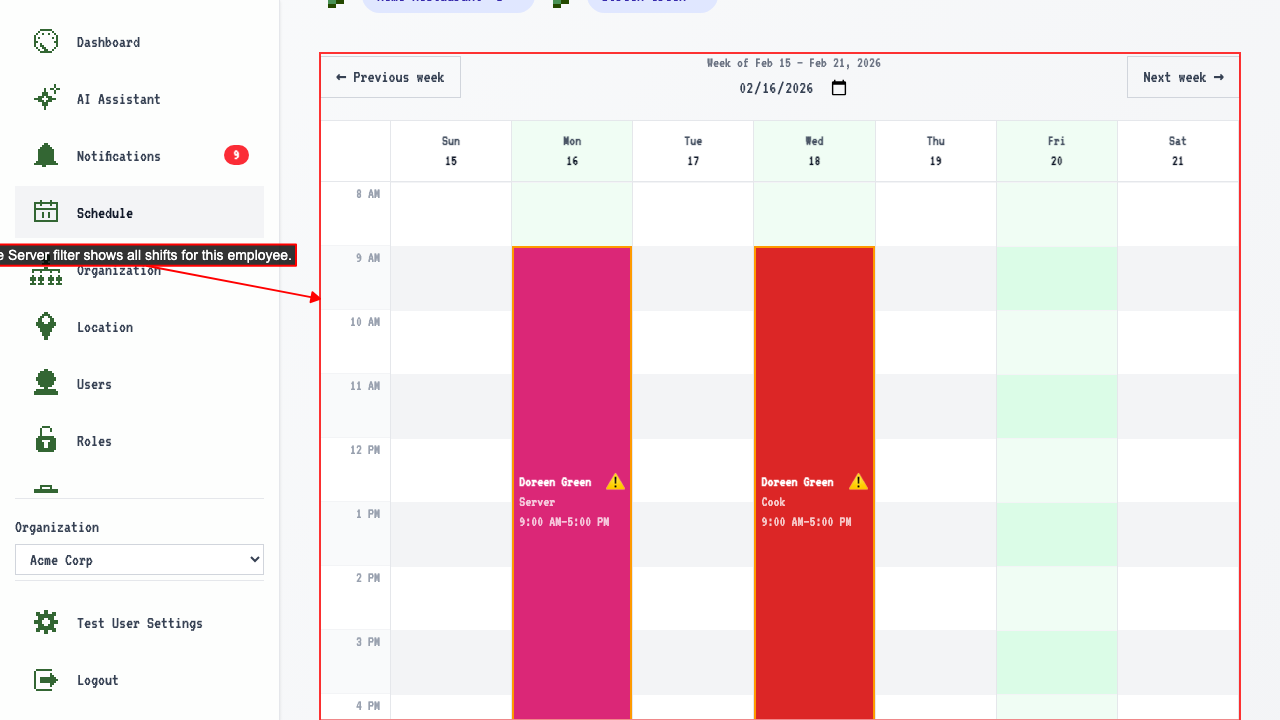 Active filters are preserved when navigating between weeks.
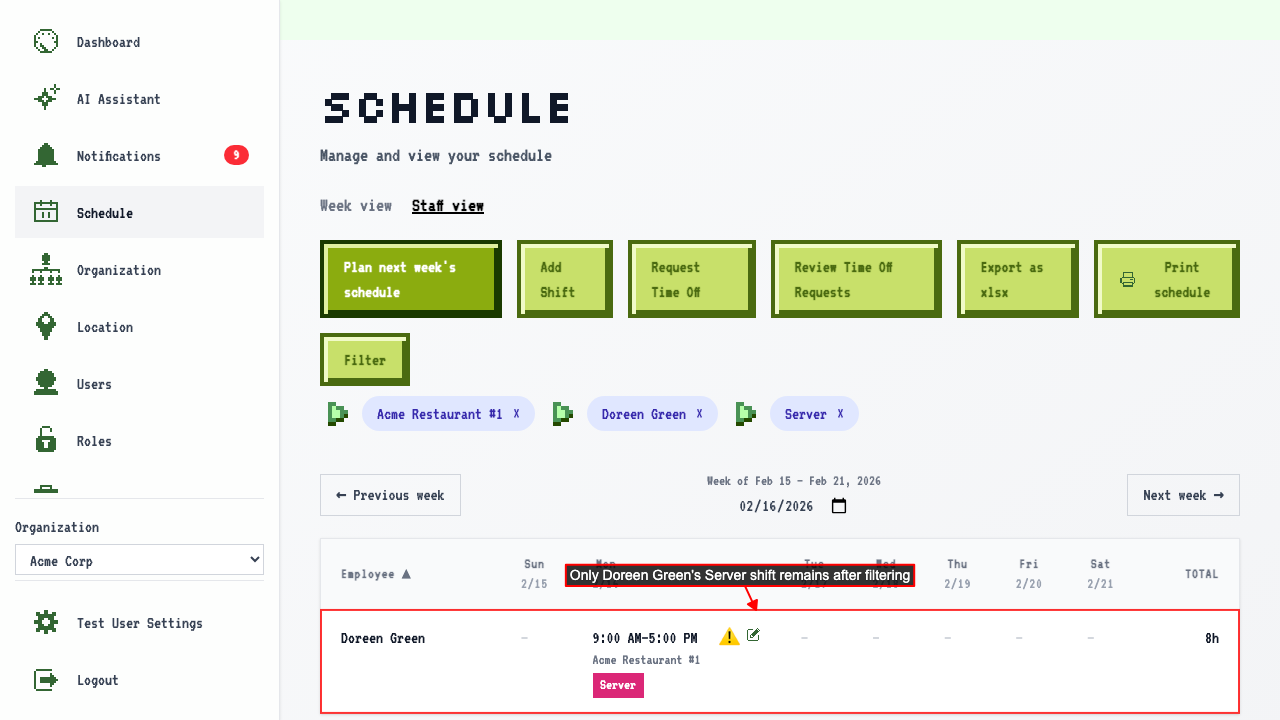
Filtering also works from the staff view
Switch to the staff view.
The same Filter button opens the same options.
The table narrows to only shifts matching the selected filters, same as the calendar.