The Staff View
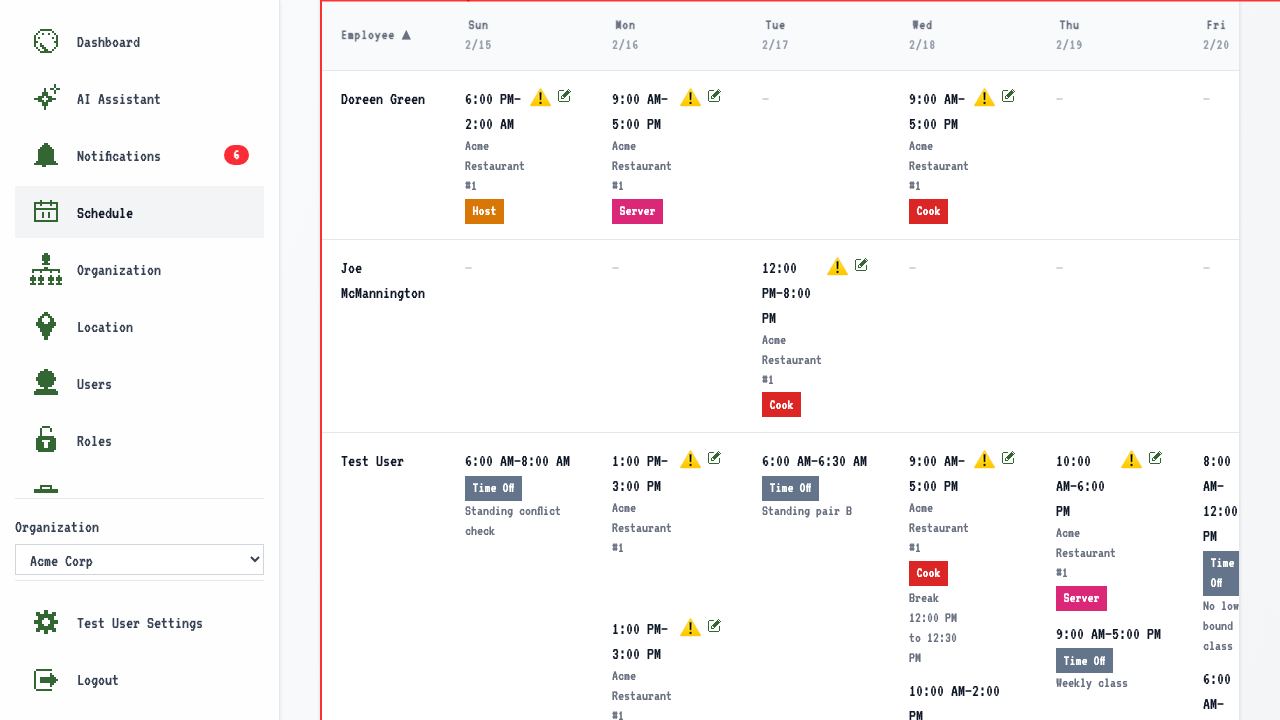
The staff view is what you see first
Navigating to the schedule with no date takes you straight to the staff view.
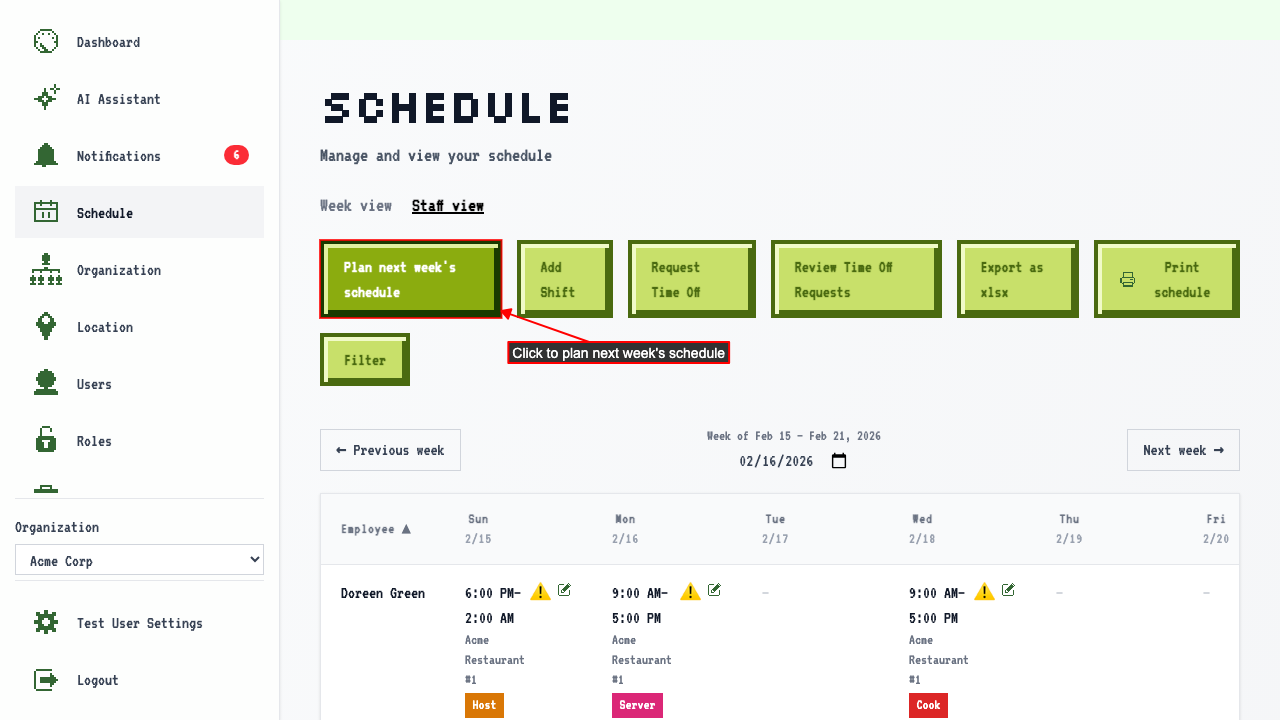
Planning next week from the staff view
From the staff view, clicking 'Plan next week's schedule' takes you to the plan page.
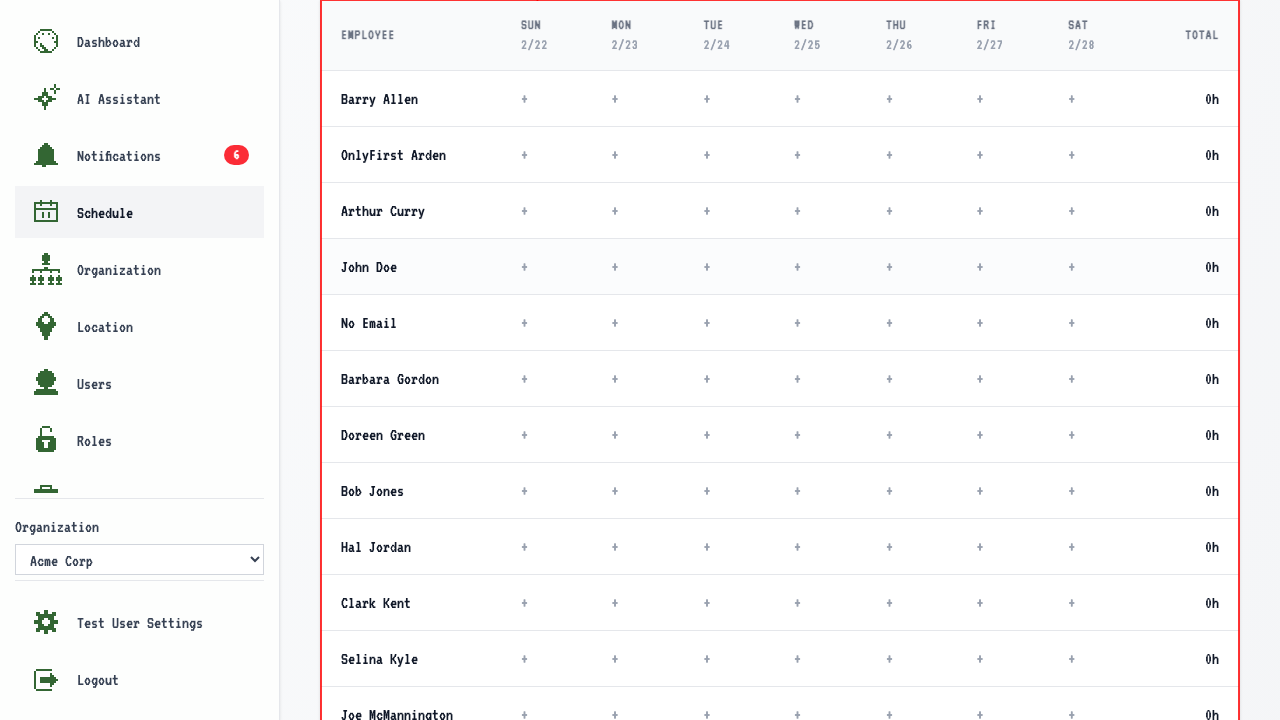
 It opens on its own staff table, matching the view you were planning from. You can still switch to the week view with the tab above it.
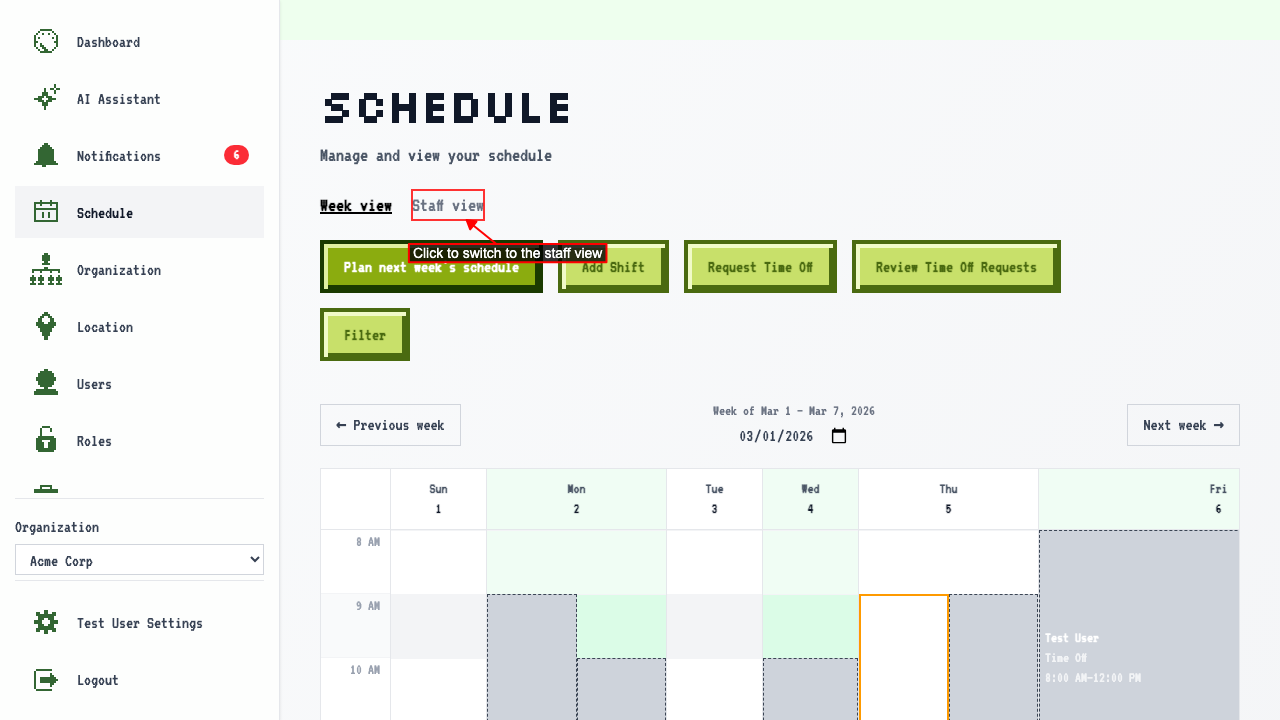
How to switch between the calendar and the staff view
Start on the schedule page.
Click 'Staff view' to switch over.
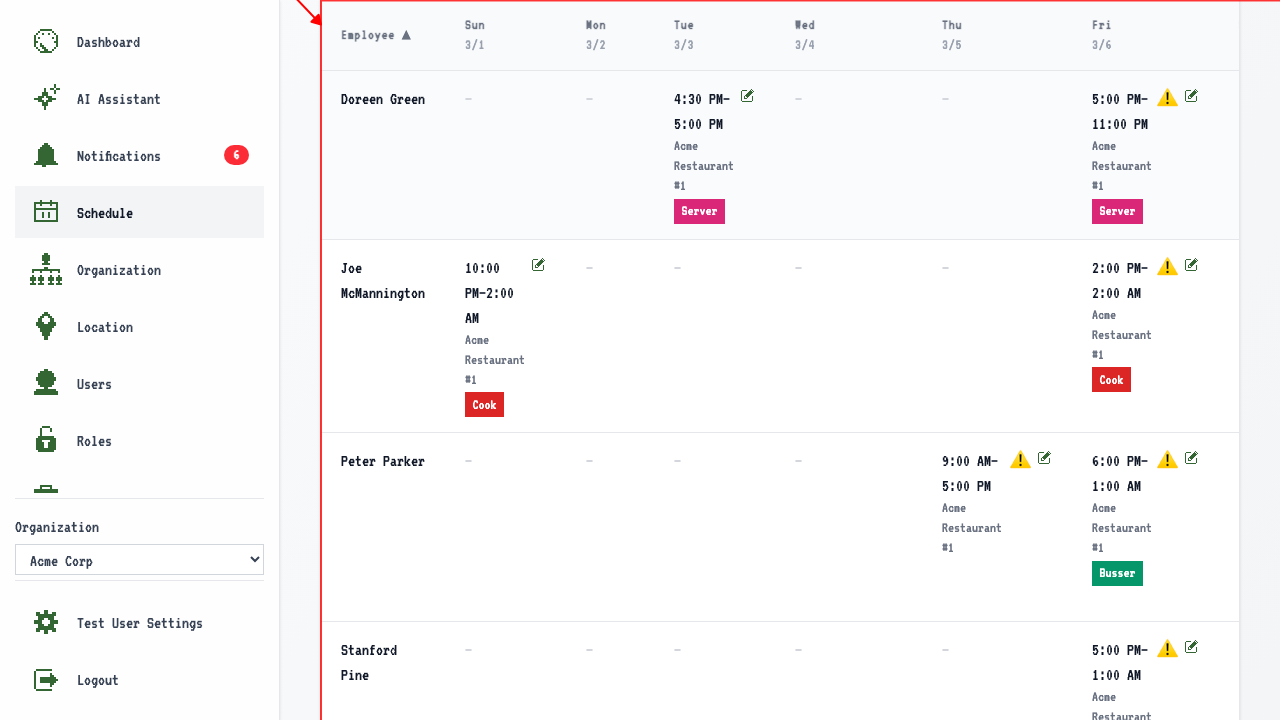 Here you'll be able to see shifts for all the employees and what shifts they have that week by the day. There is also a total of how many hours each employee is scheduled for. Shifts that cross week boundaries are clipped to the week.
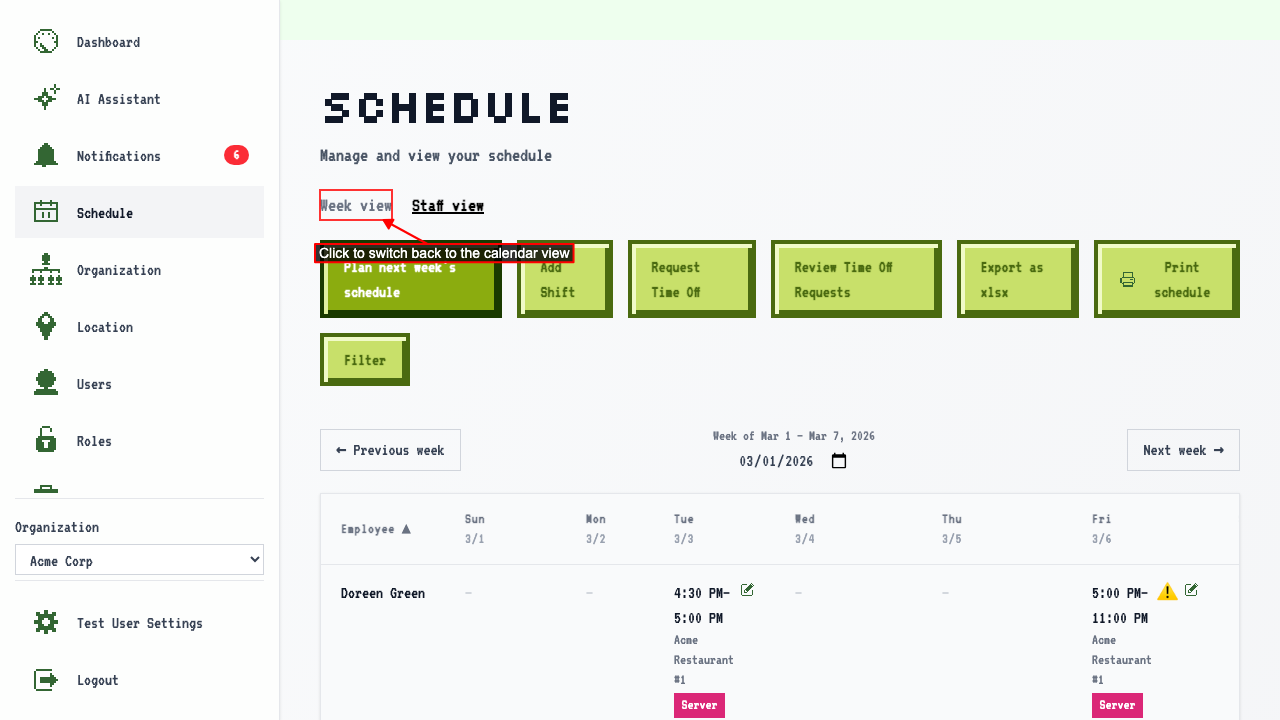
Clicking 'Week view' switches back to the calendar view.
Here you'll be able to see shifts for all the employees and what shifts they have that week by the day. There is also a total of how many hours each employee is scheduled for. Shifts that cross week boundaries are clipped to the week.
Clicking 'Week view' switches back to the calendar view.
How to change the week you're looking at
Start on the staff view.
The date picker shows the week, and the grid lists that week's shifts grouped by employee.
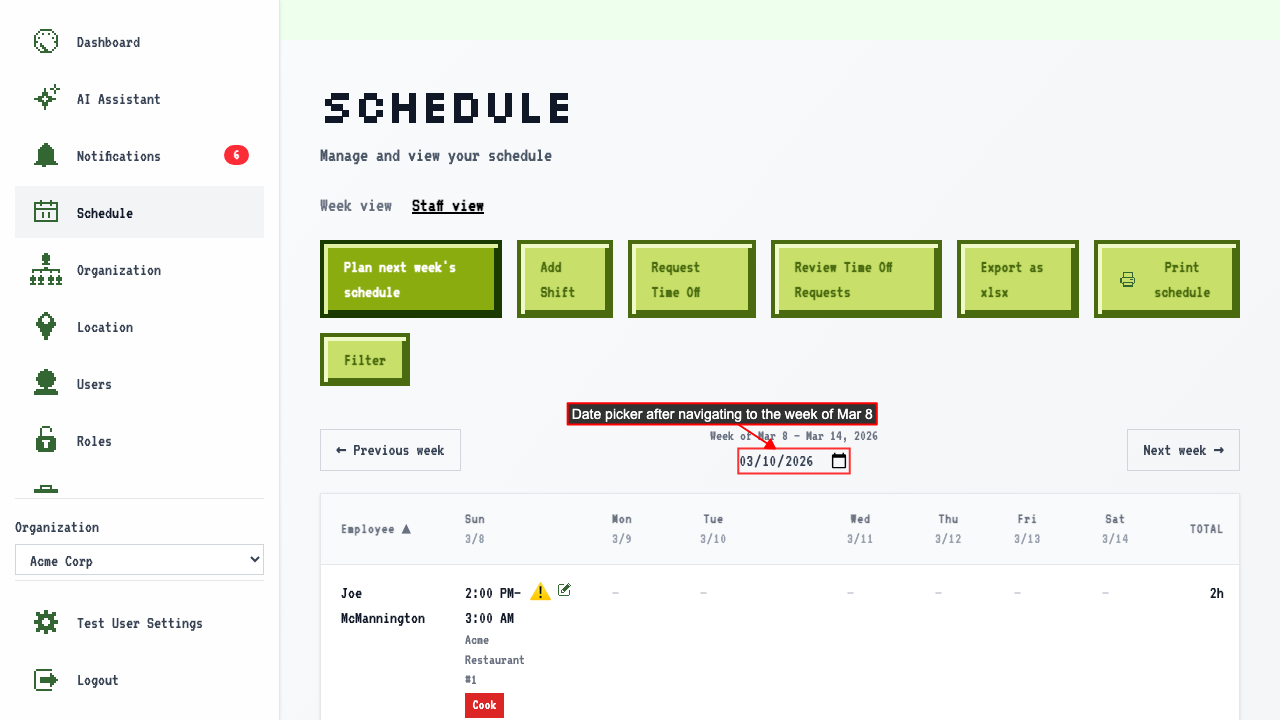
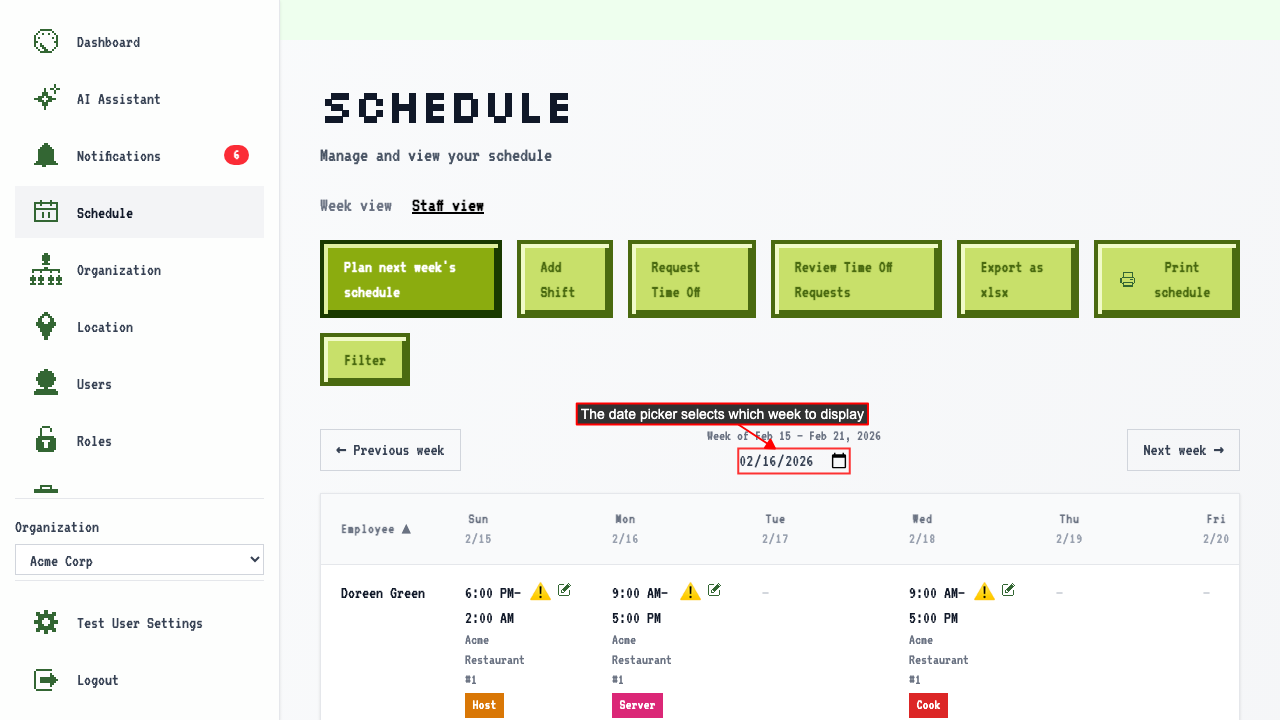 Selecting a date in a different week navigates to that week.
Opening a shift from the staff view
Start on the staff view. Each shift's time in the staff view links to the shift detail page. The shift detail page shows the employee, location, job, and times. The shift detail page also has a link to edit the shift, if you have the appropriate permission.
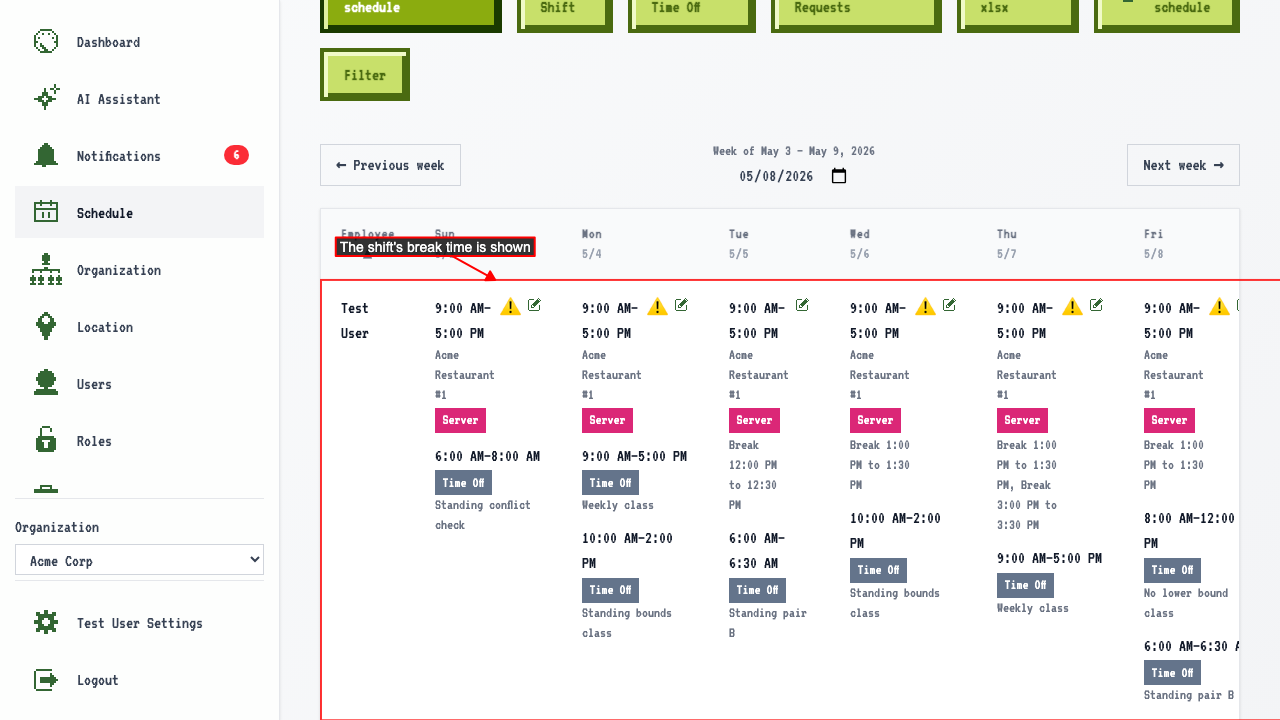
Breaks show alongside the shift
Open a week where someone has a break scheduled.
The break is shown on their shift.
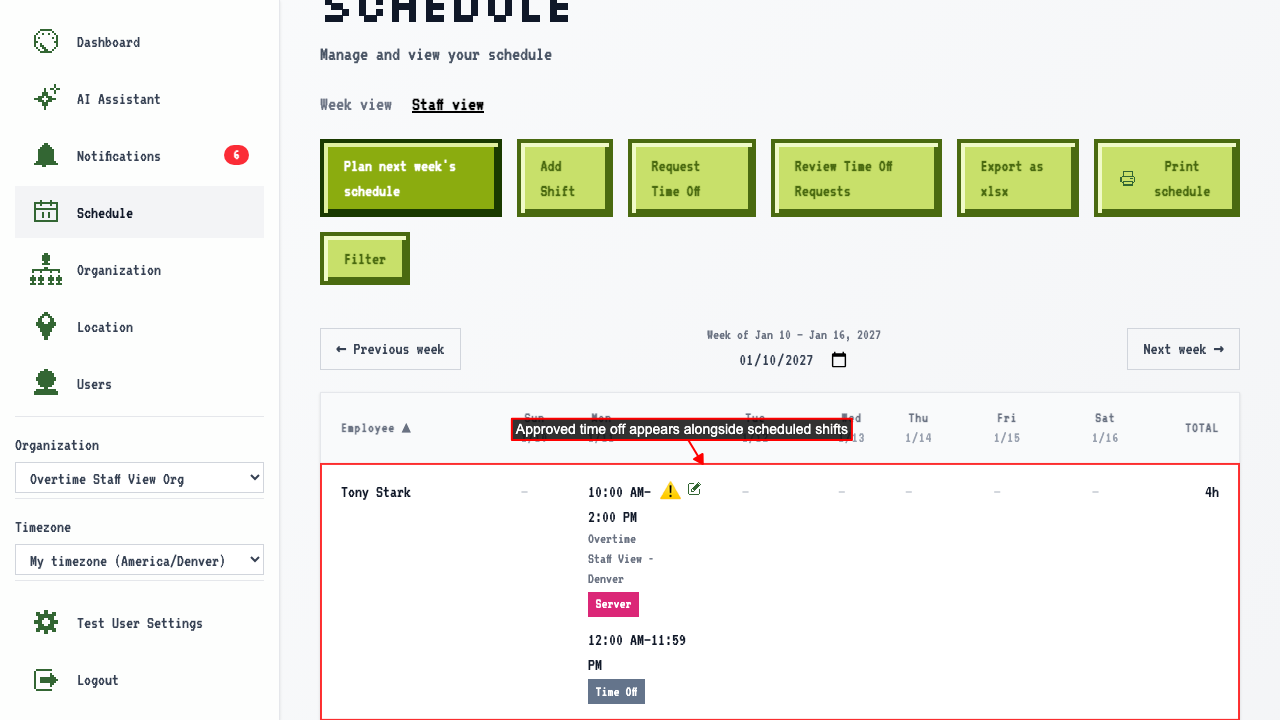
Approved time off shows in the staff view
Open a week where someone has approved time off.
Their row shows a Time Off entry alongside their shifts.
How to sort the staff view by employee name or by day
Navigate to the staff view. By default, the Employee column sorts the table alphabetically by last name. Click the Employee column header again to reverse the sort. Click a day column header to sort by that day's shift time instead. Click the same day column header again to reverse the sort.