Removing Your Card
How to delete your card when you cancel
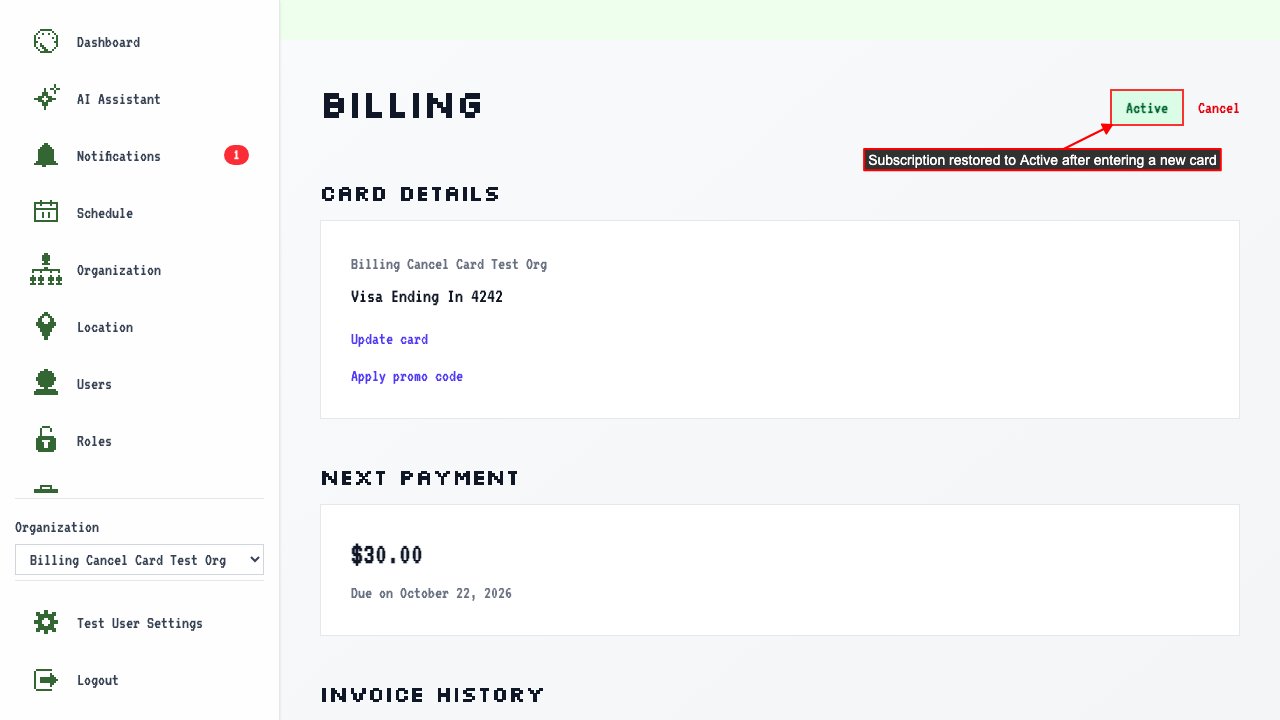
On the Billing Overview page, click the Cancel button.
The Cancel Subscription page has an opt-in checkbox to also remove the saved payment method.
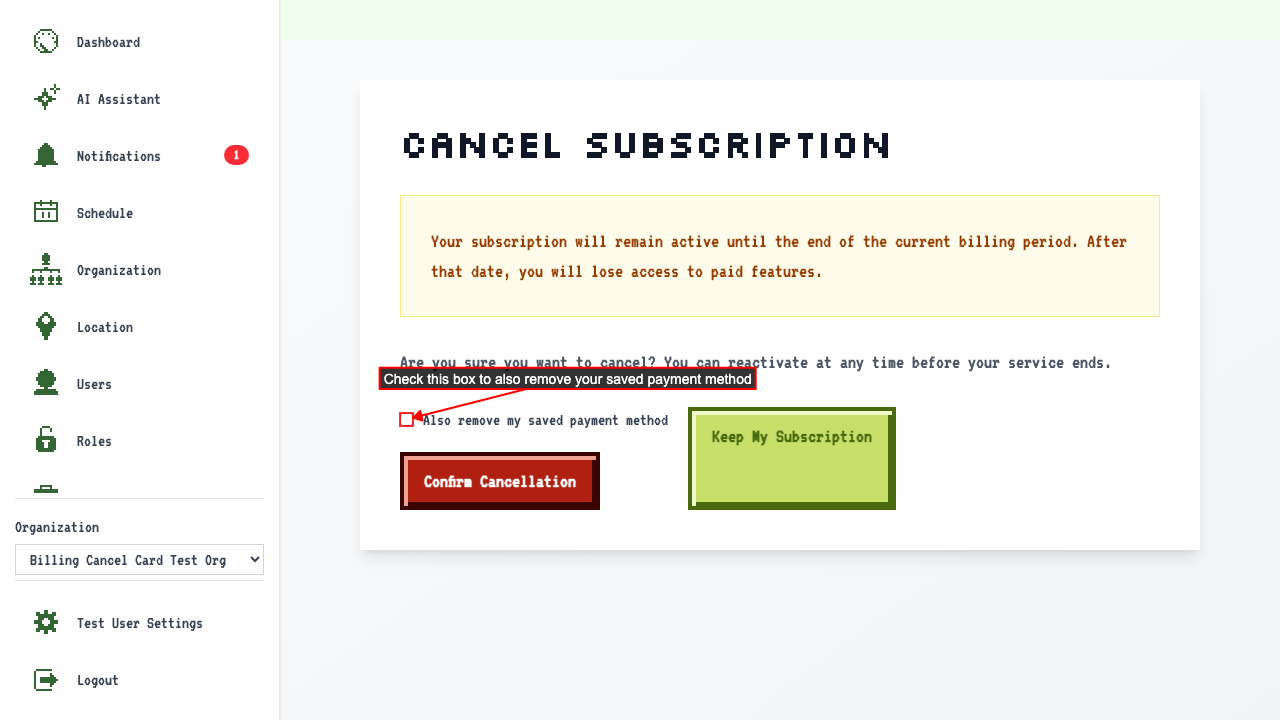 Checking the box and confirming cancellation removes the card and cancels the subscription.
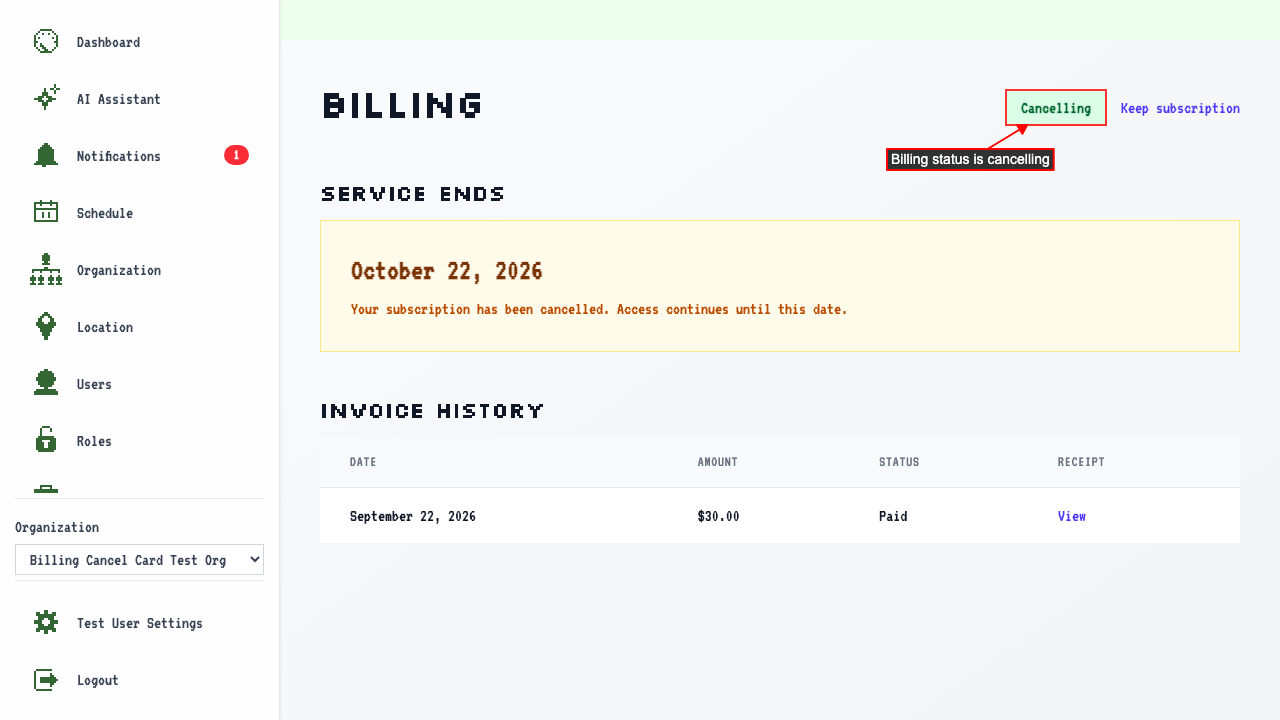
The Billing Overview shows the subscription as Cancelling with no saved card on file.
Checking the box and confirming cancellation removes the card and cancels the subscription.
The Billing Overview shows the subscription as Cancelling with no saved card on file.
You'll need a new card to subscribe again
With the subscription cancelling and no card saved, open the billing page. 'Keep subscription' takes you to the upgrade page, where you can enter a new card. Without a saved card, only the new card form is shown — there is no saved card option.
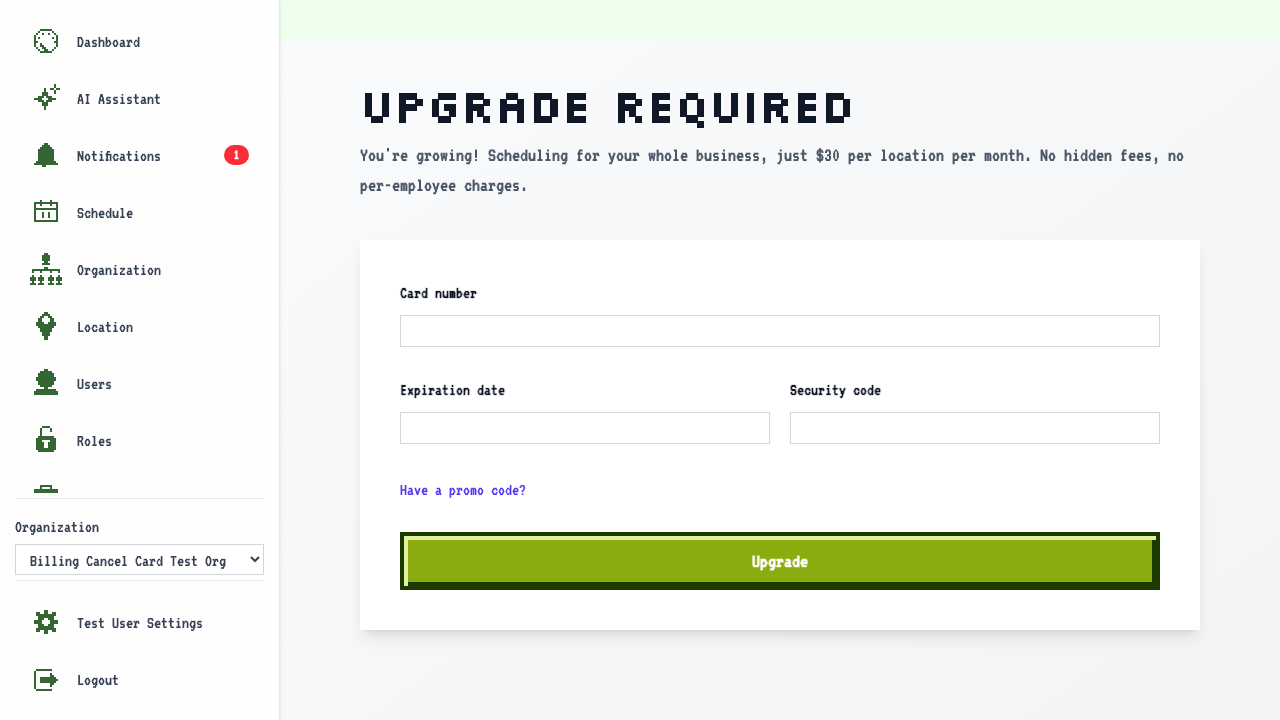
Entering a new card and submitting restores the active subscription.