Import from Square
How to import your Square account to create an organization
When you are on the dashboard,
there is a button to import from Square.
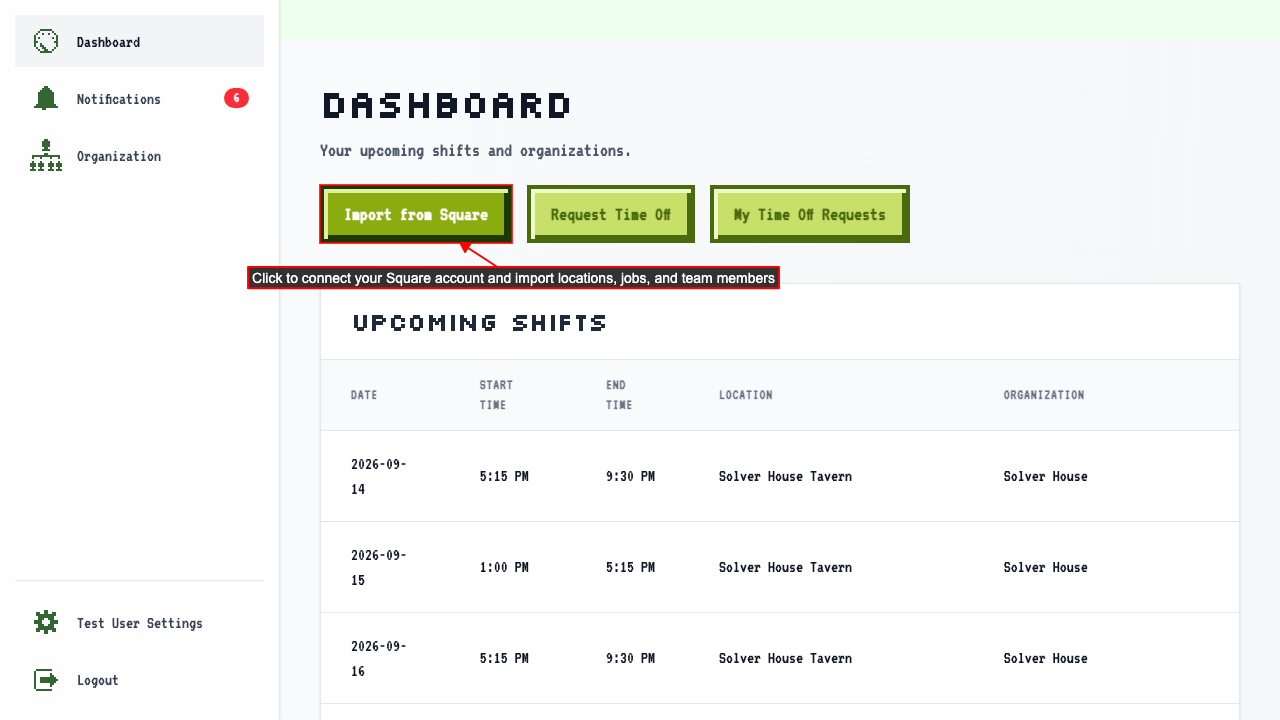 The button will link to Square's OAuth authorization page to connect your account to ScheduleLord.
After authorizing in Square, a loading page is shown while your data is imported.
Once the import is complete, you are redirected to your new organization.
We import the following data from your Square account:
The button will link to Square's OAuth authorization page to connect your account to ScheduleLord.
After authorizing in Square, a loading page is shown while your data is imported.
Once the import is complete, you are redirected to your new organization.
We import the following data from your Square account:
- Locations
- Location details including phone, email, website, timezone, and hours are imported.
- Jobs
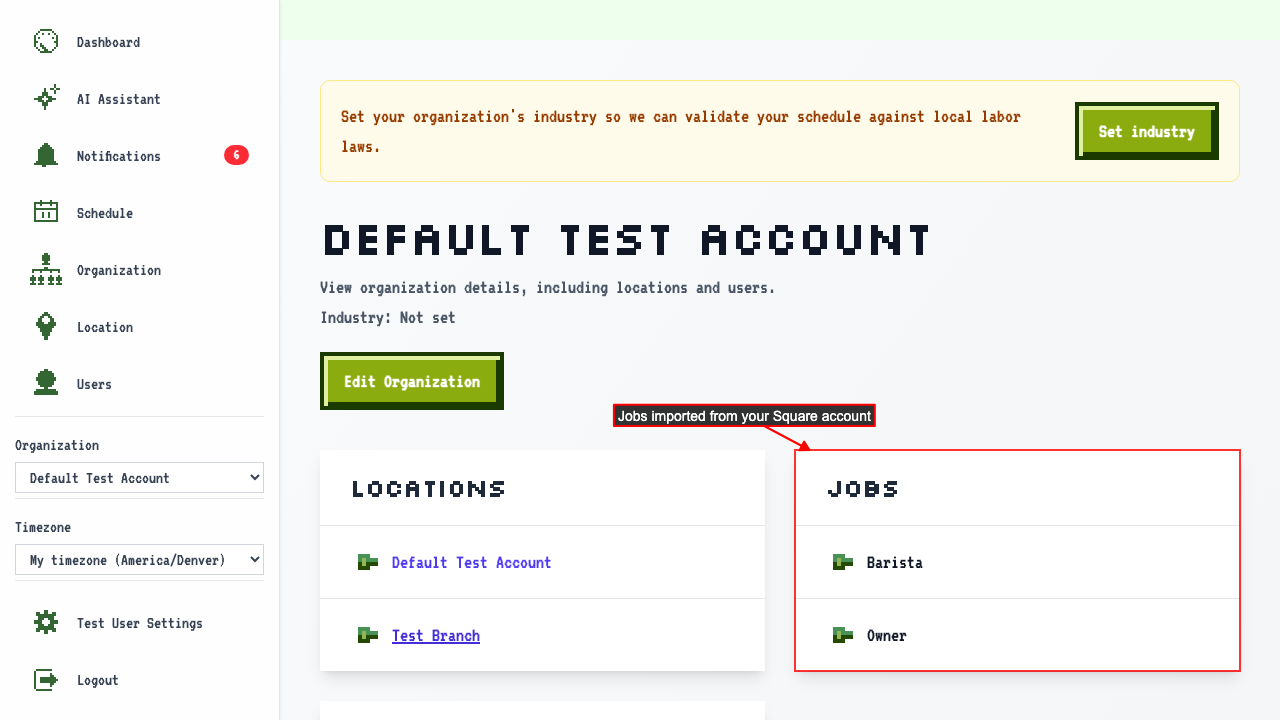
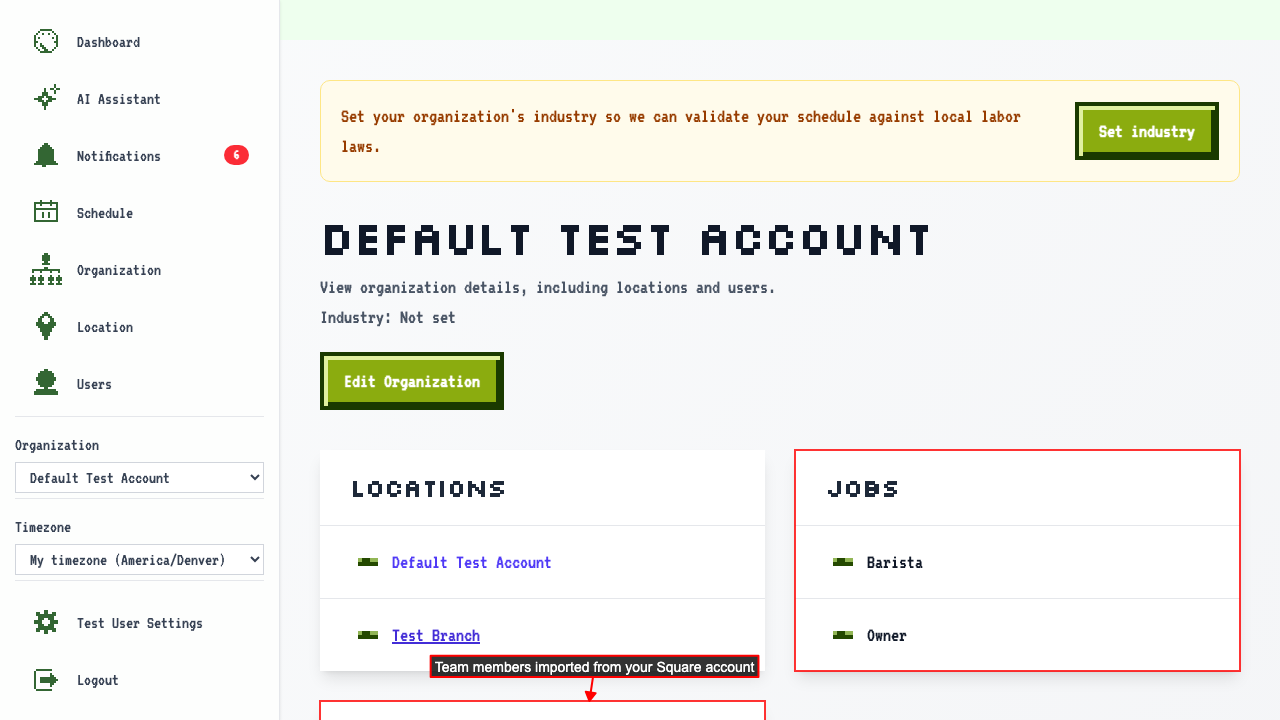
- Team Members
info
Users that have existing accounts in ScheduleLord are linked by email and keep their ScheduleLord name.
 After import, the plan schedule page shows an estimated revenue column for each hour so managers can make informed staffing decisions.